Imagine this: You are halfway through a high-stakes football match or a gripping movie climax, and suddenly, your Amazon Firestick freezes. You reach for your remote, but it’s nowhere to be found, or perhaps it’s stopped responding. The frustration is real. Most users think they are stuck or have to buy a new device, but in 2026, there are several “Secret” ways to handle this. In this 3000-word encyclopedia, I will teach you exactly how to reboot Firestick without original remote using methods that involve your smartphone, your TV hardware, and even your voice.
This guide is designed for the modern user who wants professional solutions without crawling behind the TV to pull out cables. By the time you finish this article, you will be an expert at managing your device “remote-free.” Let’s explore the technical landscape of rebooting a Firestick without the original remote, safely and efficiently.
As Fire OS evolves, it becomes more resource-heavy. In 2026, apps are integrated with AI and heavy background data processing. When you only put your device to “Sleep,” the RAM remains cluttered with “Ghost Processes.” A full power cycle is the only way to clear this digital debris. Learning to reboot Firestick without original remote is not just a backup plan; it’s a maintenance skill. A clean reboot refreshes the kernel, updates temporary system handshake files, and ensures your WiFi chip is operating at maximum frequency.
Topic 2: Using the Digital Bridge (The Fire TV Mobile App)
The most common way to reboot Firestick without original remote is by using the official Amazon Fire TV app. This app acts as a “Digital Bridge” between your smartphone and your streaming stick. It mimics every single button of the physical remote, including the Alexa voice command button.
Step-by-Step Execution:
-
Download the Amazon Fire TV App (Verified version 2026) on your Android or iPhone.
-
Connect your phone to the same WiFi network as the Firestick.
-
Launch the app and wait for your device name to appear.
-
Enter the 4-digit PIN shown on your TV screen into your phone.
-
Use the swipe-pad to go to Settings > My Fire TV > Restart.
This method is the gold standard because it uses official Amazon protocols, making it the safest way to reboot Firestick without original remote.
Topic 3: The HDMI-CEC “Invisible” Remote Trick
Many users don’t realize they already have a backup remote in their hand. HDMI-CEC (Consumer Electronics Control) is a technology that allows your TV remote to send commands to the Firestick through the HDMI cable. This is a brilliant “no-app” way to reboot Firestick without original remote.
How to Activate for Different Brands:
-
Samsung (Anynet+): Go to External Device Manager and enable Anynet+.
-
LG (SimpLink): Go to Connection settings and turn on SimpLink.
-
Sony (Bravia Sync): Enable HDMI Device Link in the system settings.
Once enabled, your TV remote’s “Select” and “Arrow” keys will control the Firestick, allowing you to navigate to the restart menu easily. This is a life-saving hardware hack to reboot Firestick without original remote.
If you want to understand the technical details of how HDMI-CEC works across different TV brands, you can check the official Wikipedia page on HDMI-CEC. This technology is the key to controlling your device without its own remote.
Topic 4: Voice Control Mastery (Alexa Integration)
If you have an Echo Dot or any Alexa-enabled smart speaker in your room, you can reboot Firestick without original remote or even a phone. This is the “Hands-Free” method that feels like living in the future.
The Command Sequence:
-
Ensure your Echo device and Firestick are registered to the same Amazon account.
-
Simply say: “Alexa, restart my Fire TV.”
-
Alexa will confirm and immediately send a reboot signal to the stick.
If you have multiple sticks, specify the room: “Alexa, restart the Bedroom Fire TV.” This is by far the fastest way to reboot Firestick without original remote in a smart home environment.
Topic 5: The Physical “Power Cycle” (The Right Way)
When the software is completely frozen, and no app or voice command works, you have to go physical. However, there is a “Wrong” way and a “Right” way to do this. Doing it wrong can corrupt your data; doing it right will safely reboot Firestick without original remote.
The Safe Hardware Reboot:
-
Do not just yank the cable out. First, turn off the TV.
-
Unplug the power adapter from the wall socket, not the micro-USB port on the stick (to avoid port wear).
-
Wait for exactly 60 seconds. This allows the capacitors to fully discharge.
-
Plug it back in.
This “Cold Boot” is the most powerful way to reboot Firestick without original remote when the system has suffered a catastrophic crash.
Topic 6: Using a USB Keyboard or Mouse (OTG Method)
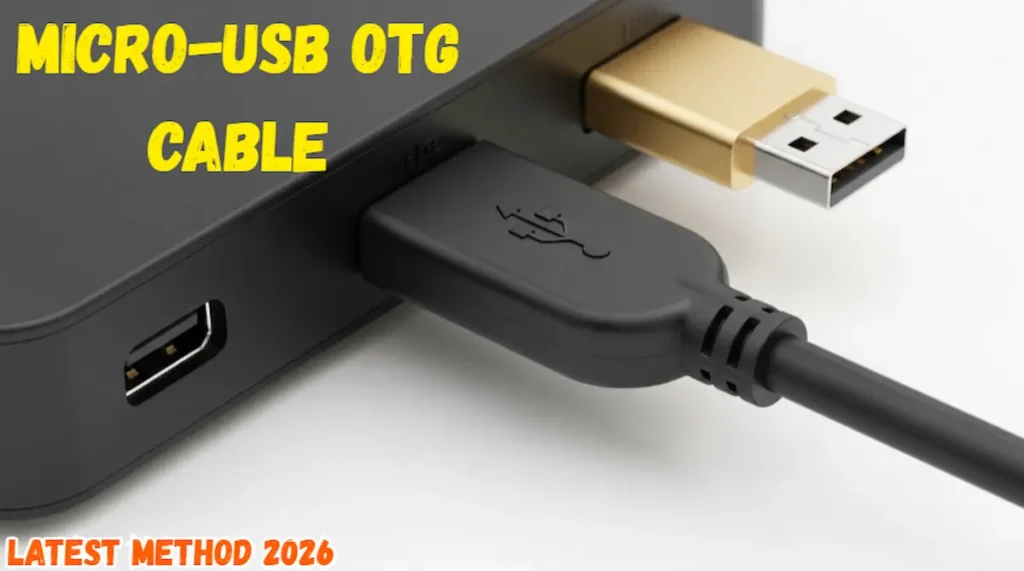
If your WiFi is down and your remote is broken, you are in a “Digital Dark Age.” But don’t worry! You can use a standard computer mouse to reboot Firestick without original remote. You will need a cheap Micro-USB OTG cable for this.
-
Connect the OTG cable to your Firestick.
-
Plug a wireless mouse dongle into the USB port of the OTG cable.
-
A cursor will appear on the TV screen.
-
“Click and Drag” to navigate to Settings > My Fire TV > Restart.
This hardware bypass is a foolproof method for rebooting a Firestick without the original remote, regardless of your internet connection status.
After the reboot, follow our guide below!
Recommended
🚀
How to Easily Sideload Apps on Firestick 2026 (100% Safe)
Unlock hidden features and install any app in minutes! ➔
Topic 7: ADB Commands for Tech Enthusiasts
For the pro users who have “ADB Debugging” enabled, you can reboot Firestick without original remote using your laptop. This is the “Developer Way.”
-
Open Terminal or Command Prompt on your PC.
-
Type adb connect [Your Firestick IP].
-
Once connected, type adb reboot.
Your device will immediately cycle off and on. This method is used by developers to test apps, but it’s a very reliable way for you to reboot Firestick without original remote if you like using a keyboard.
Topic 8: Troubleshooting “Reboot Loops”
Sometimes, you try to reboot Firestick without original remote, but the device gets stuck on the “Fire TV” logo. This is called a boot loop.
-
The Fix: This is usually caused by insufficient power. Ensure you are using the original Amazon brick and not the TV’s USB port.
-
The Fix: Remove any USB hubs or OTG cables and try a direct connection.
Understanding these errors helps you successfully reboot Firestick without original remote without causing further damage.
Topic 9: How to Pair a New Remote After Rebooting
Once you manage to reboot Firestick without original remote, you probably want to fix the underlying issue. If you bought a replacement remote:
-
Navigate to Settings > Controllers & Bluetooth Devices.
-
Select Amazon Fire TV Remotes > Add New Remote.
-
Hold the “Home” button on the new remote for 10 seconds.
This completes the cycle, so you won’t need to reboot Firestick without original remote next time.
Topic 10: Future-Proofing: Virtual Remotes in 2026
In 2026, we recommend having at least two “Virtual Remotes” set up. One on your smartphone and one via a web-browser-based remote tool. This redundancy ensures that the need to reboot Firestick without original remote never becomes a stressful event. Technology is about having backups!
Expert Troubleshooting: 2026 Firestick Fixes
Frequently Asked Questions (FAQ)Ans:
Conclusion: You are in Control
In conclusion, losing your remote is no longer the disaster it used to be. Whether you use the Fire TV app, your TV’s own remote via HDMI-CEC, or a physical OTG keyboard, you have all the tools necessary to reboot Firestick without original remote. These methods ensure that your entertainment never has to stop just because of a piece of plastic.
Remember to keep your mobile app updated and check your TV settings for CEC compatibility today—don’t wait for the remote to break!
Need more help?
If none of these methods worked for you, please leave a comment below with your TV brand and Firestick model. I personally respond to all comments and will help you get back to your favorite shows in no time!
2026 within 24 hours!
Legal Disclaimer:
The information provided in this guide to reboot Firestick without original remote is for educational and informational purposes only. TheStickPedia.com is an independent blog and is not affiliated with, authorized, or endorsed by Amazon. While we aim for 100% accuracy, we are not responsible for any hardware damage, software glitches, or system errors that may occur on your device while following these technical hacks. Users follow these instructions at their own risk. We highly recommend using official Amazon tools and respecting your local digital privacy laws. Always ensure you are using genuine hardware and official applications.