Are you looking for a way to install Bear Player on Firestick? You are not alone. Many streaming enthusiasts are switching to Bear Player on Firestick because of its lightning-fast interface and superior IPTV support. In this expert guide, I will show you exactly how to get Bear Player on Firestick up and running in just a few minutes.
If you are looking for a reliable, sleek, and feature-rich media player to enhance your streaming experience, Bear Player is an excellent choice. However, since it is not available on the official App Store, you need to “Sideload” it. In this professional guide, we will walk you through the entire process of installing and configuring Bear Player on Firestick like a pro.
Phase 1: Why Choose Bear Player? (Technical Analysis)
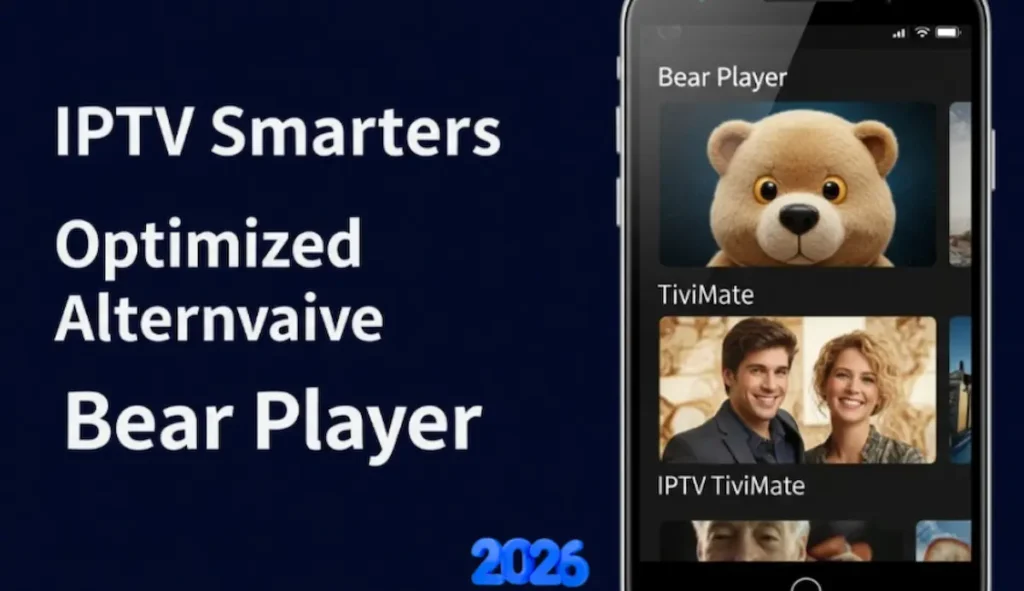
Before we jump into the installation, it is important to understand why thousands of users are switching to Bear Player. Unlike many bloated IPTV players, Bear Player is designed with a “Minimalist-First” approach.
-
Exceptional Speed: The app uses a proprietary caching mechanism that reduces channel zapping time to almost zero.
-
Wide Format Support: Whether it is M3U playlists, Xtream Codes API, or local files, Bear Player handles them with ease.
-
User Interface: The UI is clean, remote-friendly, and supports EPG (Electronic Program Guide) integration flawlessly.
-
Parental Controls: It offers robust security features to hide categories or lock specific content.
Phase 2: Preparing Your Firestick for Sideloading
Amazon, by default, restricts the installation of apps from “Unknown Sources” to protect users. To install Bear Player, we must first lift this restriction.
1. Enable Developer Options
-
Navigate to the Settings (Gear Icon) on your Firestick Home Screen.
-
Select My Fire TV.
-
Click on About.
-
Find your Fire TV Stick Name and click it 7 times rapidly. You will see a notification: “No need, you are already a developer.”
2. Configure Unknown Sources
-
Go back to the My Fire TV menu.
-
You will now see a new option called Developer Options. Open it.
-
Turn ON the option that says Install Unknown Apps.
-
Note: If you haven’t installed the “Downloader” app yet, you will do this in the next step.
Is Bear Player Buffering or Lagging?
Don’t let slow performance ruin your streaming. A full system cache causes most issues. Check out our
Master Guide on Clearing Cache
to make your Firestick 2x faster instantly!
Phase 3: Installing the Downloader Utility
To get the Bear Player on Firestick, we need a bridge. The “Downloader” app is the most trusted tool for this purpose.
-
Go to the Find menu on your Home Screen and select Search.
-
Type “Downloader” and select the app with the orange icon.
-
Click Download and then Open.
-
When prompted, click Allow to give the app access to your files. This is mandatory for the installation to work.
Phase 4: Step-by-Step Installation of Bear Player
Now that the environment is ready, let’s get the app installed.
-
Launch the Downloader App.
-
In the URL bar, you need to enter the direct download link or a Downloader Code for Bear Player.
-
(Note to User: Usually, these codes change. You can find the latest Bear Player code on their official website or community forums.
-
-
Type the code/URL and press Go.
-
The APK file will begin downloading. It is a small file, so it should take less than a minute.
-
Once the download is complete, click Install.
-
Crucial Step: After the installation is finished, click Done (not Open).
-
Click Delete on the Downloader screen to remove the APK file. This saves precious storage space on your Firestick.
Phase 5: Configuring Bear Player for the First Time
Installing the app is only half the battle. You now need to configure it to fetch your content.
-
Go to Your Apps & Channels and find the Bear Player icon. Move it to the front for easy access.
-
Open the app. You will be greeted with a login or setup screen.
-
Choose your Method: Bear Player typically supports two main methods:
-
M3U Playlist: Enter the URL provided by your service provider.
-
Xtream Codes API: Enter your Username, Password, and Server URL.
-
-
Once entered, click Login/Connect.
-
Wait for the app to download your channel list, VODs, and EPG data.
Pro Instruction: Always double-check the server URL. A single missing character or a misplaced dot is the most common reason for login failures.
Phase 6: Advanced Tips for a Better Experience
To truly master Bear Player on Firestick, you should explore these professional settings:
-
Change Video Player: If a particular stream isn’t working, go to Settings and switch the “Built-in Player” to “Hardware Accelerated.”
-
Enable Auto-Update: Ensure the EPG (TV Guide) is set to update every time the app opens so you always have the latest schedules.
-
VPN Integration: Because many IPTV streams are geo-blocked, using a high-quality VPN with Bear Player is highly recommended for privacy and access.
Phase 7: Troubleshooting Common Errors
Even with a professional setup, issues can arise. Here is how to fix them:
-
“App Not Installed” Error: This usually happens if you haven’t turned on “Install Unknown Apps” or if you are out of storage space.
-
Buffering Issues: Ensure your Firestick is connected to a 5GHz Wi-Fi band. If the issue persists, clear the cache of Bear Player.
-
Black Screen on Startup: This is often a sign of a corrupted APK. Delete the app and reinstall it using a fresh download link.
Verified Source
Official Downloader App Support
For more details on how sideloading works on Amazon devices, visit the official support portal.
Frequently Asked Questions (FAQs)
💡 Expert FAQs
Q: Is Bear Player safe for my Firestick?
Yes, Bear Player is a legitimate media player. As long as you are using the official APK link to install Bear Player on Firestick, your device remains secure.
Q: Why is Bear Player not on the Amazon App Store?
Many IPTV players are not hosted on official stores due to strict policy guidelines. This is why we use the Sideloading method to get it on your device.
Q: Does Bear Player support 4K streaming?
Absolutely. Bear Player is fully compatible with 4K UHD streams, provided your Firestick model and IPTV service support that resolution.
Conclusion
Installing Bear Player on Firestick is a straightforward process that unlocks a world of high-quality streaming possibilities. By following this professional guide—from enabling developer options to configuring your first playlist—you have transformed your Firestick into a high-performance media hub.
Remember, the key to a great streaming experience isn’t just the app you use, but how well you maintain your device. Keep your cache clear, your firmware updated, and enjoy the premium interface of Bear Player.