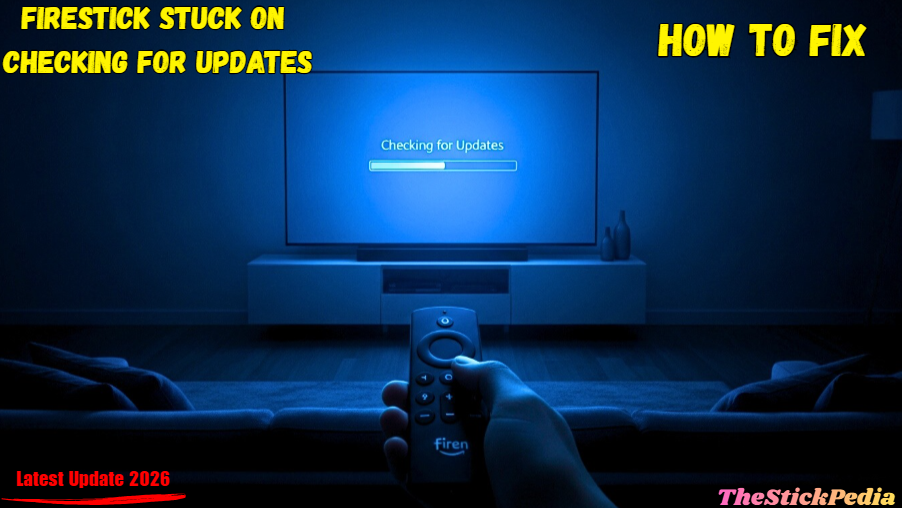
Is your Firestick stuck on checking for updates? If yes, you are not alone. This 2026 guide will show you how to fix this annoying update loop instantly. Five minutes pass. Then ten. Then thirty. You realize your streaming plans are in jeopardy.
This “update loop” is one of the most common and frustrating errors for Fire TV users in 2026. But here is the good news: Your device isn’t broken. Whether you are using the Firestick 4K Max, the Lite version, or even an older 2nd Gen stick, this guide will show you exactly how to break the loop and get back to streaming.
⚡Quick Fix: Bypass Update Loop
Amazon’s 2026 updates require a stable connection and high power. Before trying complex steps, check these essentials:
- ✔ Wall Power: Use the official Amazon wall plug (NOT TV USB).
- ✔ HDMI Extender: Ensure the 3-inch extender is connected.
- ✔ The 60-Sec Rule: Unplug power for 60 seconds to clear cache.
View Secret Remote Button Hack ↓
Why is your Firestick Stuck on Checking for Updates?
To fix the problem permanently, we first need to understand the “Why.” In 2026, FireOS has become more complex, and updates are heavier. Here are the primary reasons your device is struggling:
-
Low Power Supply: Using the TV’s USB port instead of a wall outlet is the #1 cause.
-
Server Connectivity Issues: Sometimes Amazon’s servers in your region are down or congested.
-
Weak Wi-Fi Signals: If your router is too far or there is interference, the download times out.
-
Corrupted Cache: Sometimes the temporary files of the previous update get “stuck,” preventing the new one from starting.
-
Hardware Interference: Electronic noise from the back of your TV can mess with the internal Wi-Fi antenna.
Step 1: The “Pro” Power Cycle Technique
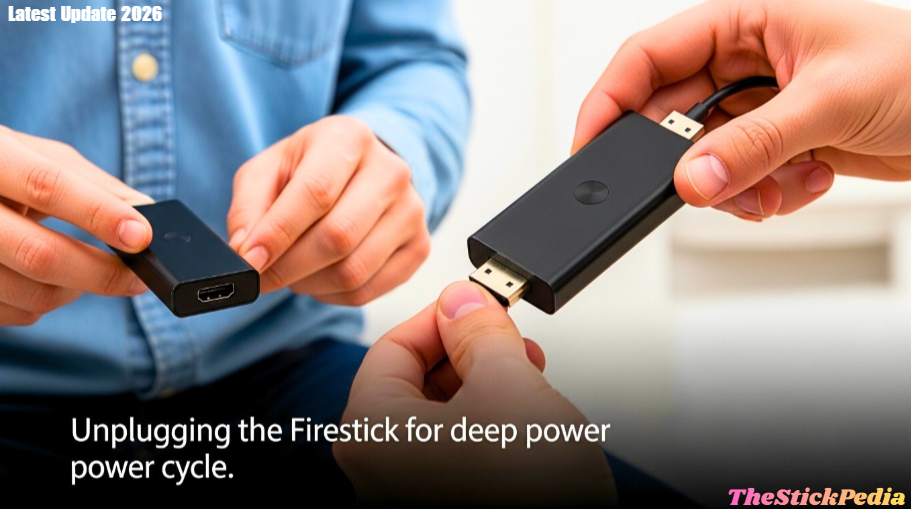
Most people think “Restarting” means just turning the TV off. That won’t work here. You need a deep power cycle to clear the device’s temporary memory (RAM).
How to do it correctly:
-
Unplug the Firestick directly from the HDMI port.
-
Disconnect the micro-USB power cable from the stick.
-
Wait for a full 60 seconds. Do not rush this step; the capacitors inside need to drain fully.
-
Plug everything back in and wait for it to boot.
Step 2: The Wall Outlet Fix (The Most Important Step)
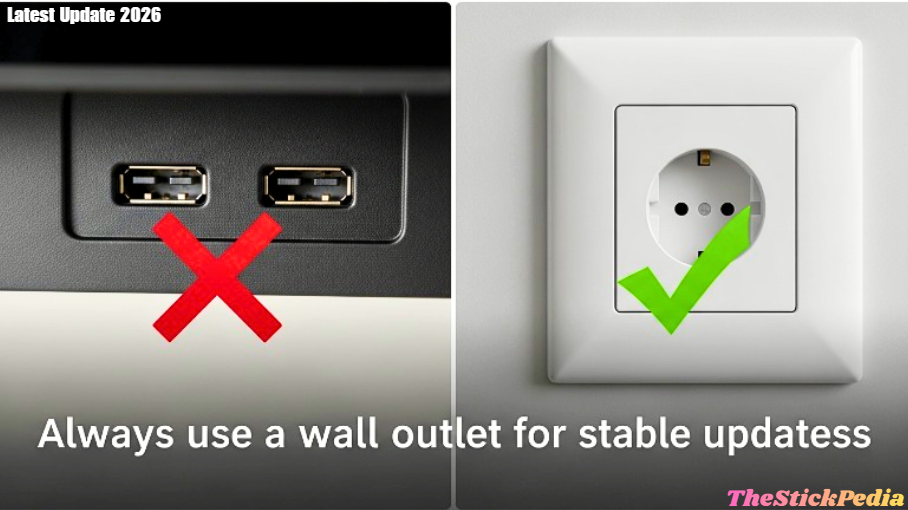
If you are currently powering your Firestick through the USB port on the back of your TV, stop right now.
Most TV USB ports only output 0.5 Amps. However, when a Firestick is performing a system update, it requires at least 1.0 to 1.5 Amps of steady power. When it doesn’t get enough “juice,” the software freezes, and you get stuck on the “Checking for Updates” screen.
The Solution:
Find the original Amazon power brick (the square plug) that came with your device. Plug the USB cable into that brick and connect it directly to a wall power outlet. You will be surprised how often this single step fixes the entire issue.
Step 3: Use the Secret Remote Button Shortcut
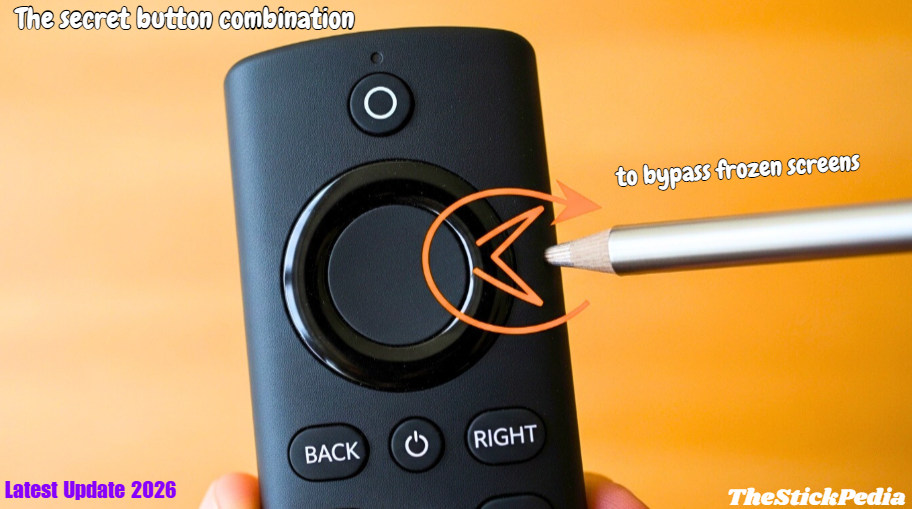
In 2026, many users are unaware that the Firestick remote has hidden diagnostic shortcuts. If your screen is frozen, you can sometimes “force” the device to skip the check or enter a recovery mode.
The Shortcut:
-
Hold the Back button and the Right side of the Navigation Circle together.
-
Keep them pressed for 15 seconds.
-
A menu might appear asking to factory reset. Don’t click reset yet. Sometimes, just triggering this menu background wakes the update process.
For More Help, go to Amazon’s official support page
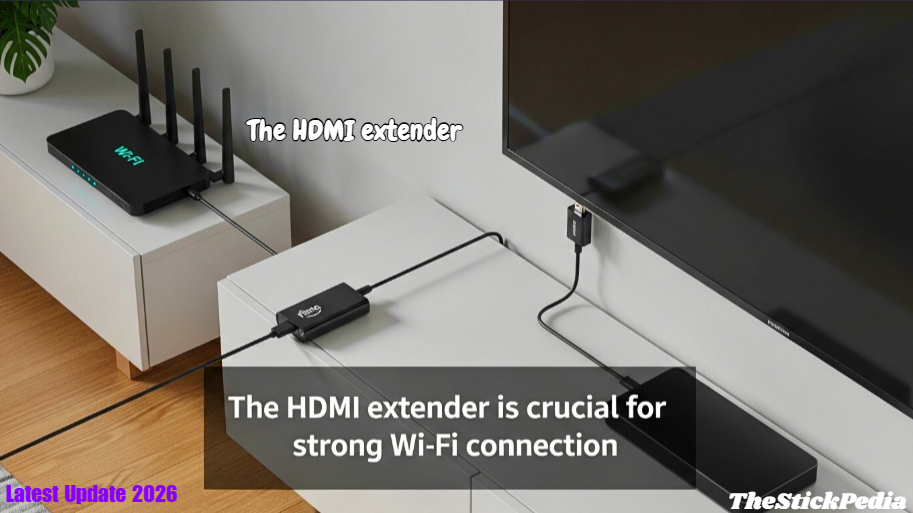
Step 4: Improve Wi-Fi Signal with the HDMI Extender
Remember that 3-inch flexible cable that came in the Firestick box? It’s not just an “extra” piece of wire.
The back of a modern 4K TV is full of metal shields and electronic components that create “noise.” This noise can block your Firestick’s Wi-Fi signal. By using the HDMI Extender, you move the Firestick away from the TV’s body, giving it a clear line of sight to your router.
Step 5: The Smartphone Hotspot Trick
Sometimes your home ISP (Internet Service Provider) might have a DNS block or a slow connection to Amazon’s update servers.
Try this:
-
Turn on the Mobile Hotspot on your phone.
-
Restart your Firestick.
-
If you can get to the network settings, connect to your phone’s hotspot.
-
Mobile data often uses different routing paths and might download the update much faster than your home Wi-Fi.
Also Read: Firestick App Installation Blocked? How to Fix & 2026 Guide
Step 6: Factory Reset (The Last Resort)
If you have tried everything and your Firestick has been stuck for over 2 hours, a Factory Reset might be your only option. Please note that this will delete your installed apps, but it will save your hardware from becoming a paperweight.
How to Reset Without the Menu:
-
Press and hold the Back and Reverse (Rewind) buttons for 10-15 seconds.
-
A pop-up will appear on the screen.
-
Click OK or wait for the countdown to finish. The device will wipe itself and install the latest OS version automatically.
Common Questions (FAQs)
Q: Will I lose my data if I unplug during ‘Checking for Updates’?
▼
Q: How much storage do I need for a Firestick update in 2026?
▼
Q: Can a VPN cause my Firestick to get stuck on updates?
▼
Final Tips for a Smooth Experience
Getting your Firestick stuck on checking for updates is a headache, but as we’ve seen, it’s usually a simple fix involving power or connectivity. By following these updated 2026 methods—especially switching to a wall outlet—you can ensure your device stays fast and up to date.
Don’t let a loading screen ruin your weekend. If these steps worked for you, share this guide with your friends who might be facing the same issue!
Legal Disclaimer:
The information provided on this page is for educational purposes only. While we strive to provide accurate and up-to-date troubleshooting steps, we are not responsible for any hardware damage or data loss that may occur while following these guides. This website is not affiliated with Amazon.com or its subsidiaries. Always follow official manufacturer guidelines where possible.