There is nothing more frustrating than sitting down for a movie night, grabbing your FireStick remote, and… nothing. The screen is stuck, the buttons do nothing, and you’re left staring at a useless piece of plastic.
In 2026, FireStick remotes have become smarter, but they still g
litch out. Whether your remote is completely dead, blinking an orange light, or just being stubborn, I’ve got you covered. In this guide, I’ll show you exactly how to restart, reset, and pair your remote like a pro.
Why is My FireStick Remote Not Working 2026?
Before we jump into the fixes, let’s quickly look at the common culprits in 2026:
-
Battery Drain: Even the best batteries die.
-
Pairing Issues: Sometimes the remote “forgets” its connection.
-
Distance & Obstacles: Physical blocks or being too far away.
-
Software Glitches: A simple restart is often all you need.
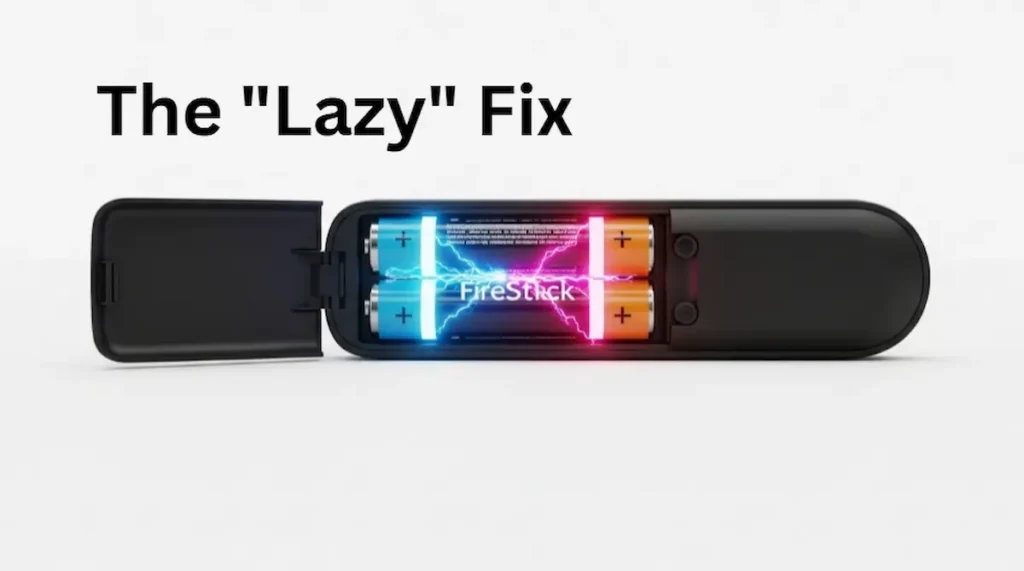
Fix 1: The “Lazy” Fix (Check Your Batteries)
I know, I know—you’ve probably checked them. But in 2026, FireStick remotes will use more power for voice commands and backlighting.
-
Pop the back cover off.
-
Remove the batteries and wait 60 seconds.
-
Put them back in (or better, use fresh Alkaline batteries).
-
Try again.
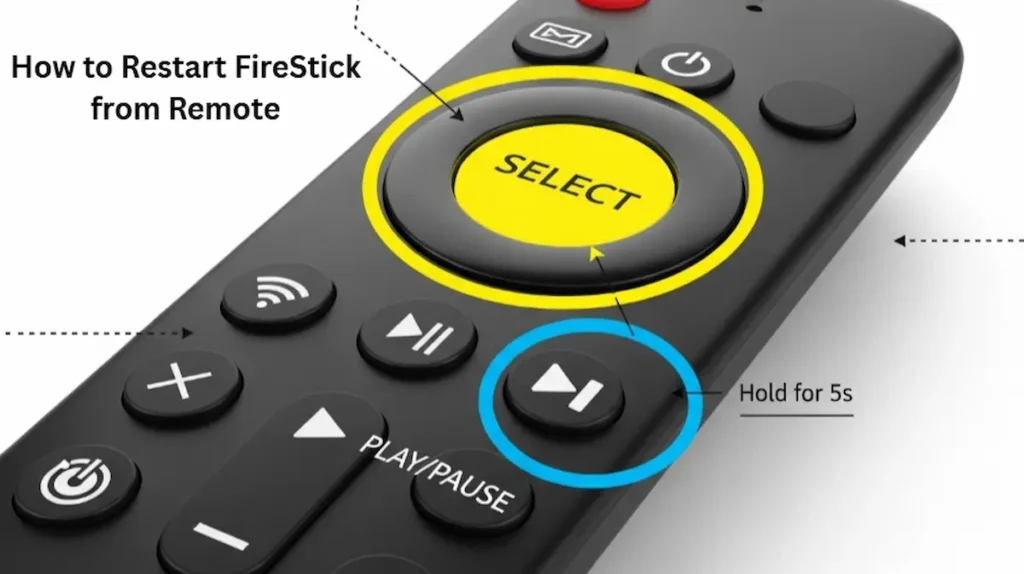
Fix 2: How to Restart FireStick from Remote (The ‘Breakout’ Fix)
If your remote is partially working but the screen is frozen, you can force a restart using just the buttons. This is a top-trending search for a reason—it works!
-
Press and hold the Select (center circle) and Play/Pause buttons together.
-
Keep holding them for about 5 to 10 seconds.
-
Your FireStick will automatically shut down and reboot.
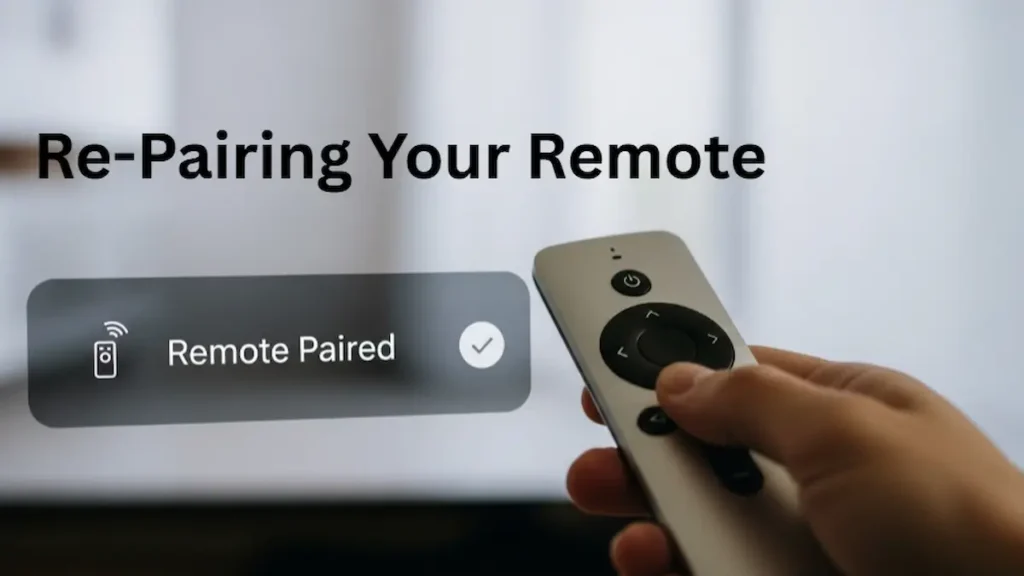
Fix 3: Re-Pairing Your Remote
Sometimes the connection drops. Here is how to force your FireStick to find its remote again:
-
Unplug your FireStick from the power outlet for 60 seconds.
-
Plug it back in and wait for the home screen to load.
-
Hold the Home button on your remote for 10-20 seconds.
-
A message will appear on the bottom right: “New Remote Paired.”
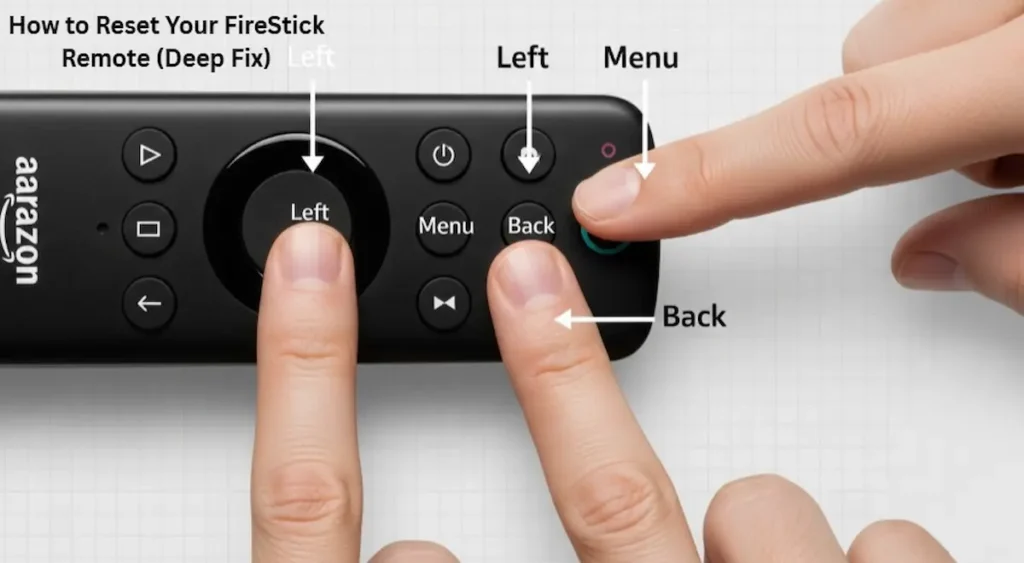
Fix 4: How to Reset Your FireStick Remote (Deep Fix)
If a simple restart didn’t work, it’s time for a “Hard Reset.” Note: Steps differ slightly for older remotes, but this works for most 2026 models:
-
Unplug your FireStick from power.
-
Press and hold the Left, Menu, and Back buttons at the same time.
-
Hold for 12 seconds.
-
Release and wait 5 seconds.
-
Remove batteries, plug FireStick back in, and re-insert batteries.
Fix 5: Check for Interference (The 2026 Problem)
In 2026, our homes are filled with wireless devices (Smart fridges, Wi-Fi 7 routers, etc.). These can mess with your remote’s Bluetooth signal.
-
Move Closer: Stay within 10 feet of your TV.
-
Clear the Way: Remove any metal objects or electronics sitting between the remote and the FireStick.
-
Use the Extender: Use the small HDMI extender that came in the box to move the FireStick away from the back of the TV.
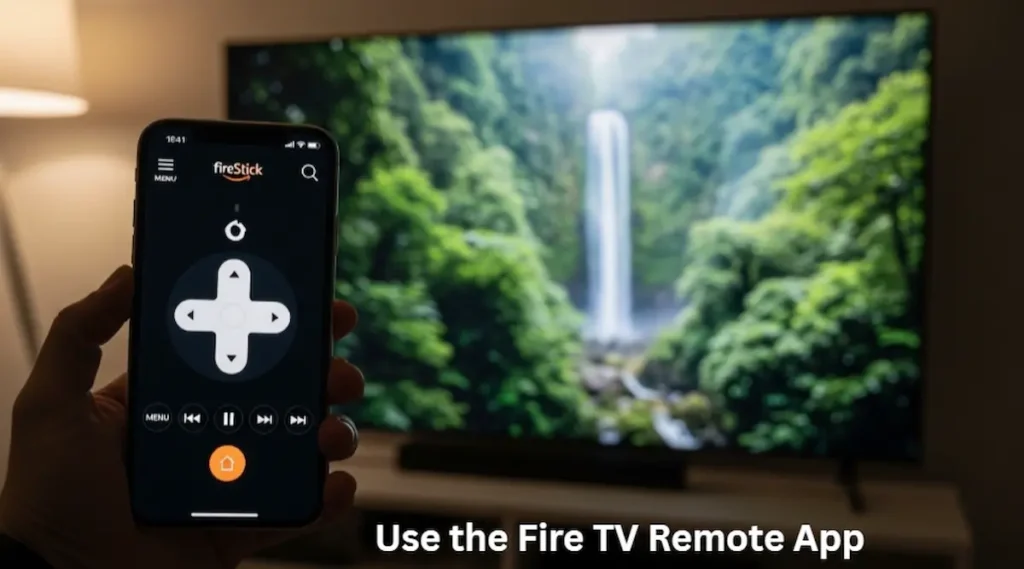
Fix 6: Use the Fire TV Remote App (The Backup Plan)
If your physical remote is truly broken, don’t panic. Your phone is your new remote.
-
Download the Amazon Fire TV app from the App Store or Google Play.
-
Ensure your phone and FireStick are on the same Wi-Fi.
-
Open the app, select your device, and enter the code shown on your TV.
Fix 7: Fix the “Parse Error” (Advanced)
If you see a “Parse Error” while trying to update your remote or an app, it usually means the file is corrupt.
-
Solution: Clear the cache of your “System Updates” in settings, or check your internet connection strength.
Fix 8: Check for CEC Settings
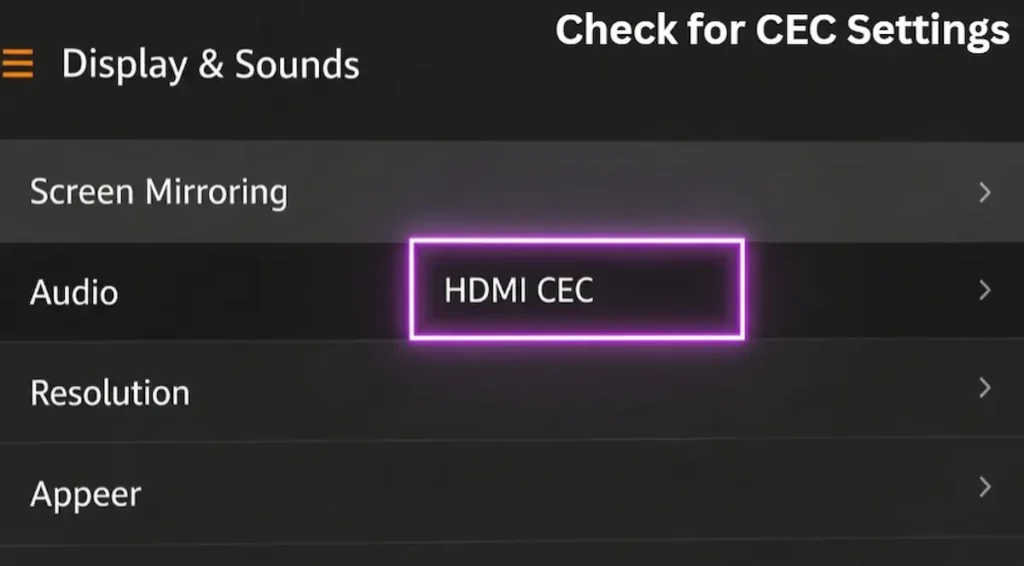
Is your remote turning on the TV but not controlling the volume? That’s a CEC issue.
-
Go to Settings > Display & Sounds > HDMI CEC Device Control.
-
Turn it OFF and then ON again.
Fix 9: Clean the Buttons
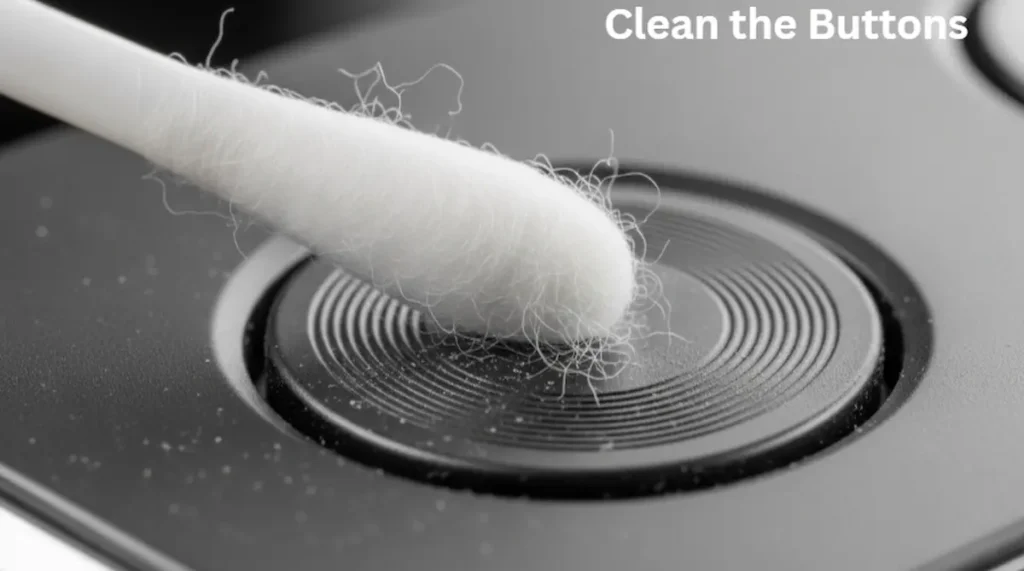
Sometimes, a spilled drink or dust makes buttons stick.
-
Use a cotton swab with a tiny bit of Isopropyl Alcohol to clean around the edges of the buttons.
Fix 10: When to Buy a New One?
If you’ve tried everything and the remote is still dead, it might be due to a hardware failure. In 2026, you can find Replacement Voice Remotes on Amazon for under $20.
🌐 Official Resource:
If your FireStick remote not working 2026 issues persist even after a reset, you may have a hardware failure. Visit the
Official Amazon Device Support
to check your warranty or order a replacement.
Final Thoughts
A non-working remote doesn’t have to ruin your night. Most of the time, a 12-second reset or a fresh pair of batteries is all it takes to get back to streaming. If you followed this guide and still have issues, leave a comment below with your FireStick model, and I’ll help you out!
⚖️
OFFICIAL LEGAL NOTICE
The information provided in this guide to fixing FireStick Remote Not Working 2026 is strictly for educational and informational purposes. TheStickPedia.com is an independent technical blog and is not affiliated with, authorized, or endorsed by Amazon.com, Inc. While we strive for 100% accuracy in our steps, we are not responsible for any hardware damage, data loss, or technical glitches that may occur while following these instructions. All product names, logos, and brands are the property of their respective owners. Users follow these instructions at their own discretion and risk. We strongly recommend using official Amazon accessories for the best performance.