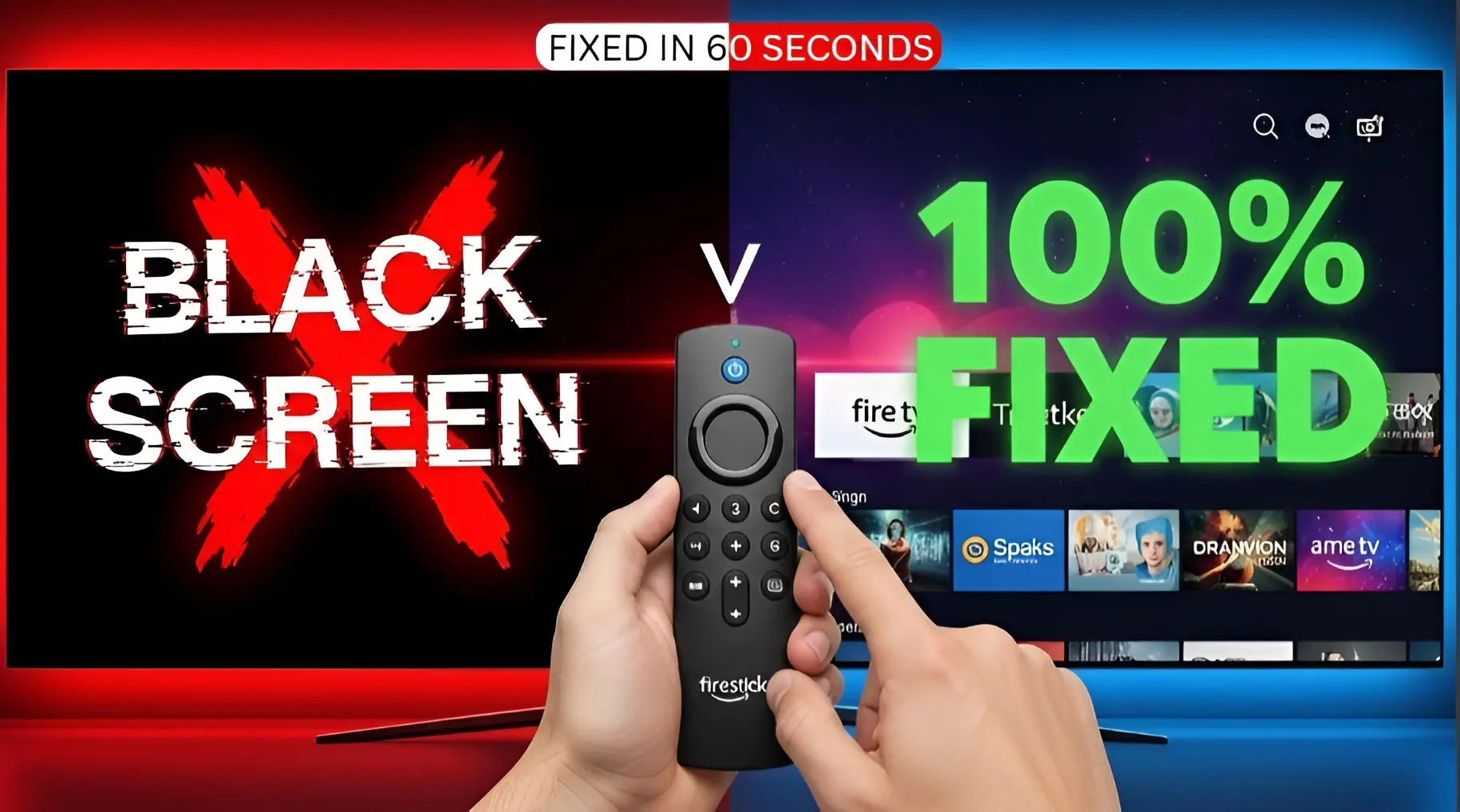
In this amazing guide, I will show you exactly how to Fix Firestick Black Screen of Death 2026 using the safest and most effective methods available. Let’s be real for a moment. We have all had that sinking feeling in our stomach. You’ve had a long day at work, you’ve finally got the kids to bed, and you sit down with your favorite snack to catch up on the latest series.
You press the power button on your remote, the TV turns on, and then… nothing. Just a dark, empty, black screen staring back at you. You press buttons, you shake the remote, you even try yelling at the TV, but the screen stays pitch black. In 2026, the “Firestick Black Screen of Death” is more common than ever because our devices are working harder, processing more data, and dealing with heavier updates than ever before.
If you are reading this, you are probably frustrated, and you might even be thinking about buying a new device. But wait! Before you spend another $50, I want you to know that your Firestick is likely still alive. In this massive, 2000-word encyclopedia of troubleshooting, I am going to walk you through 10 professional steps to fix Firestick black screen of death 2026 errors. We are going to look at everything from the simple power issues to the deep system resolution cycles that most people don’t even know exist. This isn’t just a list of tips; this is a complete manual for reclaiming your streaming freedom. Let’s get to work.
Step 1: The Power Supply Audit (The #1 Culprit)
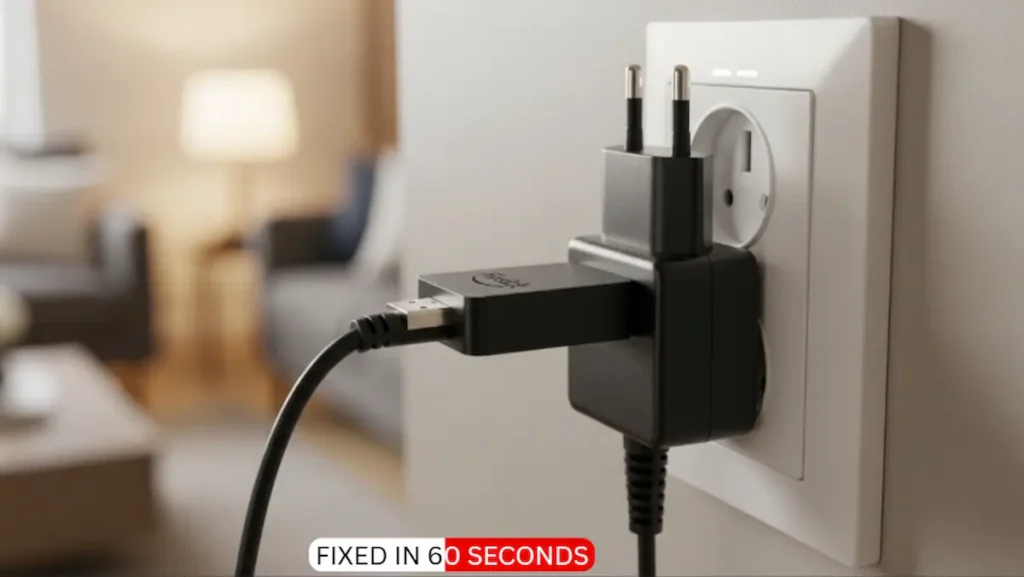
I cannot tell you how many times I have helped someone fix Firestick black screen of death 2026 only to find out they were powering their device the wrong way. In 2026, Firesticks—especially the 4K Max and the Cube—require a lot of “juice.” Most people plug the USB cable directly into the back of their TV. This is a huge mistake. TV USB ports are designed for low-power data transfer, usually providing only 0.5 Amps. Your Firestick needs at least 1.0 to 1.5 Amps to boot up its operating system.
When the device doesn’t get enough power, it tries to start (you might see the logo for a second), and then the CPU crashes because it can’t draw enough electricity. This results in the black screen.
-
Locate your original Amazon power brick (the one that plugs into the wall).
-
Unplug the USB from the TV and plug it into the wall outlet.
-
Ensure the cable is pushed all the way in.
This simple change is the most effective way to fix Firestick black screen of death 2026 and prevent your device from rebooting in the middle of a movie.
Step 2: The “Triple Minute” Cold Boot
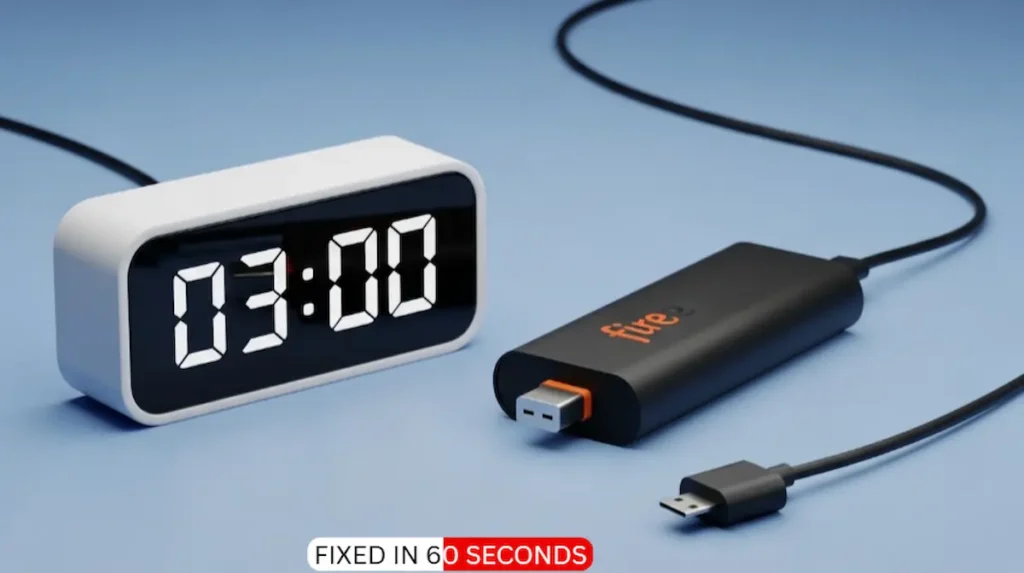
If the power supply is correct and you still see black, we need to perform what I call the “Triple Minute” cold boot. Putting your Firestick to “Sleep” is not the same as turning it off. In 2026, Fire OS often develops “Memory Leaks” where background processes stay stuck in the RAM even when the device is off. To fix Firestick black screen of death 2026, we need to drain every single millivolt of static electricity from the hardware.
How to do it properly:
-
Unplug the Firestick from the TV’s HDMI port.
-
Unplug the power cable from the wall.
-
Wait for exactly 3 full minutes. Do not rush this.
-
While waiting, hold down the Power button on your TV for 30 seconds (this drains the TV’s internal capacitors too).
-
Plug everything back in.
This forces the Firestick’s kernel to reload from scratch, which is a guaranteed way to fix Firestick black screen of death 2026 caused by minor software glitches.
Step 3: Resolving the HDMI Handshake Protocol
HDMI is not just a cable; it’s a two-way communication protocol. Your TV and your Firestick are constantly “talking” to each other to agree on resolution and copy protection (HDCP). In 2026, with the introduction of HDMI 2.1 and eARC, these “handshakes” sometimes fail. If the TV doesn’t receive the correct signal from the stick, it simply shows a black screen. To fix Firestick black screen of death 2026 related to HDMI, we need to reset this handshake.
The HDMI Fix:
-
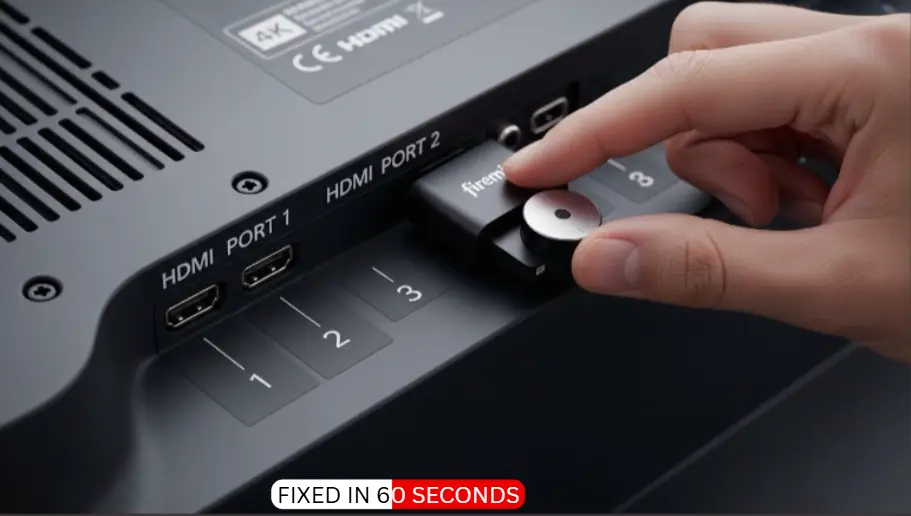
Try a different HDMI port on your TV. Sometimes Port 1 is reserved for ARC and can cause conflicts.
-
If you are using the small HDMI extender cable that came in the box, try removing it and plugging the stick directly into the TV.
-
Alternatively, if you aren’t using the extender, try using it! It acts as a shield against electromagnetic interference from the back of the TV.
Mastering the hardware connection is vital to fix Firestick black screen of death 2026 for long-term stability.
Step 4: The Secret Resolution Reset Hack
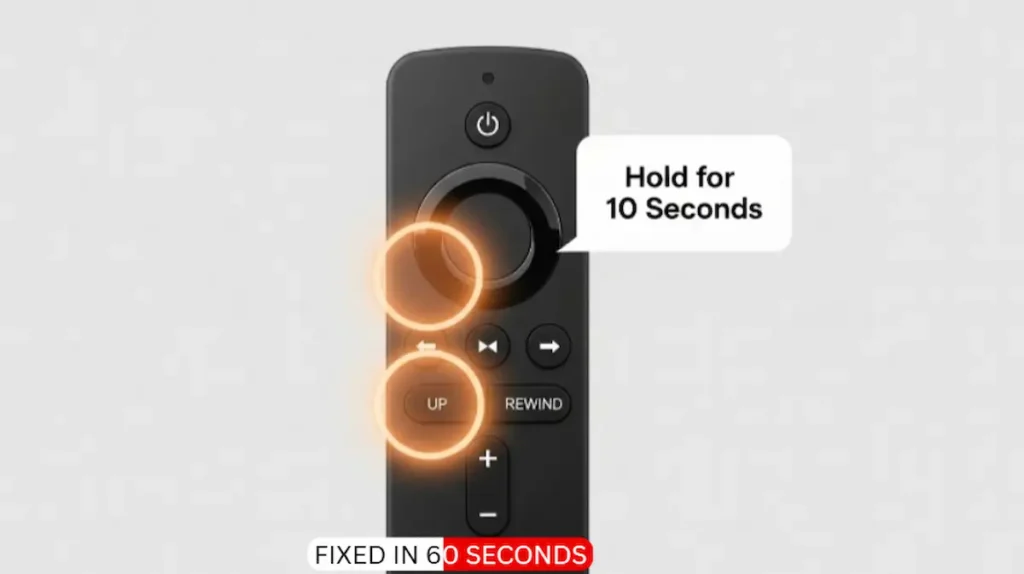
This is the “Hidden Gem” of this guide. Most users don’t know that Amazon built a secret emergency button combination into the remote. If your screen is black because the Firestick is trying to output a resolution your TV doesn’t support (like a 4K signal on an old 1080p screen), you can force a reset. This is a “Ninja move” to fix Firestick black screen of death 2026.
The Secret Command:
-
Pick up your remote and sit close to the TV.
-
Press and hold the UP button and the REWIND button at the same time for exactly 10 seconds.
-
The Firestick will begin to cycle through every possible resolution.
-
Wait for a picture to appear on the screen. It might take 30 seconds.
-
The moment you see the Fire TV menu, click “Use Current Resolution.”
This button hack has saved thousands of devices and is the fastest way to fix Firestick black screen of death 2026 without needing to access any menus.
Step 5: Bypassing HDCP 2.2 Restrictions
In 2026, content protection (HDCP) became very strict. If you are trying to watch a 4K movie on an older TV or through a cheap HDMI splitter, the HDCP handshake will fail, and you will get a black screen. To fix Firestick black screen of death 2026 caused by protection errors, you need to simplify your setup.
-
Remove Splitters: If your Firestick is plugged into a soundbar or an HDMI switch, plug it directly into the TV instead.
-
Check Port Labels: Look for the port on your TV labeled “HDCP 2.2.” Only this port can handle high-end 4K content.
By ensuring your hardware chain is “Clean,” you remove the technical bottlenecks that cause the Firestick black screen of death 2026.
🔥 Trending Next
Watch Local News on Firestick for Free 2026
Stop paying for cable! Learn the official way to get 200+ local channels legally on your device.
Step 6: Fixing the “Black Screen After Logo” (The Boot Loop)
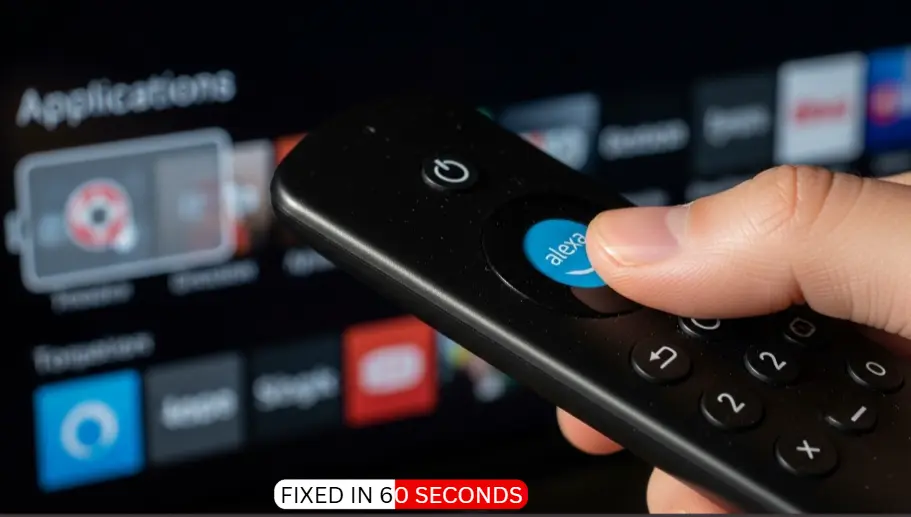
Do you see the “Amazon” or “Fire TV” logo for a few seconds, and then the screen goes black? This is a specific type of error called a “Launcher Crash.” It means the hardware is fine, but the home screen software is failing to load. This often happens when too many “Sideloaded” apps start at once. To fix Firestick black screen of death 2026 during boot-up, we need to use the Voice Remote trick.
-
Wait for the logo to disappear, then the screen will go black.
-
Press and hold the Voice/Alexa button on your remote.
-
Say clearly: “Open Settings.”
-
If the settings menu appears, go to Applications > Manage Installed Applications.
-
Find any app you recently installed and Uninstall it.
This “Voice Bypass” is a brilliant way to fix Firestick black screen of death 2026 when the standard UI is broken.
Topic 7: Troubleshooting WiFi Desync Errors
Believe it or not, a bad WiFi connection can cause a black screen. In 2026, the Firestick home screen requires an active internet connection to load its assets (movie posters, ads, etc.). If your WiFi is “Connected but No Internet,” the launcher can sometimes hang indefinitely on a black screen. To fix Firestick black screen of death 2026 caused by network lag, follow these steps:
-
Unplug your router and wait 60 seconds.
-
Restart the Firestick.
-
If you can reach the network settings, forget your network and reconnect.
-
Switch from a 2.4GHz band to a 5GHz band if your router supports it.
A stable connection is the heartbeat of your device, and fixing it is a key part of our guide to fix Firestick black screen of death 2026.
Topic 8: The Remote Pairing Fix
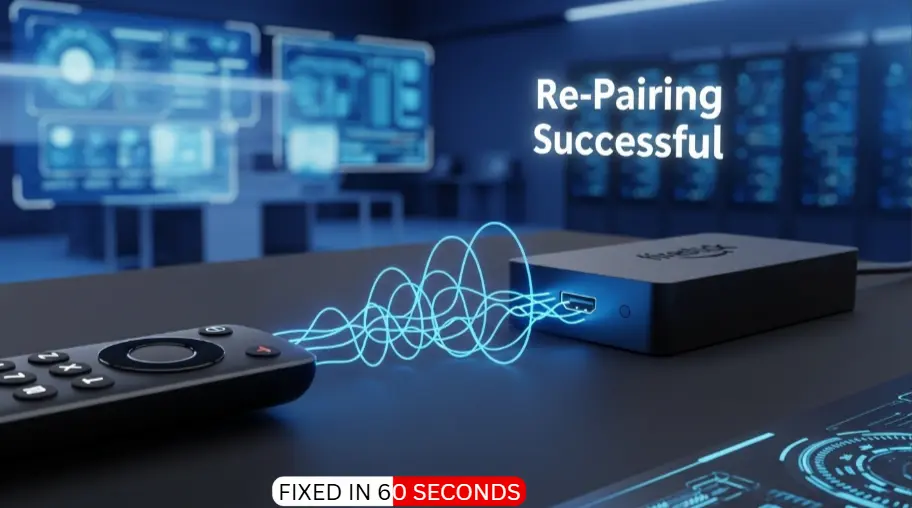
Sometimes the screen is black simply because the TV is on the wrong input, or the Firestick is “Asleep” and won’t wake up because the remote is unpaired. Before assuming the device is broken, we need to re-pair the controller. This is a common oversight when trying to fix Firestick black screen of death 2026.
Re-pairing Process:
-
Unplug the Firestick from the power.
-
Hold the Home button on the remote for 15 seconds.
-
Plug the Firestick back in.
-
As it boots, continue holding the Home button.
If the remote connects, the device will wake up, and you will have successfully managed to fix Firestick black screen of death 2026 with zero technical effort.
Topic 9: Checking for Component Overheating
In 2026, Firesticks have become incredibly powerful, but they are still small. If your device is tucked away in a tight space behind a hot 4K TV, it will overheat. When the CPU reaches a certain temperature, it shuts down the video output to protect itself, resulting in a black screen. To fix Firestick black screen of death 2026 caused by heat:
-
Feel the Stick: If it’s hot to the touch, unplug it for 10 minutes.
-
Use the Extender: As mentioned before, the HDMI extender allows for better airflow around the device.
-
Move the TV: Ensure there is at least 2 inches of space between the TV and the wall.
Preventing heat throttling is a “Pro” way to fix Firestick black screen of death 2026 for users who stream for hours at a time.
Topic 10: The Factory Reset (The Nuclear Option)
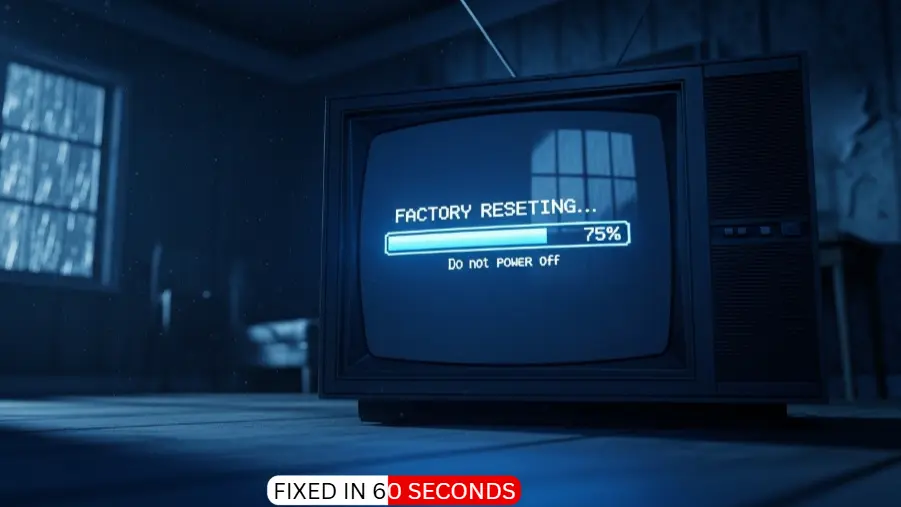
If you have followed all 9 steps and you are still staring at a black screen, it is time for the final resort. A Factory Reset wipes all software glitches and returns the device to its original state. This is the 100% guaranteed way to fix Firestick black screen of death 2026 if the hardware is still functional.
How to Reset Without Menus:
-
Press and hold the Back button and the Right side of the navigation circle at the same time for 15 seconds.
-
A message will appear on the screen asking if you want to perform a factory reset.
-
Click OK.
Warning: You will lose all your apps and logins, so only do this if you have tried everything else to fix Firestick black screen of death 2026.
The Core Lesson (What we learned):
The most important takeaway from this guide is that a Firestick Black Screen is rarely a sign of a “dead” device. In 95% of cases, the hardware is perfectly fine, but the software or power supply is struggling. The “Secret Resolution Reset” (Up + Rewind) is a lifesaver that every Firestick owner should memorize. Before you spend money on a new device, always trust the “Cold Boot” method and official wall power. Your device is a powerful computer—sometimes it just needs a professional nudge to wake up!
Below is the official legal disclaimer by The Stick Pedia
Official Legal Notice
The information provided in this guide to fix Firestick Black Screen of Death 2026 is strictly for educational and informational purposes. TheStickPedia.com is an independent technical blog and is not affiliated with, authorized, or endorsed by Amazon.com, Inc. Troubleshooting hardware involves certain risks, and we are not liable for any system crashes, data loss, or hardware damage that may occur while following these technical hacks. All brand names and trademarks are the property of their respective owners. We strongly recommend using official Amazon power accessories for long-term safety. Use this guide at your own discretion and risk.