The Evolution of Streaming in 2026
Before we begin the technical part of How to Install Kodi on Firestick 2026, ensure your device is connected to the internet. If you are looking for a complete guide on how to install Kodi on Firestick 2026, you have come to the right place. In this tutorial, we will show you. The digital entertainment landscape has undergone a massive transformation as we enter 2026. With the introduction of faster processors, Wi-Fi 7, and advanced Fire OS versions, the Amazon Firestick remains the most sought-after streaming device globally. However, even with thousands of apps available on the Amazon App Store, power users often find themselves restricted by the default ecosystem.
This is where Kodi comes into play. Kodi, formerly known as XBMC, has stood the test of time and remains the most versatile, open-source media player in 2026. Whether you want to stream your personal 4K movie collection, view high-resolution family photos, or listen to lossless audio, Kodi is the ultimate solution. In this guide, we will provide an exhaustive, step-by-step walkthrough on how to install Kodi on Firestick in 2026, ensuring you stay updated with the latest methods and security protocols.
For more news about technology and receivers, always visit thestickpedia.com, your reliable source of information.
The Legal Landscape: Is Kodi on Firestick Legal in 2026?
One of the most frequent questions we receive is about the legality of Kodi. As of 2026, the legal consensus remains unchanged: Kodi is 100% legal. It is a media player software, much like VLC or Windows Media Player.
The confusion often arises from “Jailbreaking.” In the context of a Firestick, jailbreaking is a slang term for “Sideloading.” Sideloading is the process of installing an app using its APK file rather than the official store. Amazon allows this feature for developers and advanced users.
Important Note for Users: While the software itself is legal, using Kodi to access copyrighted content for free via unofficial third-party add-ons can lead to legal issues. Our guide focuses strictly on the official installation of Kodi for legitimate media management. We strongly advise our readers to respect copyright laws and only stream content they are legally authorized to view.
Why Kodi 21 Omega (or Kodi 22) is the Best Choice for 2026
By installing Kodi on Firestick in 2026, you are accessing a platform that is more stable than ever. The latest versions offer:
-
AV1 Codec Support: This allows for high-quality 4K streaming with 30% less data usage.
-
Fire OS 8 & 9 Compatibility: Optimized to work with the latest Amazon operating systems without crashing.
-
Hybrid Interface: A smoother UI that responds instantly to the Firestick remote.
-
Enhanced Security: Better encryption for your local network streaming.
Requirements for How to Install Kodi on Firestick 2026
To ensure a smooth installation process, make sure you have the following ready:
-
A Compatible Device: This guide works for Firestick Lite, Firestick 4K, 4K Max, and Fire TV Cube.
-
High-Speed Internet: A minimum of 25 Mbps is recommended for downloading and streaming 4K content.
-
Amazon Account: You must be logged in to your Amazon account on the device.
-
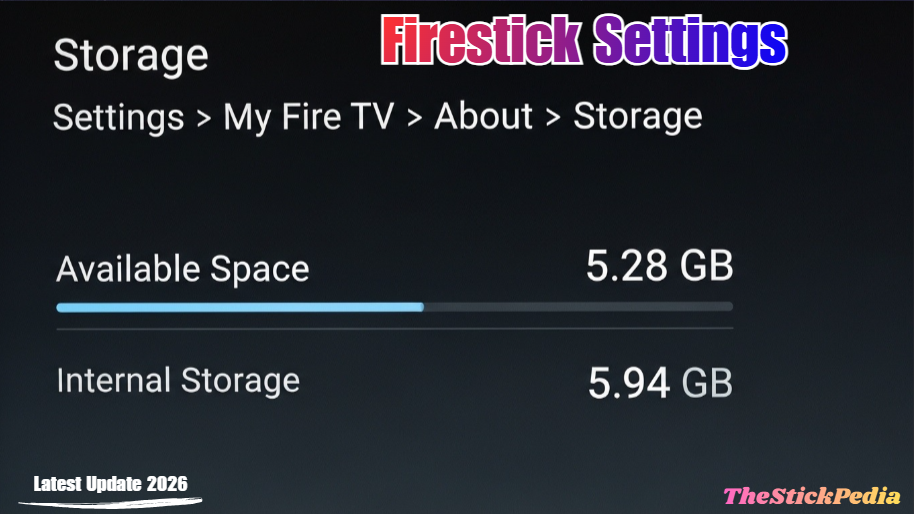
Storage Space: At least 150MB of free space is required for the Kodi app and its initial data.
Step 1: Unlocking Developer Options (How to Install Kodi on Firestick)
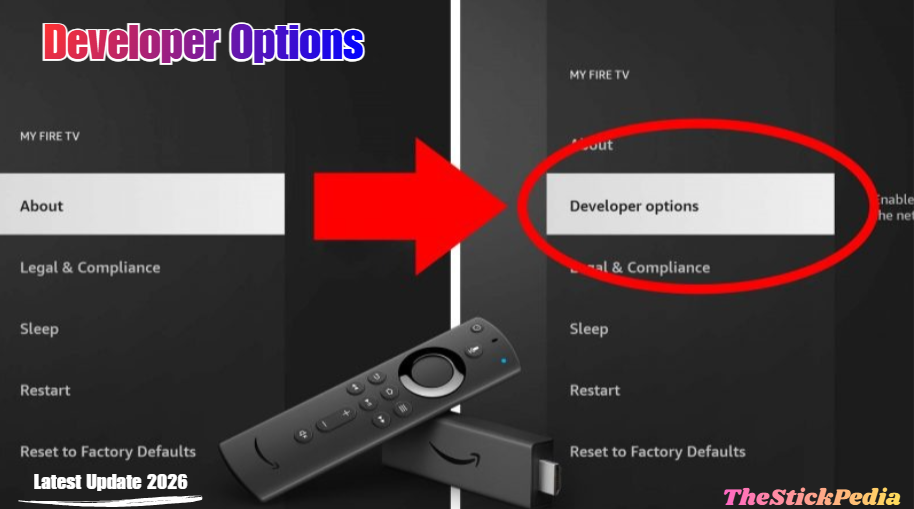
In recent updates, Amazon has hidden the Developer Options menu to prevent accidental changes by novice users. Follow these precise steps to reveal it:
-
Power on your Firestick and go to the Home Screen.
-
Use your remote to navigate to the Settings (Gear Icon) on the far right.
-
Scroll down and select My Fire TV.
-
Click on About.
-
Find your Device Name (e.g., Fire TV Stick 4K Max).
-
The Magic Trick: Press the Select button on your remote 7 times quickly.
-
A small toast message will appear at the bottom: “No need, you are already a developer.”
-
Press the Back button once, and you will now see Developer Options listed under the About section.
Step 2: Configuring Security Settings for Sideloading
Now that the hidden menu is visible, we need to allow the device to install apps from “Unknown Sources.”
-
Enter the Developer Options menu.
-
First, turn ADB Debugging to ON. (This helps in communication between the app and the Fire OS).
-
Click on Install Unknown Apps.
-
(Note: You will see a list of apps. We will come back here once the Downloader app is installed.
Step 3: Installing the “Downloader” App (The Bridge to Kodi)
Since Firestick does not have a traditional web browser that allows file downloads, the Downloader app by AFTVnews is the industry standard for sideloading.
-
Go back to the Firestick Home Screen.
-
Click on the Find (Search) icon.
-
Type “Downloader” using the on-screen keyboard.
-
Select the orange Downloader icon from the search results.
-
Click Download or Get.
-
Once the app is installed, click Open.
-
Crucial: When asked for permissions to access files, click Allow. If you deny this, the app cannot save the Kodi installer.
Step 4: Granting Final Permissions to Downloader
Amazon’s security in 2026 requires specific permission for each app to install other apps.
-
Go to Settings > My Fire TV > Developer Options > Install Unknown Apps.
-
Find Downloader in the list.
-
Toggle the switch to ON.
Step 5: How to Install Kodi on Firestick 2026
Many users feel overwhelmed by technical steps, but the process of installing Kodi on Firestick 2026 is designed to be user-friendly even for beginners.
Now we are ready to download the actual Kodi software. Follow these steps carefully to ensure you get the official version.
-
Launch the Downloader app.
-
Click in the URL box on the Home tab.
-
Type the following official URL: https://kodi.tv/download and press Go.
-
The official Kodi website will load inside the app.
-
Scroll down and click on the Android icon.
-
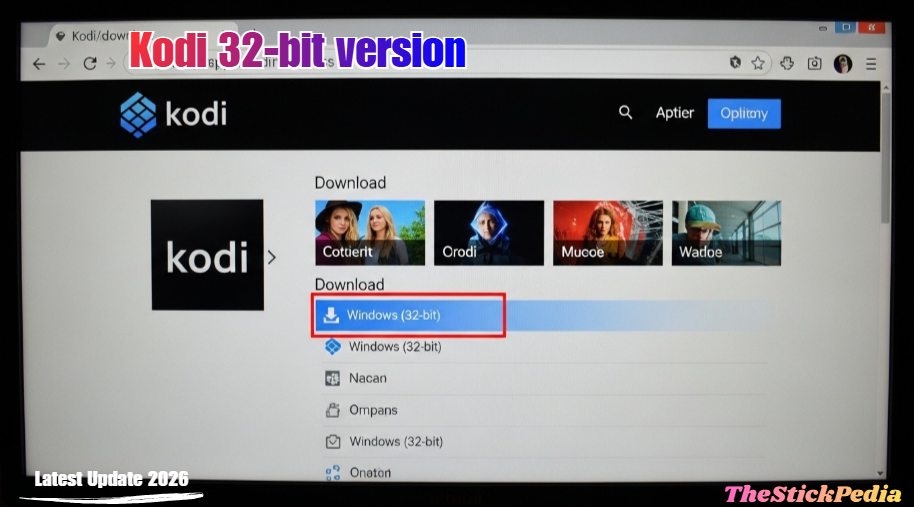
Choosing the Version: You will see multiple options like ARMV7A (32BIT) and ARMV8A (64BIT).
-
Note: Most Firesticks (including the 4K models) still use a 32-bit architecture. Therefore, select ARMV7A (32BIT).
-
-
The download will begin. It is approximately 80MB to 100MB.
-
Once the download is finished, an installation window will automatically pop up. Click Install at the bottom right.
-
After a few seconds, you will see “App Installed.” Click Done (Do not click Open yet).
Read Also: Get Local Channels on Firestick
Step 6: Optimization and Cleanup
Firesticks have limited storage. To keep your device running smoothly in 2026, you must delete the installer file.
-
After clicking “Done” in the previous step, the Downloader app will give you an option to delete the APK.
-
Click Delete.
-
Click Delete again to confirm.
-
Now, press and hold the Home button on your remote and select Apps.
-
Find the Kodi icon at the bottom, press the Options button (3 lines), and select Move to front.
Step 7: Why a VPN is Mandatory in 2026
In 2026, ISPs (Internet Service Providers) have become extremely aggressive in monitoring streaming traffic. Even if you are using Kodi for legal purposes, your ISP might “throttle” (slow down) your connection if it detects high-bandwidth streaming.
A VPN (Virtual Private Network) for Firestick is essential because:
-
Privacy: It encrypts your data so no one can see what you are watching.
-
Avoid Throttling: It prevents your ISP from slowing down your 4K stream.
-
Bypass Geo-Restrictions: Access official Kodi add-ons that might be blocked in your country.
-
Security: Protects your device from hackers on your local Wi-Fi network.
We recommend using ExpressVPN or NordVPN as they have dedicated apps for Firestick and offer the fastest speeds for 2026 streaming standards.
Advanced Troubleshooting: Common Kodi Errors and Fixes
If you encounter any issues while following our guide on How to Install Kodi on Firestick 2026, don’t worry. Here are the most common solutions. Even with a perfect guide, you might encounter issues. Here are the 2026 solutions for common Kodi problems:
1. “Parse Error” During Installation
This usually means the APK file was not downloaded completely, or you selected the 64-bit version instead of the 32-bit version. Delete the file and try downloading the ARMV7A (32BIT) version again.
2. Kodi Keeps Crashing on Startup
This often happens due to low RAM.
-
Fix: Go to Settings > Applications > Manage Installed Applications > Kodi > Clear Cache. Never click “Clear Data” unless you want to completely reset Kodi.
3. “App Not Installed” Error
This is almost always a storage issue. Amazon Firesticks need at least 500MB of “buffer” space to install new apps. Delete one or two unused apps and try again.
4. Buffering Issues in Kodi
If your local streams are buffering, you may need to adjust the Kodi Cache size using an advanced settings file. However, for most users, simply using a 5GHz Wi-Fi connection fixes the issue.
Frequently Asked Questions (FAQs): How to Install Kodi on Firestick
Q: Can I install Kodi 22 on my old Firestick?
A: Yes, Kodi 21/22 is highly stable, which is why learning how to install Kodi on Firestick 2026 is the best way to future-proof your entertainment setup.
Q: Will Kodi slow down my Firestick?
A: Kodi only uses resources when it is open. If you close it properly (using the Power icon inside Kodi), it will not affect your Fire TV Stick’s performance.
Q: How do I update Kodi in 2026?
A: You don’t need to uninstall the old version. Just follow this guide again, download the new APK, and click “Install.” It will overwrite the old version while keeping your settings.
-
Final Checklist for How to Install Kodi on Firestick 2026:
-
✅ Enable Developer Options in Firestick Settings.
-
✅ Turn on “Install Unknown Apps” for Downloader.
-
✅ Download Kodi ARMV7A (32-bit) from the official site.
-
✅ Use a VPN to ensure 100% streaming privacy.
-
Conclusion: Mastering Your Media with Kodi
Congratulations! You have successfully learned how to install Kodi on Firestick 2026. By following this exhaustive guide…
Kodi is a powerful tool that, when used responsibly, can turn your Amazon Firestick into a world-class media center. Keep your app updated, respect digital copyrights, and always use a VPN to ensure your streaming remains private and uninterrupted.
Internal Link: Is Jailbreaking a Firestick Illegal in 2026?
Internal Link: Close Background Apps on FireStick to Stop Lagging
Internal Link: How to Install Kodi on Firestick 2026
Do you have any questions about how to Install Kodi on Firestick 2026? Leave your comment below or explore more technical content at Thestickpedia.com.