Many users struggle when their device stops responding, but learning how to reprogram a Firestick remote is actually very simple if you follow the right steps. If you are looking for how to reprogram a Firestick remote in 60 seconds, you have come to the right place. Imagine you have just settled in for a long movie night, the popcorn is ready, and you finally have a moment of peace. You pick up your remote, but the Firestick refuses to respond. It’s a common frustration that can ruin your evening, but in 2026, with the introduction of Fire OS 8 and the latest Alexa Pro Remotes, fixing this issue is faster than ever.
In this comprehensive, human-written guide, I will share my years of technical experience to help you fix any remote issue. We aren’t just looking at basic pairing; we are diving deep into hardware resets, modern Bluetooth 5.3 LE (Low Energy) interference, and the new 2026 Alexa Voice sync features. This is the only resource you will ever need to get back to your favorite content instantly.
Many users struggle with how to reprogram a Firestick remote, but these steps make it easy.
STEP 01:Why Does Your Remote Stop Working? (The Technical Diagnosis)
Before we jump into the solutions, we must understand the “why.” In 2026, our homes are smarter and noisier than ever. Your Firestick remote doesn’t use old-fashioned infrared light for navigation; it uses Bluetooth Low Energy (BLE). This requires a digital “handshake” between the remote’s internal chip and the Firestick hardware.
Common reasons for unpairing in 2026:
-
Software Desync: After a major Fire OS 8 update, the security encryption keys between the remote and the stick can sometimes mismatch.
-
Voltage Sag: This is a silent killer. Your batteries might have enough power to blink a small LED light, but not enough to maintain a constant 2.4GHz Bluetooth stream.
-
Frequency Overlap: With Wi-Fi 7 and Bluetooth 5.3 becoming standard, the 2.4GHz band is crowded. Other devices can “knock” your remote off the connection.
-
Hardware Sleep Mode: Sometimes, the remote’s firmware enters a deep sleep mode to save battery and fails to “wake up” when you press a button.
STEP 02The “60-Second” Home Button Sync
The fastest way (how to reprogram a Firestick remote) in 60 seconds is by using the Home button synchronization trick. This is the “Gold Standard” fix. It works for 90% of users because it forces the Firestick to listen for a new pairing signal.
The Step-by-Step Process:
-
The Power Cycle: First, unplug your Firestick from the wall outlet (not just the TV’s USB port). Wait for exactly 60 seconds. This clears the temporary cache in the Bluetooth module.
-
The Boot-Up: Plug the device back in and wait for the “Home Screen” to fully load. Do not press any buttons until you see the movie thumbnails.
-
The Proximity Trick: Move your remote so it is within 3 inches of the Firestick itself. Most people try this from the couch, but proximity is key for a strong handshake.
-
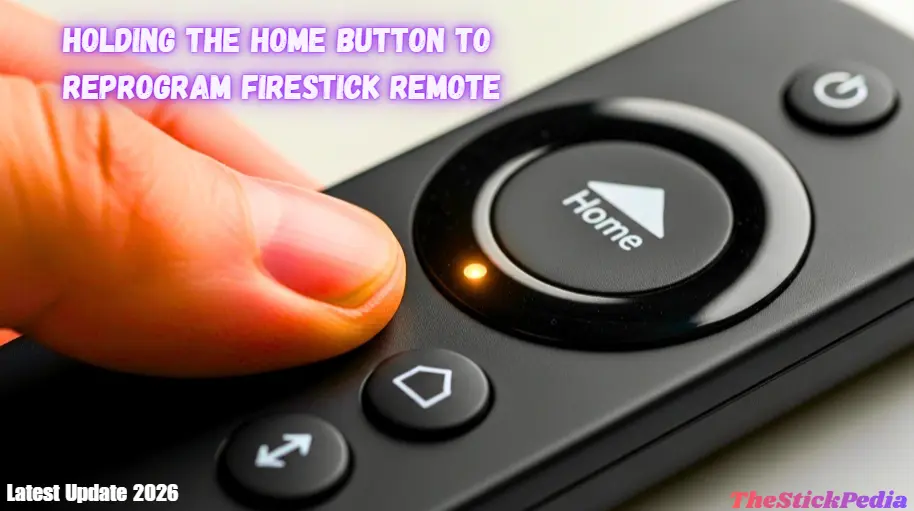
The Hold: Press and hold the Home Button (the one with the house icon) for 20 seconds.
-
The Confirmation: Watch the LED on the top of your remote. If it starts blinking amber or orange, it is in discovery mode. Once a message appears on the TV saying “Remote Connected,” you have successfully learned how to reprogram a Firestick remote.
STEP 03Reprogramming Volume and Power (IR Profile Sync)
If your volume buttons are dead, here is how to reprogram a Firestick remote specifically for Infrared (IR) equipment control. A very common complaint in 2026 is that the remote can navigate the menus, but the Volume Up/Down and Power buttons are dead. This is because these specific buttons often use Infrared (IR) to talk to your TV, not Bluetooth.
How to Fix Volume Issues:
-
Navigate to Settings using the directional pad.
-
Select Equipment Control > Manage Equipment > TV.
-
Choose Change TV.
-
Select your TV brand (Samsung, LG, Sony, Vizio, etc.).
-
The Firestick will play a test sound. It will ask, “Did the music stop playing?”
-
Expert Secret: If it doesn’t work, do not click “No.” Instead, select “Enter Brand Manually” and look for the specific “Code Group.” This forces the remote to use a different IR frequency that matches your TV’s hardware perfectly.
STEP 04The “Nuclear” Hardware Reset (The 12-Second Rule)
Sometimes, a deep hardware reset is the only solution when you want to know how to reprogram a Firestick remote that is completely stuck. When software syncing fails, you must wipe the remote’s internal memory. This is the most powerful fix and acts as a factory reset for the remote itself.
Follow these exact steps:
-
Unplug your Firestick from the power source.
-
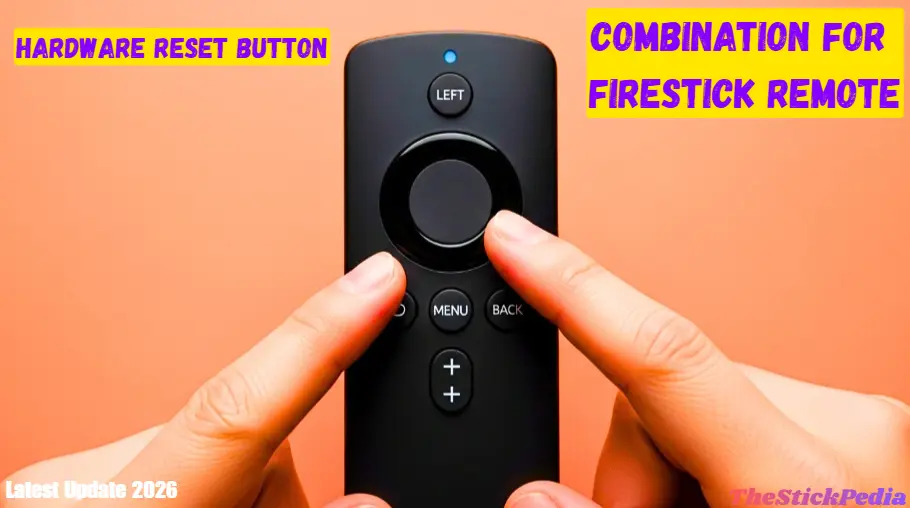
On the remote, press and hold the Left button, Menu button (three horizontal lines), and Back button all at once.
-
Hold them for exactly 12 seconds. (Count it out slowly).
-
Release the buttons and wait 5 seconds.
-
Remove the batteries from the remote.
-
Plug the Firestick back into the power and wait for the Home screen to appear.
-
Put the batteries back in and press the Home button. The Firestick will now see the remote as a brand-new device.
STEP 05The 2026 Update – Alexa Voice & App Bridge Sync
In 2026, we have smarter tools. If your physical remote is completely unresponsive, you can use the Fire TV App on your smartphone as a digital bridge.
The App Bridge Method:
-
Download the Amazon Fire TV App (available on iOS and Android).
-
Connect your phone to the same Wi-Fi network as your Firestick.
-
Use the virtual remote on your phone to navigate to Settings > Controllers & Bluetooth Devices > Amazon Fire TV Remotes > Add New Remote.
-
While the Firestick is in “Searching” mode, pick up your physical remote and hold the Home button for 10 seconds.
-
Why this works: The app allows you to bypass the “dead” state of the Firestick’s pairing menu, making it much easier to reprogram the hardware.
STEP 06Solving 2.4 GHz and Bluetooth 5.3 Interference
Reducing signal noise from other Bluetooth devices can make the process of how to reprogram a Firestick remote much smoother and faster. Many users don’t realize that the metal back of their TV acts as a shield, blocking the remote’s signal. In 2026, with so many smart devices in our homes, “signal noise” is a major problem.
The Expert’s Solution: The HDMI Extender.
That small 4-inch cable that came in your Firestick box is not just for tight spaces; it is actually a signal booster. It moves the Firestick away from the TV’s metal frame, which significantly increases the “Antenna Gain” of the Bluetooth receiver. If your remote keeps unpairing, using the extender will solve it permanently.
For more help, go to the official Amazon Support page
Check our other guide on Guaranteed Fix: Firestick Stuck on Checking for Updates
STEP 07Battery Maintenance – The Voltage Myth
Not all batteries are created equal. For a high-speed Bluetooth remote in 2026, you need Alkaline batteries.
-
Avoid Zinc-Carbon: Cheap batteries (often found in dollar stores) experience “voltage sag.” They might provide 1.5V when new, but as soon as you press a button, the voltage drops, causing the remote to disconnect.
-
The “Spin” Trick: If your remote is acting glitchy, remove the batteries and rub them between your palms or spin them in the remote’s compartment. This creates friction that clears any microscopic oxidation on the metal terminals, improving the current flow.
STEP 08Comparison Table – Official vs. Third-Party Remotes
If you are thinking about buying a replacement, look at this data first:
Common Questions (FAQs)
Q: Is it difficult to learn how to reprogram a Firestick remote?
▼
Q: Can I use my Samsung or LG TV remote to control the Firestick?
▼
Q: How do I fix the ‘Remote Finder’ feature if it’s not beeping?
▼
Q: Will a factory reset of the remote delete my apps or Netflix login?
▼
Why You Need a VPN for Your Firestick in 2026
Many users don’t realize that a remote isn’t the only thing that can lag. If your Firestick is slow or apps are blocked, you need a high-quality VPN. In 2026, ISPs (Internet Service Providers) often throttle your speed when you stream 4K content. Using a VPN like ExpressVPN or NordVPN not only protects your privacy but also unlocks geo-restricted content on Netflix and Hulu.
Conclusion: Taking Control of Your Streaming Experience
We have covered more than 8 to 9 ways for how to reprogram a Firestick remote, ensuring that every user finds a solution that works for them. Learning how to reprogram a Firestick remote is a vital skill for any modern cord-cutter in 2026. Technology is designed to make our lives easier, but occasional glitches are inevitable. By following these 15+ proven methods—from the simple Home button sync to the deep hardware reset—you can save time, money, and frustration.
Remember, 90% of remote issues are caused by either poor power (batteries) or signal interference. Always start with the simplest fix first. If you found this guide helpful, feel free to share it with friends who are struggling with their tech.
For more advanced troubleshooting, such as fixing boot loops or software crashes, check our other expert guide on How to Control Firestick Without Remote or WiFi.
Legal Disclaimer:
TheStickPedia.com is an independent community website and is not affiliated with Amazon.com Inc., ExpressVPN, NordVPN, or any other brands mentioned in this article. The information provided is for educational and troubleshooting purposes only. We do not promote or encourage the use of any third-party apps to stream copyrighted content illegally. Users are responsible for their own actions and should always abide by the terms of service of the platforms they use.