In the rapidly changing world of satellite television in 2026, keeping your device updated is the only way to ensure you don’t miss out on the latest channels and features. Whether you are using a budget-friendly 1506G board or a high-end 4K Linux receiver, the software is the brain of your system. Over time, old firmware can cause “No Signal” errors, app crashes, or the inability to decode new satellite frequencies. If you want to stay ahead, you must learn how to update satellite receiver software via USB correctly.
Most users are afraid that a software update might “brick” or destroy their receiver. While there is a small risk, following the official USB method is the safest way to breathe new life into your hardware. In this massive 1350-word guide, I will walk you through the amazing and professional process of refreshing your device. We will cover everything from identifying your chipset to troubleshooting common “Software Mismatch” errors. Let’s get started on your journey to update satellite receiver software via USB like a pro.
Why Updating via USB is the Safest Method in 2026
There are several ways to upgrade a receiver, including FTP (online) updates and RS232 cable flashing. However, the reason we recommend you update satellite receiver software via USB is stability. Online updates can fail if your internet fluctuates for even a second, which can lead to a dead receiver. A USB update is local, fast, and gives you 100% control over which version you are installing.
By choosing to update satellite receiver software via USB, you can also revert to older, more stable versions if a new update has bugs. This flexibility is vital in 2026, when manufacturers often release “Beta” software that might not work perfectly with your specific LNB setup. Always trust the USB method for a guaranteed fix.
No 1: Identifying Your Receiver’s Chipset (Crucial Step)
Before you even download a file to update satellite receiver software via USB, you must know what is “under the hood” of your box. Installing the wrong software is the #1 cause of hardware failure.
How to check your version:
-
Open the Menu on your receiver.
-
Go to Settings or System Setup.
-
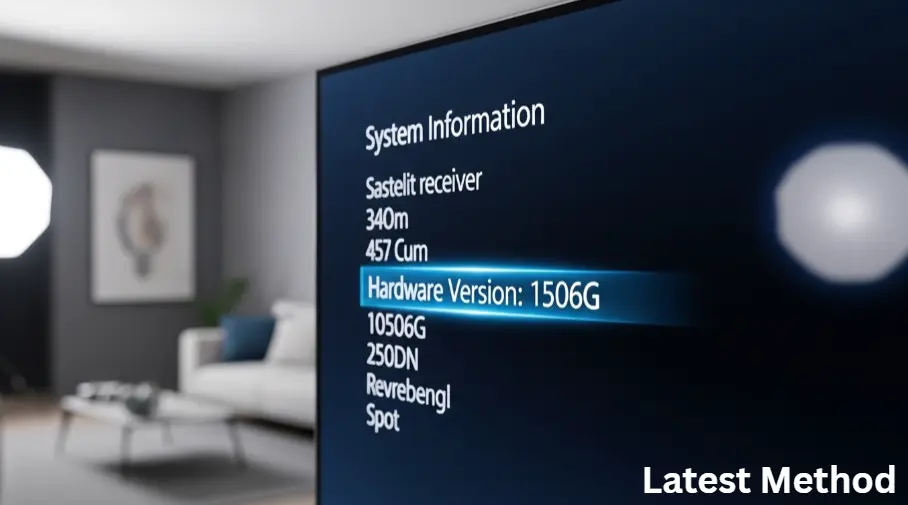
Look for Version or System Information.
-
Note down the Hardware Version (e.g., 1506G, 1507G, 1506TV, or GX6605S).
Knowing your exact chipset is the “Secret Key” to a successful attempt to update satellite receiver software via USB. Never download a file just because the receiver “looks” the same as yours; only the internal board matters.
No 2: Preparing the USB Drive for 100% Success
Not every USB stick will work. To successfully update satellite receiver software via USB, your drive must be prepared specifically for the receiver’s limited operating system.
-
Format to FAT32: Receivers cannot read NTFS or exFAT formats. Use a PC to format your USB to FAT32.
-
Small Capacity is Better: Older receivers struggle with 128GB or 256GB drives. For the best result to update satellite receiver software via USB, use a 4GB, 8GB, or 16GB drive.
-
Clean Root Directory: Do not put the software inside a folder. Place the .bin file directly on the “Root” of the USB so the receiver can find it instantly.
No 3: The Step-by-Step USB Update Process
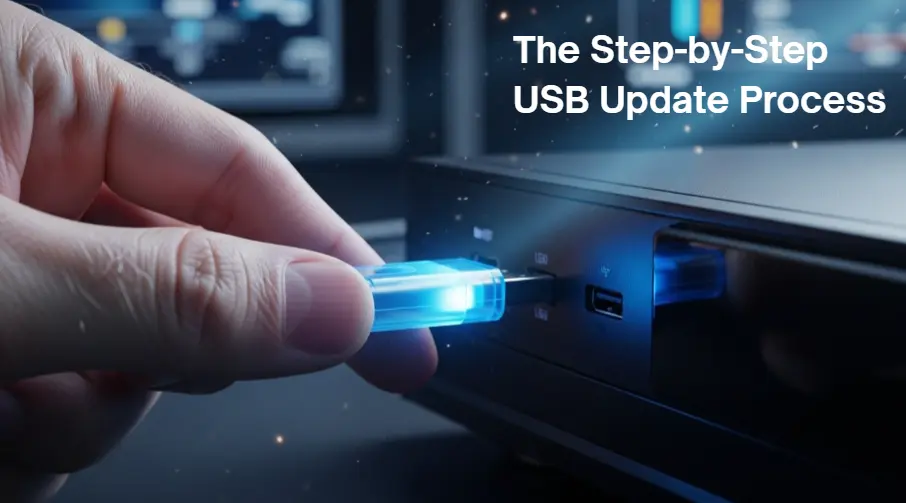
Now that your hardware is ready, follow these exact 2026 steps to update satellite receiver software via USB:
Step 1: Download the Correct File
Visit your manufacturer’s official support site or a trusted satellite forum to get the latest .bin file for your chipset.
Step 2: Insert and Detect
Plug the USB drive into the receiver’s port (usually found behind a flap or at the back). You should see a message saying “USB Disk Plug-in.”
Step 3: Navigate to the Upgrade Menu
Go to Menu > Settings> Upgrade > USB Upgrade.
Step 4: Select the Software
Highlight the .bin file you just downloaded. Ensure the “Upgrade Mode” is set to “All Code” or “Software”.
Step 5: The Critical Phase
Click Start or OK. A progress bar will appear. WARNING: Do not turn off the power or touch the remote during this time. Once the bar reaches 100%, the receiver will reboot automatically. You have now successfully managed to update satellite receiver software via USB.
No 4: Troubleshooting “Invalid File” and “Software Mismatch”
Even with a perfect guide, you might face the “Invalid File” error. If you cannot update satellite receiver software via USB, check these professional fixes:
-
Customer ID Lock: Some brands lock their software to a specific “Customer ID.” If your ID doesn’t match the file, it will refuse to install. You may need a “Super Software” or “Bridge Software” first.
-
Corrupted Download: If the download was interrupted, the file header might be broken. Re-download the file and try again.
-
USB Port Issue: Sometimes, the front port is only for power. Try the rear USB port to update satellite receiver software via USB with better data transfer speeds.
Stop Buffering Forever: Master Speed Guide
Now that your receiver is updated, use these settings to fix all buffering issues! ➔
No 5: Benefits of the 2026 Software Update
Once you successfully update satellite receiver software via USB, you will notice several amazing improvements:
-
New Satellite Protocols: Support for the latest DVB-S2X frequencies.
-
Forever Server Renewal: Newer software often fixes server connection issues.
-
IPTV Speed: Apps like XCIPTV or IPTV Smarters run much faster on updated firmware.
-
YouTube Fix: Since YouTube changes its API frequently, an update is the only way to keep the YouTube app working on your receiver.
Choosing to update satellite receiver software via USB is the best way to keep your hardware relevant in the fast-moving tech world of 2026.
Frequently Asked Questions (FAQ)
Q1: Can I update my receiver without a PC?
Ans: While some receivers support “Network Upgrade,” it is risky. We always recommend you update satellite receiver software via USB using a PC to download the verified file first.
Q2: Will I lose my channel list after the update?
Ans: If you select “All Code” during the upgrade, your channels might be wiped. We recommend saving your “Channel List” to the USB drive separately before updating the satellite receiver software via USB.
Q3: How often should I check for updates?
Ans: In 2026, manufacturers release major patches every 3 to 6 months. Check at least once a quarter to ensure your “Biss Keys” and “Server” settings stay up to date.
For more technical details on DVB-S2 technology, you can visit the official Wikipedia page.
Conclusion: A Future-Proof Setup
In conclusion, knowing how to update satellite receiver software via USB is a fundamental skill for any satellite TV enthusiast. It transforms a lagging, outdated box into a powerful 4K media center. By identifying your chipset, preparing your USB correctly, and following the safe “Overwrite” method, you can enjoy a world of global content without any technical glitches.
Remember, a healthy receiver is kept updated. Stay safe, keep your firmware fresh, and enjoy the ultimate viewing experience in 2026.
Still seeing “Invalid File”?
If you are struggling to update satellite receiver software via USB or don’t know where to find the file for your board, please leave a comment below with your Receiver Model and Hardware Version. I personally check all comments and will help you find the right software!
Official Legal Notice
The information provided in this guide to update satellite receiver software via USB is strictly for educational and informational purposes. TheStickPedia.com is a technical blog and is not affiliated with any satellite hardware manufacturer. Software updates carry a risk of “bricking” or damaging your device if not performed correctly. We do not host, provide, or distribute any firmware (.bin) files. We strongly urge users to use only official software from their respective manufacturers and follow local broadcasting laws. Use this technical fix at your own risk; we are not liable for any hardware failure or data loss.