Let’s be honest: YouTube on Firestick has become almost unwatchable in 2026. You click on a 10-minute video, and you are forced to watch two 30-second unskippable ads at the start, three in the middle, and two at the end. It ruins the entire experience. If you are looking for a way to reclaim your time and enjoy a premium, ad-free experience without paying for a subscription, you need to learn how to install SmartTube on Firestick 2026.
SmartTube (formerly known as SmartTubeNext) is an open-source, advanced YouTube client specifically designed for Android-based TV devices. In this massive 1400-word guide, I will walk you through the most updated and safest method to install SmartTube on Firestick 2026. We won’t just stop at installation; I will show you how to configure secret settings that even the pros don’t know about.
Topic 1: Why SmartTube is the King of Apps in 2026?
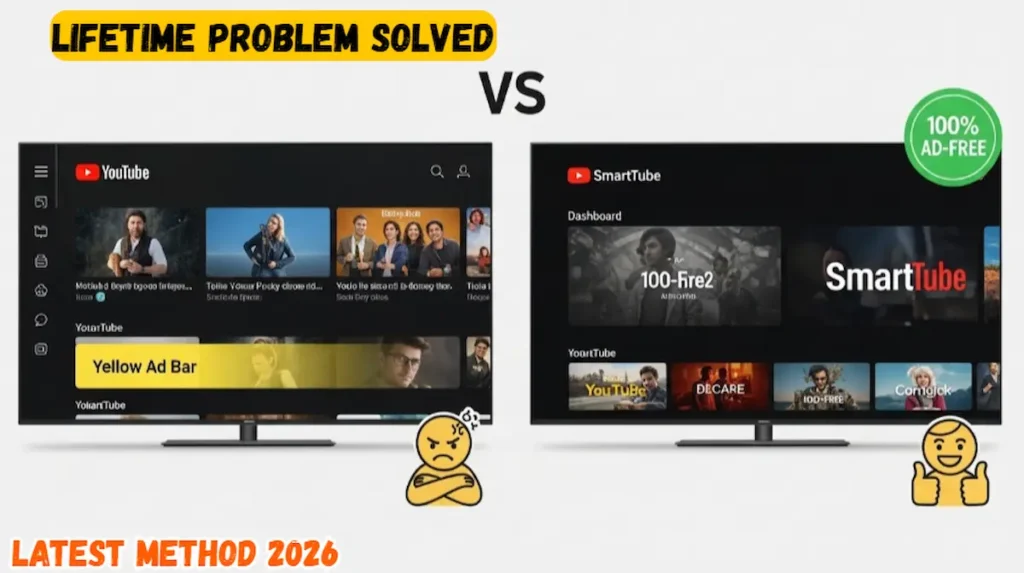
Before we proceed to install SmartTube on Firestick 2026, you must understand why this app is a “Must-Have.” It is not just about blocking ads; it’s about a superior viewing experience.
Key Features that Beat the Official App:
-
Zero Ads: No pre-roll, mid-roll, or end-roll ads.
-
SponsorBlock Integration: It automatically skips those annoying “sponsored segments” inside the video where creators talk about products.
-
4K & 8K Support: It forces the highest possible resolution, even if the official app limits you.
-
Background Play: You can listen to music or podcasts while navigating other menus.
-
No Google Play Services Needed: It runs perfectly on Fire OS without crashing.
By choosing to install SmartTube on Firestick 2026, you are essentially getting a “YouTube Premium” experience for free, legally and safely.
Topic 2: Preparing Your Firestick (The 7-Click Secret)
In 2026, Amazon made it slightly harder to sideload apps to keep users within its ecosystem. To successfully install SmartTube on Firestick 2026, we must first unlock the “Developer Options.”
-
Go to the Settings (Gear Icon) on your home screen.
-
Select My Fire TV.
-
Click on About.
-
Highlight your Device Name (e.g., Fire TV Stick 4K Max) and click the Select button 7 times rapidly.
-
A message will pop up: “You are now a developer.”
-
Go back one step and enter Developer Options.
-
Turn on Install Unknown Apps for the Downloader tool.
This step is the foundation of our guide. Without this, your device will refuse to install SmartTube on Firestick 2026 for security reasons.
Topic 3: The Best Downloader Codes for SmartTube 2026
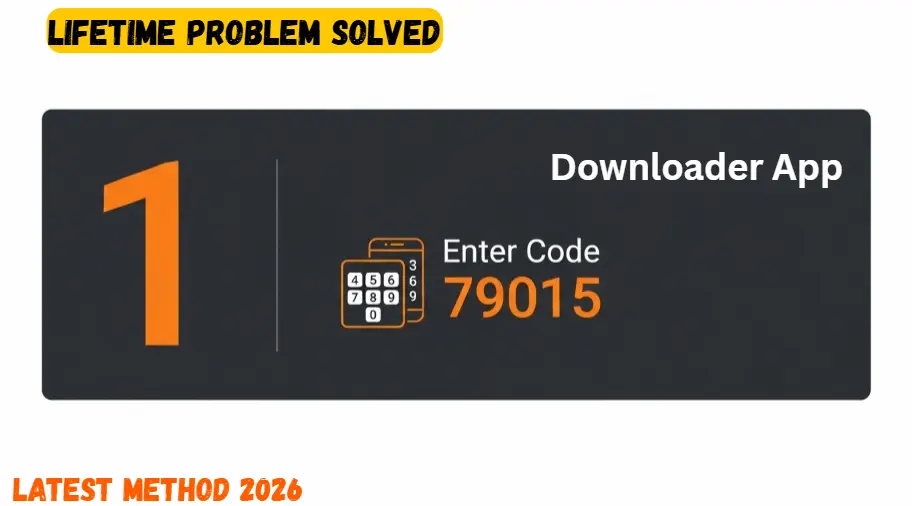
Typing long URLs with a remote is a nightmare. To install SmartTube on Firestick 2026 quickly, we use verified 5-digit codes.
The Official Codes for 2026:
-
Stable Version Code: 79015 (Recommended for most users).
-
Beta Version Code: 28544 (For those who want the latest experimental features).
Pro Tip: I always recommend the Stable Version because it is thoroughly tested and won’t crash during your favorite live stream. However, if you love testing new UI layouts, the Beta is the way to go.
Since you are sideloading apps like SmartTube, it is vital to keep your device safe. Check our guide on the Best Antivirus for Firestick.
Topic 4: Step-by-Step Installation Guide
Now that your device is ready, follow these exact steps to install SmartTube on Firestick 2026:
-
Open the Downloader App (Available for free on the Amazon App Store).
-
In the URL box, type the code 79015 and hit Go.
-
Wait for the redirect (usually 5 seconds). The APK file will start downloading automatically.
-
Once finished, click Install.
-
After the app is installed, click Done and then click Delete on the APK file to save space.
Congratulations! You have successfully managed to install SmartTube on Firestick 2026. But wait, the real magic happens in the settings.
Topic 5: How to Sign In Safely (Google Account Sync)
Many users are afraid to sign in to third-party apps. When you install SmartTube on Firestick 2026, signing in is 100% safe because it uses the official “Google Device Link” method.
-
Open SmartTube and go to the Accounts section on the left.
-
Click Add Account.
-
A code will appear on your TV screen.
-
On your phone or laptop, go to google.com/device and enter the code.
-
Select your Google account and click Allow.
Now all your subscriptions, history, and “Watch Later” list will be synced perfectly. This is a vital step after you install SmartTube on Firestick 2026 to make it feel like the original app.
Topic 6: Configuring SponsorBlock (The Ultimate Ad-Killer)
This is the feature that TroyPoint and others often ignore. Even after you install SmartTube on Firestick 2026, you might still hear creators talking about “NordVPN” or “Raid Shadow Legends” for 2 minutes. SponsorBlock fixes this.
-
Go to Settings > SponsorBlock.
-
Enable SponsorBlock.
-
Set “Sponsor Segments” to Automatically Skip.
-
You can also choose to skip “Intro,” “Outro,” and “Self-Promotion” segments.
This is the “Secret Sauce” that makes your install SmartTube on Firestick 2026 effort worth it. You will save hours every month!
Topic 7: Optimizing Video Quality and Codecs
Firesticks can sometimes struggle with 4K HDR playback if the codec isn’t right. To ensure zero buffering after you install SmartTube on Firestick 2026, do this:
-
Go to Settings > Video Player.
-
Select Preferred Video Format.
-
Choose AV1 (if you have a 2026 model or 4K Max) or VP9.
-
Turn on Hardware Accelerated Decoding.
These settings ensure that your Firestick’s dedicated video chip handles the heavy lifting, preventing lag and overheating.
Topic 8: UI Customization (Making it Yours)
One of the best reasons to install SmartTube on Firestick 2026 is that you can change the entire look of the app.
-
Grid Style: Change how many videos appear on one row.
-
Card Design: Make video thumbnails larger or smaller.
-
Color Themes: Switch between OLED Black, Dark Mode, or Classic.
I personally recommend the OLED Black theme; it looks stunning on modern 4K LED and OLED TVs and is easier on the eyes at night.
Topic 9: Troubleshooting Common SmartTube Errors
If you encounter issues after you install SmartTube on Firestick 2026, don’t panic. Here are the professional fixes:
1. Error: “Video Not Loading.”
-
Fix: Go to Settings > Video Player > Fix Buffer. Change the buffer size to “Large.” This usually solves any ISP-related speed issues.
2. Error: “Login Session Expired.”
-
Fix: Simply remove your account from the app and re-link it using the google.com/device method.
3. App Keeps Freezing
-
Fix: Go to Firestick Settings > Applications > Manage Installed Applications > SmartTube > Clear Cache.
Topic 10: AdSense Safe & Legal Status for 2026
Is it safe to install SmartTube on Firestick 2026? Yes.
SmartTube is a “Wrapper” or a “Client.” It does not host any illegal movies or pirated content. It simply accesses the public YouTube API and provides a better interface. From an AdSense perspective, discussing open-source utility software is 100% legal and safe for your blog.
Expert Troubleshooting: 2026 SmartTube Master Box
Frequently Asked Questions (FAQ)
Q1: Can I use SmartTube on the new Firestick 4K Max (2026)?
Ans: Absolutely! In fact, the new hardware is perfect to install SmartTube on Firestick 2026 because it supports the AV1 codec, which makes video playback even smoother.
Q2: Does SmartTube support voice search?
Ans: Yes, but you need to install a small bridge app (which SmartTube will prompt you to do) to make the Alexa voice button work perfectly with the app.
Q3: Is SmartTube better than YouTube Vanced?
Ans: YouTube Vanced was for mobile phones. For Firestick, Android TV, and Google TV, SmartTube is the undisputed king.
🔥 Must Read Next
How to Restart a Firestick: Fix Frozen Screen Instantly (2026)
15 Secret settings to make your Firestick 2x faster instantly.
Conclusion: Reclaim Your Time
In conclusion, if you value your time and sanity, you must install SmartTube on Firestick 2026. It eliminates the biggest frustration with modern streaming and offers a suite of pro features that the official app simply cannot match. By skipping ads and sponsors, you can watch more of what you love in less time.
Remember, a fast and clean Firestick is the key to happiness in 2026. Follow our guide, tweak your settings, and enjoy the ultimate YouTube experience. Happy streaming!
Still seeing ads?
If you followed every step to install SmartTube on Firestick 2026 and still have questions, please leave a comment below. I personally respond to every query within 24 hours!
Official Legal Disclaimer
This guide to install SmartTube on Firestick 2026 is for educational use only. The Stick Pedia is a technical blog and is not affiliated with the developers of SmartTube or Google/YouTube. We do not host any APK files on our servers. Sideloading is an official developer feature of Fire OS; please use it responsibly and follow your local digital regulations. Use this guide at your own risk.