Many users ask how to restart a firestick when it freezes. Is your Amazon Firestick acting up? Whether it’s stuck on a loading screen, apps are crashing, or the remote isn’t responding, the first and most effective solution is a simple restart.
In this updated 2026 guide, we will show you exactly how to restart a Firestick using four different methods. From secret remote shortcuts to troubleshooting a completely frozen device, we’ve got you covered.
Why Should You Restart Your Firestick?
Before we dive into the steps, it’s important to understand why a reboot is necessary. Over time, your Fire TV Stick accumulates “cache” and temporary files that slow down the processor.
Restarting helps to:
-
Stop Background Processes: Kills hidden apps that drain your RAM.
-
Fix Wi-Fi Issues: Resets the network handshake to stop buffering.
-
Update Apps: Some updates only take effect after a fresh boot.
-
Unfreeze the Screen: Clears the memory to make the interface snappy again.
🛡️
ESSENTIAL: STOP FIRESTICK LAG & BUFFERING
Restarting is a temporary fix. Most Firestick freezing is caused by ISP Throttling. To get 100% privacy and zero buffering, we highly recommend using a VPN.
- ✅ Hide Activity: Stay invisible from your ISP.
- ✅ Zero Buffering: High-speed servers for 4K links.
- ✅ Unblock Apps: Fix “App Disabled” errors instantly.
⚠️ Recommended: Don’t stream on Firestick without a VPN!
Method 1: The Remote Shortcut (The Fastest Way)
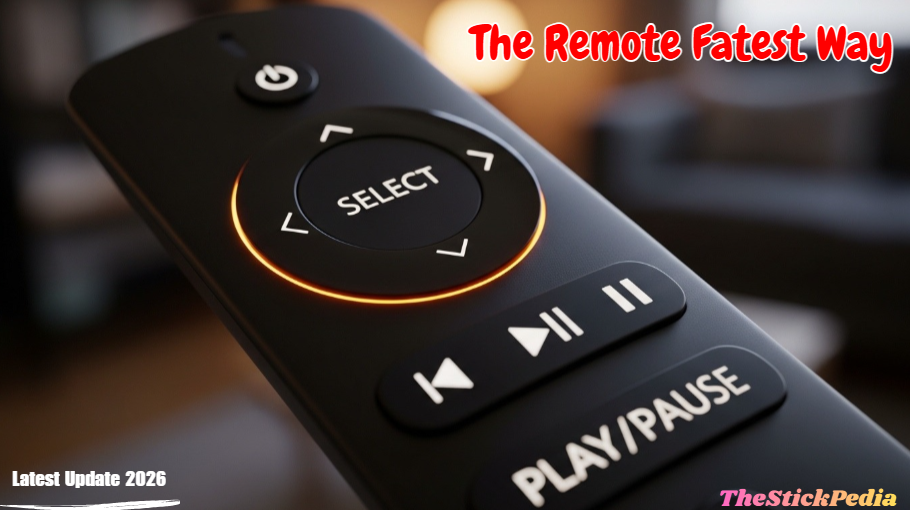
Let’s look at the first way on how to restart a firestick using the remote. If your Firestick is lagging but still partially responsive, you don’t even need to go into the settings. This “secret” button combination is the fastest way to trigger a reboot.
Steps to Follow:
-
Hold your Firestick remote.
-
Press and hold the Select button (the center of the navigation wheel) and the Play/Pause button at the same time.
-
Keep holding them for about 5 to 10 seconds.
-
A message will pop up saying, “Your Amazon Fire TV is Powering Off.”
Method 2: Restarting via the Settings Menu (The Safe Way)
This is the official method recommended by Amazon. It ensures that all your apps are closed properly before the device shuts down.
-
Go to the Home Screen of your Firestick.
-
Navigate to the Settings (Gear Icon) on the far right.
-
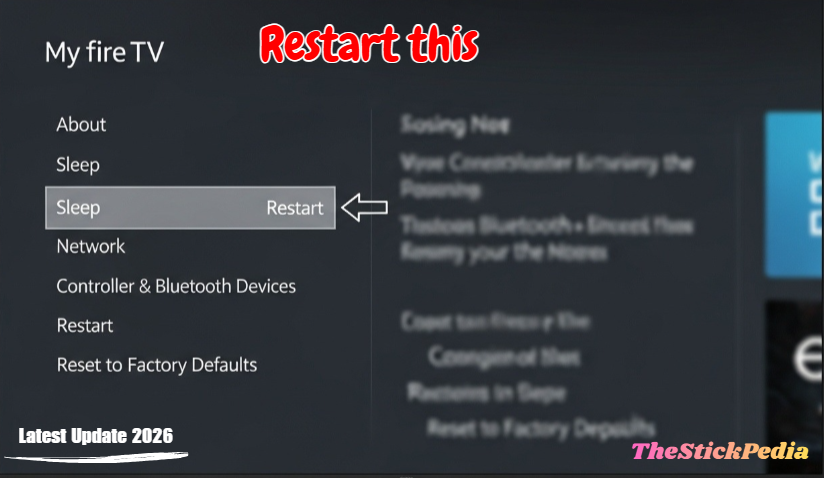
Scroll down and select My Fire TV. (Note: On some older models, this might be labeled as ‘Device’ or ‘System’).
-
Click on Restart.
-
Confirm by clicking Restart again.
Wait for a minute as the device shuts down and reboots. This is the best method to use if your Firestick is feeling a bit sluggish.
Method 3: The Hard Restart / Power Cycle (For Frozen Screens)
If the screen is stuck, here is how to restart a firestick manually. What if your Firestick is completely frozen and the remote isn’t doing anything? This is where the “Power Cycle” comes in.
Warning: Do not just yank the cord out while an update is happening. Only use this if the screen is totally stuck.
-
Unplug the Power Adapter: Remove the power cable from the wall outlet or the back of the Firestick.
-
Wait for 60 Seconds: This allows the internal components to fully discharge their electricity.
-
Plug it Back In: Reconnect the power.
-
Wait for the Logo: The Fire TV logo will appear, and the device will boot up fresh.
Method 4: Restart Using the Fire TV App (If Remote is Lost)
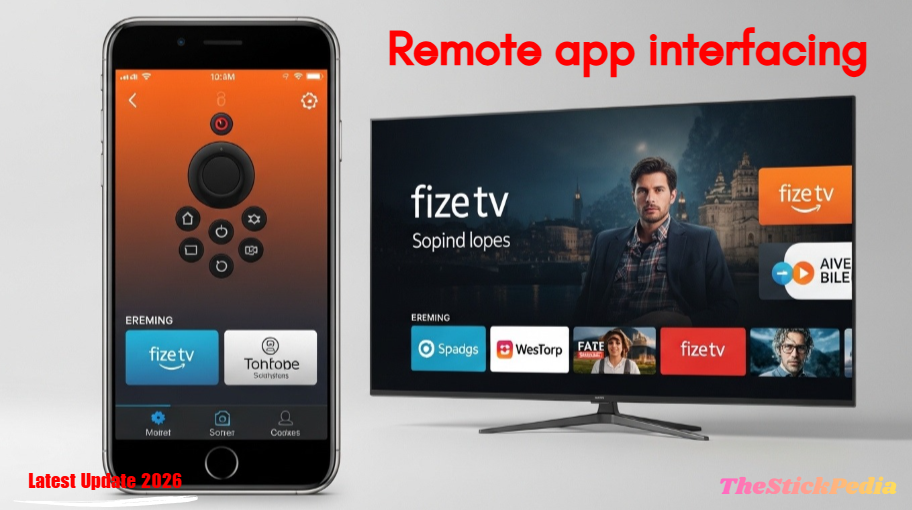
If you can’t find your remote or the batteries are dead, you can still restart your device using your smartphone.
-
Download the Amazon Fire TV App (Android or iOS).
-
Connect your phone to the same Wi-Fi network as your Firestick.
-
Select your device in the app and enter the code shown on your TV.
-
Use the app’s navigation to go to Settings > My Fire TV > Restart.
Troubleshooting: Firestick Stuck on Logo or Black Screen?
In early 2026, many users reported their Firesticks getting stuck on the “Fire TV” logo during a restart. If this happens to you, follow these “Breakout” troubleshooting tips:
1. Check Your Power Source
Are you plugging the USB cable directly into your TV’s USB port? Most TV ports don’t provide enough power (usually only 0.5A). Use the official Amazon power brick that plugs into the wall outlet.
2. Use the HDMI Extender
The small HDMI extender cable included in the box isn’t just for tight spaces. It helps with heat dissipation and improves Wi-Fi signal. If your device is overheating and freezing, use the extender.
3. Factory Reset (The Last Resort)
If multiple restarts don’t fix the lag, you might need to wipe the device clean.
-
Go to Settings > My Fire TV > Reset to Factory Defaults.
-
Note: This will delete all your apps and login information.
How to Keep Your Firestick Fast (Maintenance Tips)
To avoid having to restart your device every day, follow these simple maintenance steps:
-
Clear App Cache: Go to Settings > Applications > Manage Installed Applications, then clear the cache for heavy apps like Netflix or Kodi.
-
Uninstall Unused Apps: If you have 50 apps but only use 5, delete the rest. Low storage is the #1 cause of freezing.
-
Update Software: Always check for updates under My Fire TV > About > Check for Updates.
Frequently Asked Questions (FAQs)
Q: Will restarting my Firestick delete my downloaded movies?
A: No. A restart is just like turning your phone off and on. Your apps, settings, and downloads will remain exactly as they were.
Q: My Firestick remote is blinking orange after a restart. What does it mean?
A: This usually means the remote is in “Discovery Mode” and trying to pair. Press and hold the Home button for 10 seconds to re-pair it.
Q: Can I restart my Firestick with a voice command?
A: Currently, Alexa can open apps and play movies, but for security reasons, she cannot “Restart” the device via voice command. You must use the remote or the settings.
Conclusion
Now you know how to restart a firestick in 4 different ways. Knowing how to restart a firestick is the most basic yet essential skill for any streamer. Whether you use the quick remote shortcut or the official settings menu, a simple reboot can fix 99% of your problems, from buffering to app crashes.
Keep your device clean, use the original power adapter, and your Firestick will run smoothly for years to come.
Was this guide helpful? Share it with your friends who are struggling with a slow Firestick!
Don’t forget to bookmark Thestickpedia.com for more “No-BS” tech guides!
Internal Link: Firestick Running Slow? 11 Secret Hacks
Internal Link: Firestick App Installation Blocked? How to Fix & 2026 Guide
Internal Link: How to Install Stremio on Firestick (2026)
Do you have any questions about how to install Pluto TV on FireStick (2026 Guide)? Leave your comment below or explore more technical content at Thestickpedia.com