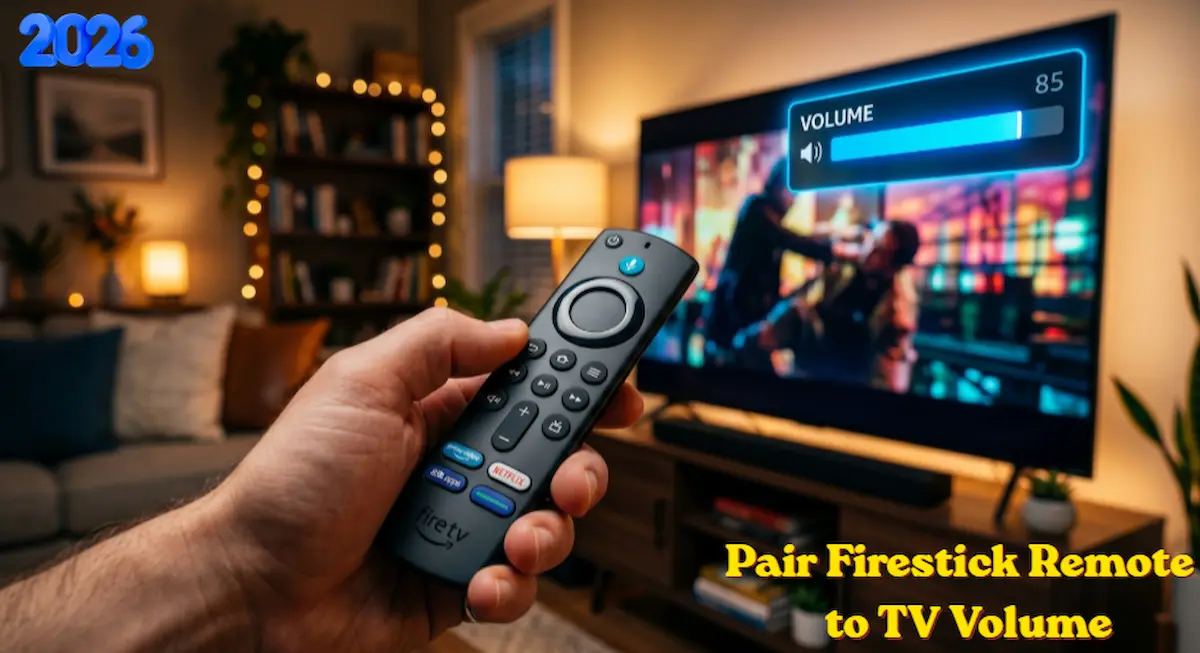
In the fast-paced world of 2026 streaming, convenience is king. Nothing ruins a cinematic experience like having to hunt for a second remote just to adjust the sound. If you are struggling to pair Firestick remote to TV volume and power, you aren’t alone. Thousands of users across the USA face this exact synchronization issue every day.
Whether you are using the latest Fire TV Stick 4K Max (2nd Gen), the Alexa Voice Remote Pro, or an older Fire TV Cube, this massive guide will provide you with every possible solution to get your remote working perfectly with your television.
Understanding the Technology: IR vs. Bluetooth
Before we dive into the steps, it is crucial to understand how your remote works. Your Firestick remote uses Bluetooth to communicate with the stick itself. However, to control your TV’s volume and power, it uses Infrared (IR) technology—the same light-based signal used by traditional remotes.
To successfully pair Firestick remote to TV volume, the remote must be programmed with the specific IR frequency of your TV brand. In 2026, most remotes also use HDMI-CEC (Consumer Electronics Control) to send commands through the HDMI cable.
Step 1: The Universal Auto-Setup Method (2026 Updated)
Amazon has significantly improved its “Equipment Control” wizard in recent Fire OS updates. Follow these steps to trigger the automatic detection system:
-
Open Settings: From the Firestick home screen, scroll to the Gear Icon (Settings).
-
Equipment Control: Select Equipment Control from the menu.
-
Manage Equipment: Choose Manage Equipment > TV.
-
Change TV: Click on Change TV. This is the most important step as it wipes out old, corrupted IR profiles.
-
Brand Detection: The Firestick will attempt to identify your TV. If it identifies it correctly (e.g., “We detected a Samsung TV”), click Yes.
-
The Volume Test: The system will play music. Follow the prompts to press the Volume Up and Down buttons.
-
Success Confirmation: If the volume changes, click Yes. If not, click No, and the Firestick will try the next IR code (there are often over 15 codes per brand).
🌐 Official External Resource
Still having trouble? If your specific TV model requires a unique IR code that isn’t listed in our guide, you can check the official Amazon Device Support database for the most up-to-date hardware compatibility list.
(Note: This link opens in a new tab and provides authoritative hardware troubleshooting from Amazon.)
Step 2: Brand-Specific Deep Dive (USA Market)
Every TV manufacturer in the USA uses a different name for HDMI-CEC. You must ensure this is enabled on your TV before you pair Firestick remote to TV volume.
Samsung TVs (Anynet+)
Samsung is the market leader in the USA. To sync your remote:
-
Go to Settings > General > External Device Manager.
-
Turn ON Anynet+ (HDMI-CEC).
-
In the Firestick menu, if the first code fails, try IR Profile 2105—this is a common universal code for 2024-2026 Samsung models.
Vizio TVs (CEC)
Vizio TVs are common budget choices in America.
-
Go to Menu > System > CEC.
-
Change the setting from “ARC Only” to Enabled.
-
Vizio IR sensors are often located on the far right or left bottom corner; aim your remote there during setup.
LG Smart TVs (SimpLink)
LG uses SimpLink.
-
Go to All Settings > General > Devices > HDMI Settings.
-
Toggle SimpLink (HDMI-CEC) to ON.
-
If pairing fails, ensure your LG “Magic Remote” isn’t interfering with the Firestick’s IR signal.
Sony Bravia (Bravia Sync)
Sony TVs are highly compatible but require Bravia Sync to be active.
-
Go to Settings > Watching TV > External Inputs > HDMI CEC Settings.
-
Enable CEC Control.
💡 Pro Tip: Using the Fire TV App
If your physical remote is broken, you can use the Amazon Fire TV App on your smartphone. While the app uses Wi-Fi to control navigation, it can also trigger the “Equipment Control” setup to help you re-pair a new physical remote if you buy a replacement.
Step 3: Advanced Manual IR Profile Entry
Sometimes, the “Change TV” wizard simply cannot find your TV. This is common with lesser-known brands like Insignia, Westinghouse, or Element.
-
Go to Settings > Equipment Control > Manage Equipment > TV > Advanced Settings.
-
Select IR Profile.
-
Choose Change IR Profile.
-
You will see a list of numbered profiles (e.g., Code 1, Code 2, etc.).
-
Manually test each one. This is time-consuming, but it is the “secret” way to pair Firestick remote to TV volume when all else fails.
⚠️2026 Critical Troubleshooting: Read This First!
If your volume setup is failing repeatedly, check these four “hidden” culprits:
- Low Battery Warning: IR signals require 3x more power than Bluetooth. Even if your remote navigates menus, it might not have enough juice to send IR volume signals. Replace batteries if they are below 40%.
- The 12-Second “Hard Reset”: Hold the Left + Menu + Back buttons simultaneously for 12 seconds. This clears the remote’s internal IR cache.
- IR Path Obstruction: Ensure your TV’s bottom bezel (where the logo usually is) isn’t blocked by a soundbar, picture frame, or decorations.
- HDMI Port Choice: Always plug your Firestick into an HDMI (ARC) or eARC port. These ports are specifically designed for two-way communication between devices.
Many users in the United States often wonder how to pair firestick remote to tv volume when they first set up their entertainment system. It is a common issue because modern smart TVs require specific infrared signals. If you want to pair firestick remote to tv volume successfully, you must ensure that your TV’s HDMI-CEC settings are correctly configured. This simple step makes it much easier to pair firestick remote to tv volume without needing a secondary controller.
Before you attempt to pair firestick remote to tv volume, always check your battery levels. Low power can prevent the infrared chip from sending the correct codes. Once you have fresh batteries, the process to pair firestick remote to tv volume becomes much more reliable. If the automatic wizard fails, you can manually pair firestick remote to tv volume by entering the specific IR profile for your TV brand in the advanced settings menu.
Controlling Soundbars and AV Receivers
In 2026, many US households use external audio like Sonos, Bose, or JBL soundbars. Your Firestick remote can control these, too!
-
Instead of selecting “TV” in Manage Equipment, select Add Equipment.
-
Choose Soundbar or Receiver.
-
Select your brand and follow the same “music test” as you did for the TV.
-
Crucial: Go to Equipment Control > Settings and change “Volume Control Device” from “TV” to “Soundbar.”
🔗 Expert Resources & Troubleshooting Guides
Maximize your Firestick’s potential with our most popular 2026 tutorials:
Frequently Asked Questions (FAQs)
Q1: Why does my Firestick remote only control volume but not power?
This usually happens when HDMI-CEC is partially enabled. Check your TV’s “Power Sync” or “Auto Power Off” settings in the CEC menu.
Q2: Can I pair one remote to two different TVs?
No. The IR profile is stored locally on the remote for one specific brand at a time. If you move your Firestick to another TV, you must repeat the pairing process.
Q3: My remote doesn’t have volume buttons. Can I still do this?
If you have the Firestick Lite remote, it lacks IR hardware. You cannot control TV volume with it. You must upgrade to the Alexa Voice Remote (3rd Gen).
Q4: Does this work with projectors?
Yes! Many modern projectors in the USA (like Epson or BenQ) support IR volume control. Follow the “Add Equipment > Projector” steps.
Q5: What if my brand isn’t listed?
Select “Brand Not Listed” at the bottom of the list. The Firestick will then cycle through the top 10 most common universal IR codes to find a match.
Conclusion
Syncing your home theater doesn’t have to be a headache. By taking the time to pair Firestick remote to TV volume, you simplify your life and enjoy a truly modern streaming experience. Remember to keep your batteries fresh, your HDMI-CEC settings active, and your Fire OS updated to the latest 2026 firmware.
Happy streaming from all of us at The Stick Pedia!