Is your FireStick lagging in 2026? The problem is solved in this article, but you must read the entire article to clear this issue. As streaming apps like Netflix, Disney+, and high-end IPTV services become more resource-heavy, even the newer Fire TV Stick 4K Max models can struggle. The secret to a lightning-fast experience isn’t just a fast internet connection—it’s knowing how to close background apps on FireStick.
In this comprehensive 2026 update, I will show you how to use the Background Apps and Process List FireStick tool, how to manually stop background processes on FireStick, and how to delete/uninstall unnecessary apps to free up precious storage.
For more news about technology and receivers, always visit thestickpedia.com, your reliable source of information.
Why FireStick Performance Drops in 2026 – background apps on FireStick
With the rollout of newer FireOS versions (FireOS 8 and beyond), Amazon has added more background telemetry and ad-tracking. Every time you open an app and go back to the home screen, that app continues to run in the RAM.
If you have 10 apps running in the background, your FireStick’s CPU is working overtime. This leads to:
-
System Lag: Delayed remote responses.
-
App Crashes: Apps are closing unexpectedly.
-
Thermal Throttling: The device gets hot and slows down automatically.
-
Buffering: Even with 1Gbps fiber, your video will stutter because the processor is busy.
To fix this, you need to learn how to clear RAM on FireStick effectively.
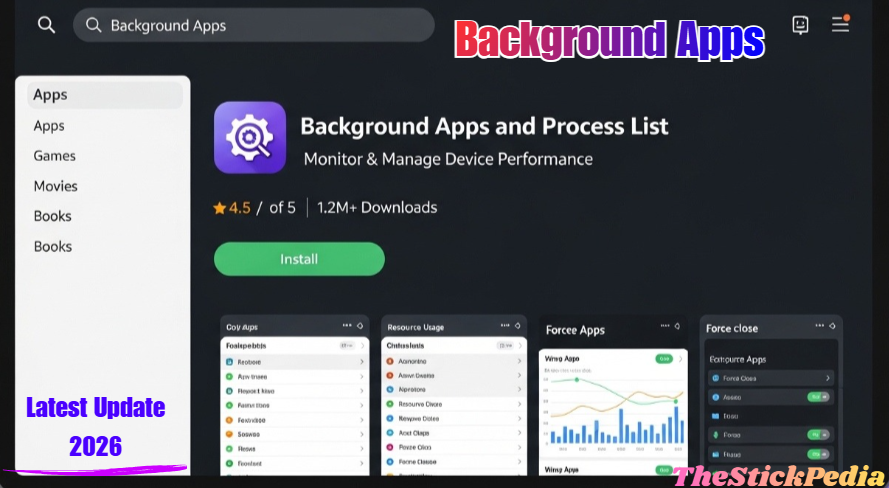
Part 1: How to Install “Background Apps and Process List” (2026 Version)
The Background Apps and Process List app remains the #1 utility for Fire TV users. It’s a tiny, ad-free (mostly), and highly efficient tool.
Steps to Download and Install:
-
On the FireStick Home screen, navigate to the Find (Magnifying glass) icon.
-
Select Search.
-
Type “Background Apps and Process List”.
-
As you type, the app name will appear in the suggestions. Click it.
-
Look for the icon with a simple list and a “refresh” style arrow.
-
Click Get or Download.
-
Once installed, click Open.
Part 2: How to Use the App to Close Background Apps
Once the app is open, you will see a list of all non-system apps currently running. Here is the fastest way to stop background processes on FireStick:
-
Launch the Background Apps and Process List FireStick app.
-
In the top-left corner, click “Close All Apps”.
-
The app will now act as a bridge. It will open the system settings for the first app on the list.
-
Click Force Stop.
-
(Optional but Recommended) Click Clear Cache to remove temporary junk.
-
Press the Back button on your remote.
-
The app will instantly take you to the next running app’s settings.
-
Repeat this until you see the message “No background apps running.”
By doing this, you clear RAM on FireStick and give all the power back to the app you actually want to watch.
Part 3: How to Delete/Uninstall Apps (Freeing Up Storage)
In 2026, storage is just as important as RAM. If your FireStick has less than 1GB of free space, it will crawl. You must uninstall apps that are just sitting there.
How to Uninstall Apps for Maximum Speed:
-
Go to Settings (Gear icon) on the Home Screen.
-
Scroll down and select Applications.
-
Click on Manage Installed Applications.
-
Scroll through the list. You might find apps you don’t even remember installing!
-
Select the (unnecessary) app.
-
First, click Clear Data (this removes all hidden files).
-
Then, click Uninstall.
-
Confirm by clicking Uninstall again.
Pro Tip: If you see “bloatware” apps pre-installed by Amazon that you can’t uninstall, just Force Stop them and Clear Data to minimize their impact.
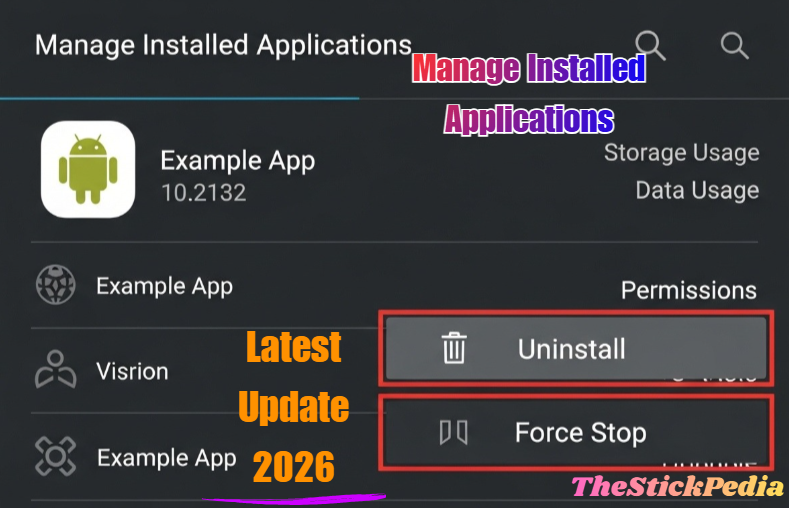
Part 4: Manual Method to Force Stop Apps (The “No-App” Way)
Sometimes you don’t want to download another app. That’s fine. You can force stop apps FireStick users find problematic manually:
-
Go to Settings > Applications > Manage Installed Applications.
-
Select the app that is lagging (e.g., Kodi or a heavy IPTV app).
-
Click Force Stop.
-
This kills the process immediately.
However, the manual way is slow if you have 20 apps running. That is why the Background Apps and Process List app download is so highly recommended by experts.
For detailed guides on other models, visit Thestickpedia.com.
How to close background apps on FireStick.
Part 5: New 2026 Speed Hacks for FireStick – background apps on FireStick
To stay ahead of the curve, here are some advanced tips that even the big sites miss:
1. Disable Background Data Usage
Some apps download updates or ads even when you aren’t using them.
-
Go to Settings > Preferences > Data Monitoring.
-
Turn it OFF to save CPU cycles.
2. The Hard Reset Shortcut (Remote Trick)
If your screen is frozen because of too many background apps:
-
Hold the Select button and Play/Pause button together for 10 seconds.
-
The FireStick will reboot. This is the ultimate way to clear RAM on FireStick in one go.
3. Turn Off “Featured Content” Autoplay
In 2026, the FireStick home screen is heavier than ever.
-
Go to Settings > Preferences > Featured Content.
-
Turn off Video Autoplay and Audio Autoplay. Your home screen will load much faster.
Is “Background Apps and Process List” Safe to Use in 2026?
Absolutely. This app doesn’t require “Jailbreaking” or side-loading from shady websites. It is a utility app verified by Amazon. It doesn’t run in the background itself—it only works when you open it. It is one of the safest ways to speed up FireStick.
Comparison: Closing Apps vs. Deleting Apps
| Feature | Closing Apps (Force Stop) | Deleting Apps (Uninstall) |
| Primary Benefit | Frees up RAM (Instant Speed) | Frees up Storage (Long-term Stability) |
| Data Loss | None | All app data is removed |
| Frequency | Daily / Weekly | Only when needed |
| Effort | Easy (with app) | Moderate |
Frequently Asked Questions (FAQs) – background apps on FireStick
1. How do I know which apps are running in the background?
The easiest way is to use the Background Apps and Process List app. It scans your system and shows you a live list of every active “User App.”
2. Does “Force Stop” damage the FireStick?
No. It’s a built-in system command. It’s like “Ending a Task” on a Windows PC. It is perfectly safe and highly recommended for FireStick running slow fix.
3. Why is my FireStick still slow after closing apps?
If closing apps doesn’t work, you might have a storage issue. Check Settings > My Fire TV > About > Storage. If you have less than 500MB left, you must uninstall apps immediately.
Due to Amazon’s OS restrictions, no app can close all others with one click. They all require you to click “Force Stop” for each app. The Background Apps and Process List FireStick app is simply the fastest way to cycle through them.
Conclusion
I hope! You have read this article and understand about the closing unnecessary apps. Mastering how to close background apps on FireStick is essential for anyone streaming in 2026. By using the Background Apps and Process List tool, manually managing your applications, and deleting apps, you can ensure your device remains snappy and responsive. But the problem (Background Apps on FireStick) is solved.
Don’t let background processes ruin your 4K movie night. Spend 2 minutes today cleaning up your device, and you’ll see the difference immediately!
Which method worked best for you? Do you prefer the app or the manual way? Let us know in the comments!
Internal Link: Install HBO Max on FireStick 2026 Guide
Internal Link: Jailbreak Firestick in 5 Minutes
Internal Link: Firestick vs Onn 4K Pro (2026)
Internal Link: Connect Firestick Without Remote (2026 Guide)
Internal Link: 25 Free Sports Streaming Sites (Updated 2026)
Do you have any questions about connecting of Close Background Apps on FireStick ? Leave your comment below or explore more technical content at Thestickpedia.com.