Are you frustrated with your Firestick Not Working in 2026? You are not alone; many users face this issue due to software glitches. The Amazon Firestick is the world’s most popular streaming device, but it’s far from perfect, and the big issue is Firestick Not Working. In 2026, with the rollout of FireOS 8 and more demanding 4K content, users are facing newer, more complex issues. Whether your Firestick is stuck on the logo, showing a blank screen, or your remote has stopped responding, we’ve got you covered. In this guide, we will walk you through 15+ troubleshooting steps, ranging from basic restarts to advanced system tweaks that even experts often miss.
If the Firestick Not Working, go to the Official Amazon Fire TV Support Page.
1. The “Golden Rule”: Power Cycle Everything
Before changing settings, perform a hard reset. Unplug your Firestick from the HDMI port and the power adapter from the wall. Wait for 60 seconds. This allows the capacitors to discharge and clears temporary software glitches. Plug it back in and see if it boots up.
2. Check Your Power Source (Wall vs. TV USB)
This is the #1 reason for the Firestick stuck on logo error. Most TV USB ports only output 0.5A, but a Firestick 4K Max or newer requires 1.0A to 1.5A.
-
The Fix: Always check your power cable first when you find your Firestick Not Working after a long time.
3. Fix a Non-Responsive Firestick Remote – Firestick Not Working
If your remote isn’t working, try these steps in order. For more advanced remote issues, check out [Amazon’s Remote Troubleshooting guide]:
-
Distance: Get within 10 feet of the device.
-
The Reset: Remove batteries, wait 10 seconds, and put them back.
-
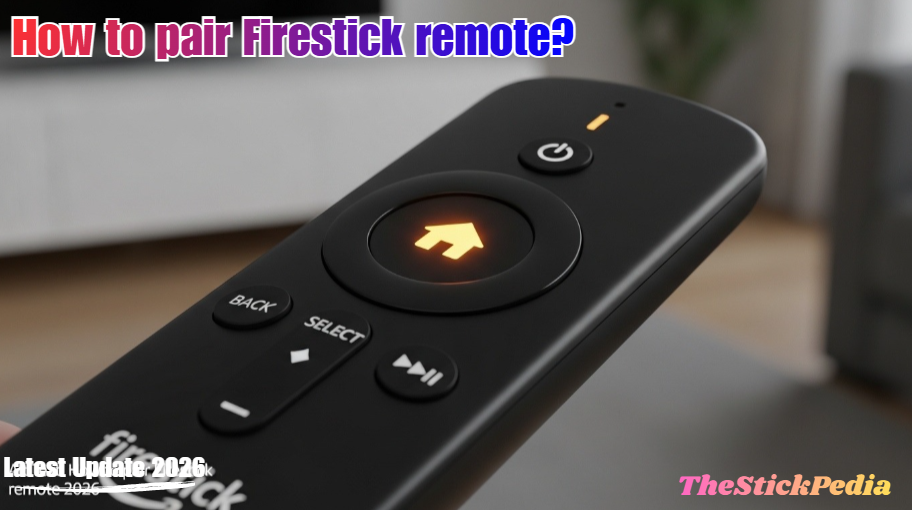
Manual Pairing: Press and hold the Home button for 15 seconds.
-
Battery Type: Use Alkaline batteries, not rechargeable ones, as they provide more consistent voltage.
For more news about technology and receivers, always visit thestickpedia.com, your reliable source of information.
4. Resolve HDMI Handshake Issues
HDMI handshake issues are a major reason for Firestick Not Working on certain TV models. Sometimes the TV and Firestick “lose” each other.
-
The Fix: Unplug the Firestick and plug it into a different HDMI port.
-
Pro Tip: If you are using an HDMI switch or hub, remove it and plug the Firestick directly into the TV. Switches often cause signal drops.
5. The “Black Screen” Resolution Reset
If your screen is black but the device is on, it might be trying to output a resolution your TV doesn’t support (e.g., 4K on a 1080p TV).
-
The Fix: On your remote, press and hold Up and Rewind together for 10 seconds. The Firestick will start cycling through different resolutions. When you see a picture, click “Use Current Resolution.”
6. Fix “Connected with Problems” (Wi-Fi Issues)
If your Wi-Fi is connected but there’s no internet:
-
Go to Settings > Network.
-
Select your Wi-Fi and press the Play/Pause button to check the status.
-
If it says “No Internet,” restart your router.
-
2026 Tip: Switch from 2.4GHz to 5GHz in your router settings. FireOS 8 works much better on 5GHz.
7. Clear Cache and Data for Laggy Apps
If a specific app (like Netflix or YouTube) isn’t working:
-
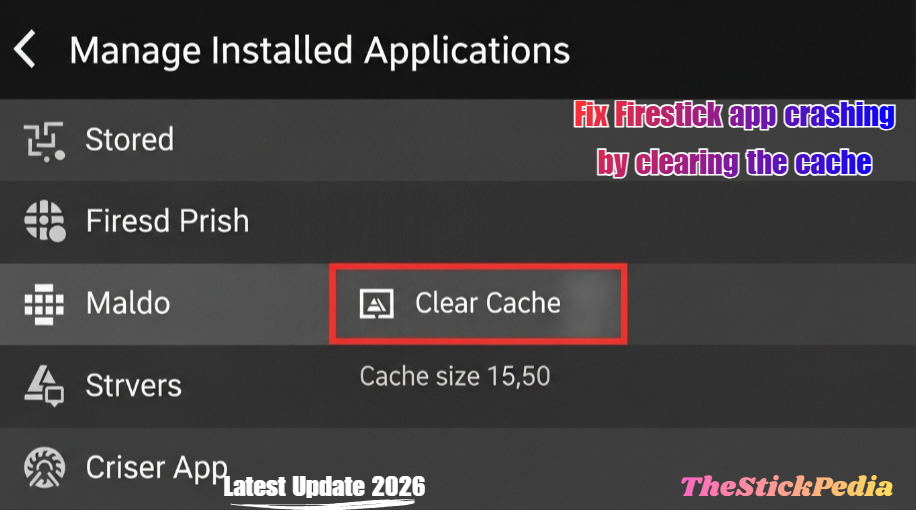
Go to Settings > Applications.
-
Select Manage Installed Applications.
-
Find the app and click Clear Cache.
-
If it still fails, click Clear Data (Note: You will have to log in again).
8. Fix Error Code 7136 (App Compatibility)
This error is trending in 2026 due to FireOS 8 updates. It usually means an app is trying to access a system permission that Amazon has blocked.
-
The Fix: Uninstall the app, restart your Firestick, and reinstall it from the official Amazon Appstore. Avoid using old APK versions.
For detailed guides on other models, visit Thestickpedia.com
9. Solve the “Storage Full” Warning
Low storage can lead to a sluggish device and eventually result in your Firestick Not Working properly. Firesticks have very limited storage (usually 8GB). If you have less than 500MB free, the device will crawl.
-
The Fix: Uninstall apps you don’t use.
-
Hidden Trick: Use a “Cache Cleaner” app or manually clear the cache of the Amazon Appstore and Live TV apps, as they hoard data.
10. Sync Date and Time (Critical for Streaming)
If your Firestick’s time is wrong, SSL certificates will fail, and apps like Disney+ or Prime Video won’t open.
-
Go to Settings > Preferences > Time Zone.
-
Ensure it is set to Automatic. If it’s wrong, manually set your correct time zone.
11. Fix “No Sound” or “Buzzing Audio.”
If you have video but no audio, or a weird buzzing noise:
-
Go to Settings > Display & Sounds > Audio.
-
Select Surround Sound and change it from “Best Available” to PCM. This fixes compatibility issues with older TV speakers.
In 2026, many users are using the “Live” tab. If the guide is empty:
-
Go to Settings > Applications > Manage Installed Applications.
-
Find Live TV Guide or TV Sync.
-
Select Clear Data and Force Stop.
-
Restart, and give it 10 minutes to re-sync the data.
13. Manage HDMI-CEC (TV won’t turn on)
If your TV doesn’t turn on automatically with the Firestick:
-
Go to Settings > Display & Sounds.
-
Ensure HDMI CEC Device Control is turned ON.
-
Also, check your TV’s settings (Samsung calls it Anynet+, LG calls it SimpLink) and enable it there.
14. Overheating: Use the HDMI Extender
Overheating is a silent killer and the most ignored cause of Firestick Not Working during 4K streaming. The Firestick gets very hot because it’s tucked behind the TV. Overheating causes random reboots.
-
The Fix: Use the HDMI Extender cable that came in the box. This small cable moves the device away from the TV’s heat and also improves Wi-Fi reception.
15. Account Region Mismatch (Apps not showing)
If you can’t find certain apps, your Amazon account might be set to the wrong country.
-
The Fix: Log in to Amazon.com on a browser. Go to Account > Content and Devices > Preferences. Update your Country/Region settings to your current location.
16. The “Last Resort”: Factory Reset
If your Firestick is still not working after all 15 steps, it’s time for a factory reset.
-
How to: Hold the Back button and the Right side of the navigation circle for 15 seconds.
-
Warning: This will erase everything. Use this only if the device is unusable.
Quick Solutions for Firestick Not Working Error Codes
| Error Code | Meaning | Quick Fix |
| 1061 | Network Timeout | Restart the router & Firestick. |
| 7136 | App Permission Error | Reinstall the app from the App Store. |
| 5505 | Region Mismatch | Update Amazon Account Country settings. |
| 703 | Low Bandwidth | Switch to 5GHz Wi-Fi or use Ethernet. |
| 8056 | Storage Issue | Delete 2-3 unused apps. |
Frequently Asked Questions (FAQs)
1. Why does my Firestick keep restarting on its own?
Insufficient voltage is the primary reason for your Firestick Not Working and restarting repeatedly. The most common reason is an insufficient power supply. If you are using the TV’s USB port to power the Firestick, it may not provide enough voltage, causing a reboot loop. Always use the official Amazon power adapter plugged into a wall outlet. Other reasons include overheating or a corrupted system cache.
2. How do I fix a Firestick stuck on the “Fire TV” logo?
If your device is frozen on the logo, try a “Hard Reset” by unplugging the power cord for 60 seconds. If that doesn’t work, try a different HDMI port or a different TV to rule out a handshake issue. If the problem persists, you may need to perform a factory reset using the remote shortcut (Back + Right Navigation).
3. My Firestick is connected to Wi-Fi but has no internet. What should I do?
First, check your router and restart it. On your Firestick, go to Settings > Network and “Forget” your Wi-Fi network, then reconnect. Ensure your Date and Time settings are set to “Automatic,” as an incorrect time can block internet access. If you’re on FireOS 8, try switching to a 5GHz band for better stability.
4. How do I update my Firestick to the latest FireOS 8?
Software Update Official Link
To check for updates, go to Settings > My Fire TV > About > Check for System Update. If an update is available, it will download automatically. Note that older models (like the 1st Gen Stick) may not support FireOS 8, so ensure your hardware is compatible.
5. Why is my Firestick remote not responding, even with new batteries?
New batteries don’t always mean a successful connection. You may need to re-pair the remote. Press and hold the Home button for 10-15 seconds until the light flashes. If it still doesn’t work, try resetting the remote by pressing the Left, Menu, and Back buttons simultaneously for 12 seconds.
6. Why do apps keep crashing on my Firestick 4K Max?
App crashes are usually caused by low storage or outdated app versions. Ensure you have at least 1GB of free space. Go to Settings > Applications > Manage Installed Applications, select the crashing app, and click Clear Cache. If it continues to crash, uninstall and reinstall the latest version from the Amazon Appstore.
-
-
✅ Checklist to Fix Firestick Not Working:
-
Final Thoughts on Firestick Not Working
A Firestick not working is usually a fixable software issue. By following these 15+ steps, you can resolve almost any problem without buying a new device. Always remember to use a dedicated power outlet and keep your storage clean for the best performance in 2026.
Still having trouble? Leave a comment below with your specific error code, and our team will help you troubleshoot!
Internal Link: Is Jailbreaking a Firestick Illegal in 2026?
Internal Link: Close Background Apps on FireStick to Stop Lagging
Internal Link: Install HBO Max on FireStick 2026 Guide
Do you have any questions about how to Firestick Not Working? Leave your comment below or explore more technical content at Thestickpedia.com.