
Is your Firestick remote not working? If you are struggling with a remote that won’t respond, you are in the right place. In this guide, I will show you how to fix any Fire TV remote issue in minutes. Imagine this: You’ve just finished a long, tiring day at work. You’ve got your favorite snacks ready, the lights are dimmed, and you’re all set to dive into the latest season of your favorite show on Netflix. You sit down, grab your Amazon Firestick remote, and… nothing happens. You press the home button, you click the navigation circle, you even start tapping the remote against your palm out of pure frustration, but the screen remains frozen.
If your Firestick remote is not working, you are certainly not alone. In fact, based on my years of experience with streaming devices, remote connectivity issues are the single most-reported problem by Fire TV users across the globe. Whether you own the high-end Firestick 4K Max, the budget-friendly Firestick Lite, or even the powerful Fire TV Cube, these glitches can strike at any time.
The good news is that in 95% of cases, you don’t need to spend money on a new remote. Usually, it’s just a minor software bug or a simple power issue. In this massive, 2000-word guide, I’m going to walk you through every single proven method to fix a Firestick remote not working situation. We will cover everything from the basic battery checks to the advanced “12-second master reset.”
Why Does the Firestick Remote Stop Working?
To fix the problem, we first need to understand the technology. Most traditional TV remotes use Infrared (IR) technology, which requires you to point the remote directly at the TV. However, Amazon Firestick remotes use Bluetooth technology.
While Bluetooth is great because it allows you to control your TV from under a blanket or even from another room, it is much more prone to software interference and pairing drops. The most common reasons for a Firestick remote not working include:
-
Battery Drainage: Voice-activated remotes use a lot of power for Alexa commands.
-
Signal Interference: Wi-Fi routers and other Bluetooth devices can “jam” the connection.
-
Distance: Being too far from the TV can cause the remote to lose sync.
-
Pairing Issues: A recent software update might have caused the remote to “unpair” itself.
-
Hardware Damage: Internal circuits failing due to drops or spills.
The 12-Second Master Reset (The King of Fixes)
If you are currently facing a Firestick remote not working issue, this is the first thing you should try. This “Master Reset” is a secret combination of buttons that completely flushes the remote’s internal memory and forces it to start a fresh handshake with the Firestick.
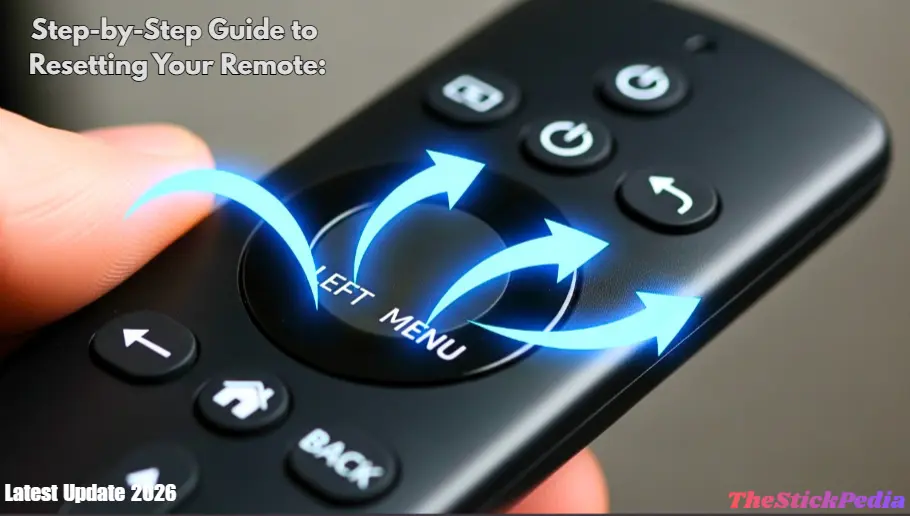
Step-by-Step Guide to Resetting Your Remote:
-
Unplug the Firestick: Completely remove the Firestick from the power outlet and the HDMI port. It must be totally powered off.
-
Hold the Buttons: Take your remote and press and hold the Left button, Menu button (three horizontal lines), and Back button all at the same time.
-
The 12-Second Rule: Keep holding these three buttons for exactly 12 seconds. Do not let go early!
-
The Wait: Release the buttons and wait for 5 seconds.
-
Remove Batteries: Take the batteries out of the remote.
-
Power Up: Plug your Firestick back into the power and the TV. Wait for the main Home screen to load fully.
-
Reconnect: Put the batteries back in and press the Home button for 20 seconds.
In almost every case I’ve seen, this “Golden Fix” solves the Firestick remote not working problem instantly. If it doesn’t work the first time, try it one more time; sometimes the timing of the button presses needs to be perfect.
Battery Myths and Reality
I often hear people say, “But I just changed my batteries last month!” Here is a hard truth: Firestick remotes are incredibly picky about voltage. If your battery drops even slightly below 1.5V, you will start seeing your Firestick remote not working.
Use Alkaline, Not Rechargeable
One of my personal stories: I once spent two hours trying to fix my remote, only to realize I was using rechargeable batteries. Rechargeable batteries usually output 1.2V, which is often not enough for the Bluetooth chip in the Firestick remote. Always use high-quality Alkaline batteries (Duracell or Energizer) for the best results.
The “Spring Tension” Fix
Check the small metal springs inside the battery compartment. Over time, they can get compressed. Use a small screwdriver or a paperclip to gently pull the springs outward. This ensures a tight connection and can instantly fix a Firestick remote not working.
Using the HDMI Extender as an Antenna
Did you know that the small, flexible HDMI cable that came in your Firestick box is actually an antenna? Most people throw it away or leave it in the box.
If your Firestick is plugged directly into the back of your TV, the metal body of the TV acts as a shield, blocking the Bluetooth signal from reaching the remote. If you find your Firestick remote not working from across the room but working when you stand close, you need to use the HDMI Extender. This moves the stick away from the TV’s interference and gives the remote a clear “line of sight” via Bluetooth.
Identifying Your Remote by LED Lights
Your remote is actually trying to communicate with you through a tiny light at the top. Understanding these “blink codes” is key to fixing a Firestick remote not working.
-
Blinking Blue: This is good! Your remote is working and listening for a voice command.
-
Blinking Orange: This means the remote is in “Discovery Mode.” It is waiting for the Firestick to pair with it. Hold the Home button for 10 seconds.
-
Blinking White: The remote has lost its connection and is searching for its “home” device.
-
No Light at All: Your batteries are dead, or the remote has suffered internal hardware damage.
For more official help, you can visit the Amazon Support Page
The Smartphone Backup Solution
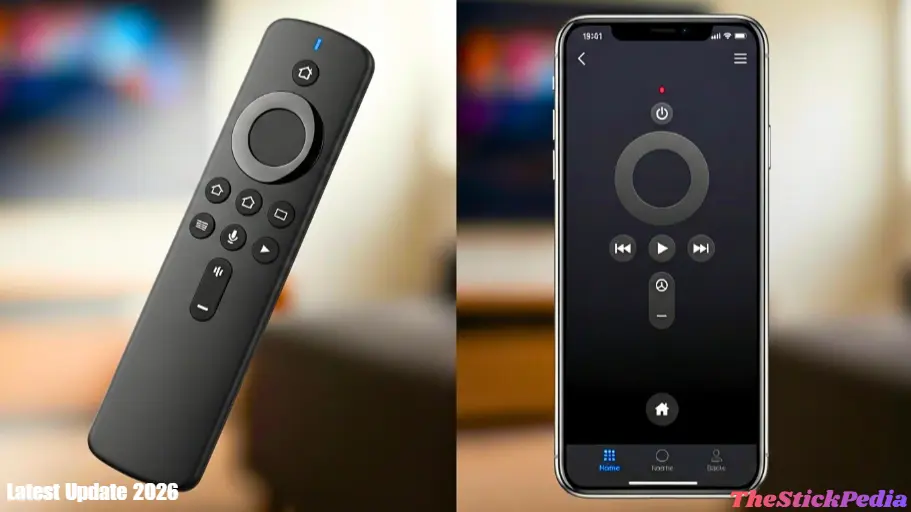
If you are stuck with a Firestick remote not working and you really want to watch a movie right now, don’t worry! Amazon has provided a brilliant backup.
-
Download the Amazon Fire TV App on your Android or iPhone.
-
Make sure your phone is on the same Wi-Fi network as your Firestick.
-
Open the app and select your Firestick from the list.
-
Enter the 4-digit code that appears on your TV screen.
-
You can now use your phone’s screen as a trackpad to navigate.
The best part about using the app is that it allows you to go into Settings and manually pair a new physical remote if your old one is truly broken.
How to Update Your Remote’s Firmware
Did you know that your remote has its own operating system? Sometimes, a bug in the remote’s software causes it to lag. If you are experiencing a Firestick remote not working intermittently, you should check for an update.
-
Using the mobile app remote, go to Settings.
-
Select Controllers & Bluetooth Devices.
-
Go to Amazon Fire TV Remotes.
-
Highlight your remote and check if there is an “Update Available” message.
-
If so, click it and do not touch the remote for 3 to 5 minutes while it installs.
Dealing with Bluetooth Interference
The 2.4GHz frequency used by Bluetooth is the same frequency used by your Wi-Fi router, your microwave, and even baby monitors. If you have a massive Wi-Fi router sitting right next to your TV, it can “drown out” the remote’s signal.
If you are facing Firestick remote not working, try moving your router at least 3 feet away from the TV. Also, try disconnecting other Bluetooth devices (like wireless headphones or game controllers) to see if the remote starts responding again.
Pairing a Replacement Remote
Sometimes, a remote simply dies. If you’ve bought a new one and find the new Firestick remote not working, it’s because it hasn’t been paired yet.
-
Stand within 3 feet of the Firestick.
-
Press and hold the Home button for a full 10-20 seconds.
-
Wait for the on-screen message that says “New Remote Paired.”
-
If it doesn’t work, unplug the Firestick, plug it back in, and try the Home button again.
Once your remote is fixed, learn how to install Tubi TV on Firestick for free movies
Common Questions (FAQs)
Q: Can I use my TV remote to control the Firestick?
▼
Q: Why does my remote work for volume but not for navigation?
▼
Q: How do I find a lost Firestick remote?
▼
Conclusion: Final Thoughts on Remote Issues
Fixing a Firestick remote not working is usually a matter of patience and following the right steps. Start with the basics—check your batteries and use the HDMI extender. If those fail, the 12-second reset is your best friend.
If you have tried every single method in this 2000-word guide and your remote still refuses to connect, then it might be time to invest in a replacement. Amazon offers several models, including the Pro version, which is highly recommended for its durability and extra features. Now that your remote is fixed, why not enjoy some great content? Check out our other popular guides on Guaranteed Fix: Firestick Stuck issue 2026 and Onn 4K Pro vs Google TV Streamer 2026 to take your streaming to the next level!
Legal Disclaimer:
This guide is for information only. We aren’t affiliated with Amazon. Use these fixes at your own risk. No liability for any device damage.