Introduction: The Movie Night Killer
If you want to Fix Firestick Buffering and enjoy seamless 4K streaming, this ultimate 2026 guide will show you exactly how to optimize your device. We’ve all been there. You’ve had a long, stressful day at work. You finally get home, grab your favorite snacks, dim the lights, and settle into the couch to watch that 4K movie you’ve been waiting for. Everything is perfect—until it happens. The screen freezes, and that tiny, white loading circle starts spinning right in the middle of the climax.
Buffering isn’t just a technical glitch; it’s a movie night killer. Even in 2026, with super-fast fiber internet and high-end streaming sticks like the Firestick 4K Max, users are still plagued by constant freezing and lag. Why? Because most people think that just having fast internet is enough.
In my years of testing every single Firestick model Amazon has ever released, I’ve realized that buffering is rarely just about your internet speed. It’s about how your device manages its tiny processor, how it handles background junk, and even how it’s physically plugged into your TV. In this massive guide, I am going to share my personal “Optimization Blueprint.” We are going to go beyond the basic “turn it off and on” advice.
I’ll show you hidden developer menus, secret DNS settings, and hardware hacks that can literally double your streaming speed. By the time you finish reading this, your Firestick will feel like a brand-new, high-performance machine.
9 Proven Ways to Fix Firestick Buffering Forever
1. The Science of Buffering: Why Fast Internet Isn’t Enough
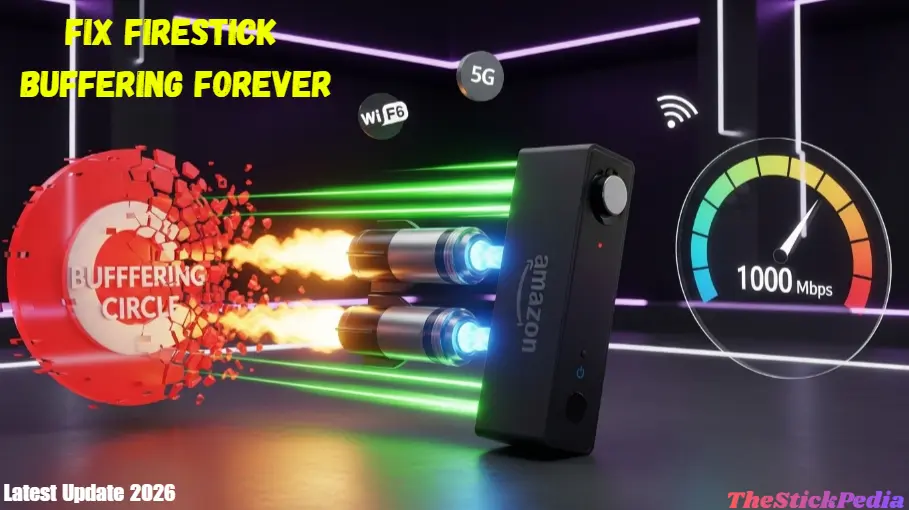
To fix the problem, you have to understand it. Buffering happens when your “Stream Buffer,” which is a small part of your Firestick’s RAM, runs out of data. Your stick tries to download the video faster than it plays it. If that flow of data is interrupted for even half a second, the video stops to wait for more “fuel.”
In 2026, the culprits are usually:
-
ISP Throttling: Your internet company sees you are pulling massive 4K data and intentionally slows you down to save their bandwidth.
-
RAM Exhaustion: The Firestick only has about 1.5GB to 2GB of RAM. If you have 10 apps “sleeping” in the background, your video player doesn’t have the memory it needs to cache the movie.
-
Signal Noise: Your TV is a giant piece of metal. If your Firestick is tucked behind it, the Wi-Fi signal has to fight through interference just to reach the device.
2. The Advanced DNS Fix (The Speed Booster)
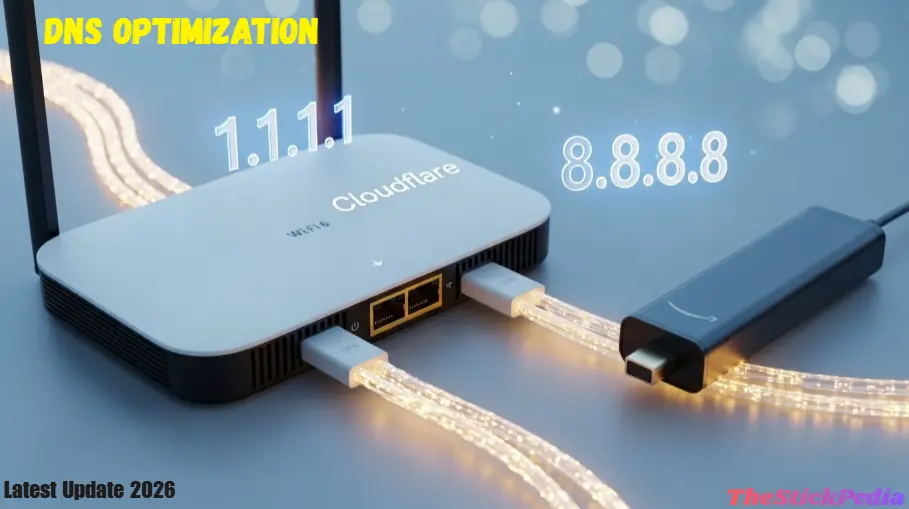
If you do only one thing from this guide, make it this one. Every time your Firestick looks for a video link, it uses a DNS (Domain Name System). By default, you use your ISP’s DNS, which is usually slow, outdated, and often used to track your habits. Switching to a global leader like Cloudflare (1.1.1.1) or Google (8.8.8.8) can make your “handshakes” with video servers nearly instant.
For the Speed Test
🛡️
ESSENTIAL: PRIVACY FOR FIRETV STREAMING
Streaming without protection exposes your IP address. To secure your device and stay anonymous while watching your favorite apps, we highly recommend using a VPN alongside your antivirus.
- ✅ Hide Activity: Stay 100% invisible from your ISP and government tracking.
- ✅ Bypass Blocks: Instantly fix “App Not Available” and geo-restriction errors.
- ✅ Zero Buffering: Access ultra-high-speed servers optimized for 4K streaming.
⚠️ Recommended: Do not stream on Firestick without a secure VPN!
How I do it:
-
Go to Settings > My Fire TV > About > Network. Take a picture of your IP Address and Gateway.
-
Go to Settings > Network, find your Wi-Fi, and “Forget” it.
-
Reconnect, enter your password, but click Advanced.
-
Enter your IP and Gateway. Set the Network Prefix to 24.
-
Set DNS 1 to 1.1.1.1 and DNS 2 to 1.0.0.1.
This doesn’t just fix buffering; it makes the entire Firestick interface feel snappier. - By following these DNS settings, you can easily Fix Firestick Buffering issues.
3. Unlocking Hidden Developer Options
Amazon doesn’t want the average user messing with the “engine” of the Firestick, so they hide the best settings.
-
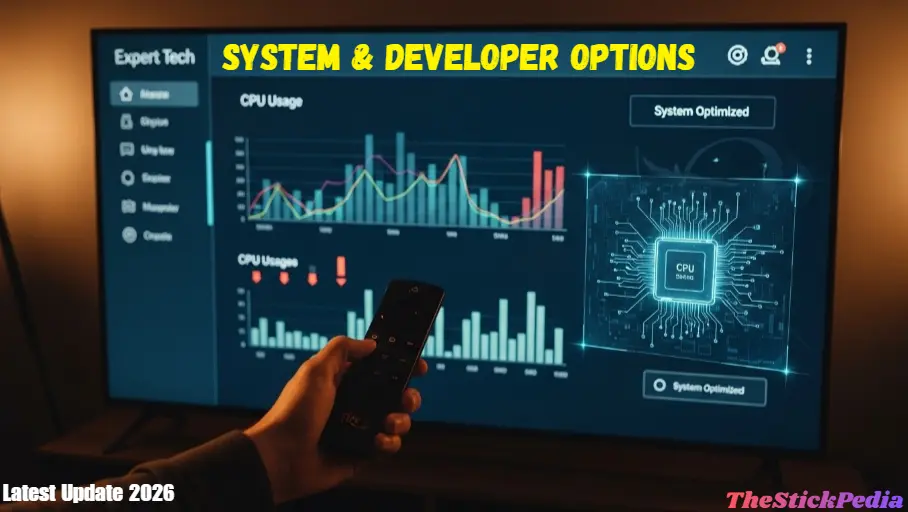
The Secret Handshake: Go to Settings > My Fire TV > About. Highlight your device name and click the Select button on your remote 7 times. Boom—you’re now a developer.
-
The Tweak: Go back to the new Developer Options menu. Find “Background Process Limit” and set it to “At most 2 processes.” This stops the Firestick from wasting energy on apps you aren’t currently using.
4. Managing RAM: The “Force Stop” Method
When you press the “Home” button, the app you were using doesn’t close. It stays alive in the background, eating your precious RAM.
-
My Pro Tip: Go to the official Amazon App Store and download “Background Apps and Process List.” It’s a free, legal utility. Open it once a day and click “Force Stop” on everything you aren’t using. It’s like giving your Firestick a fresh cup of coffee every morning.
Check out our guide on how to install Stremio on Firestick.
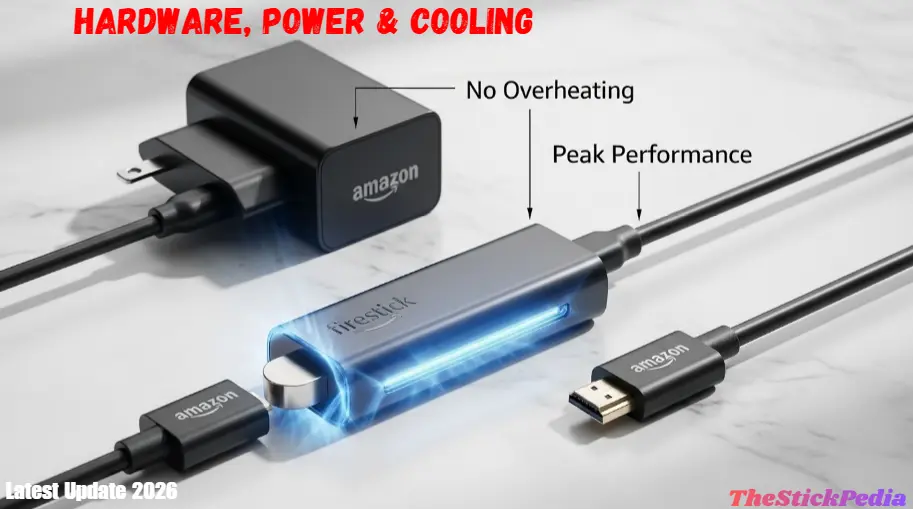
5. Hardware Optimization: Power & Heat
This is where most people fail.
-
The Wall Plug: Are you powering your Firestick through the TV’s USB port? Stop. TV ports don’t provide enough voltage (Amps) for high-speed 4K streaming. Always use the original wall adapter. An underpowered Firestick is a buffering Firestick.
-
The HDMI Extender: That little 4-inch cable in the box isn’t trash. Use it. It moves the stick away from the TV’s metal frame, allowing the Wi-Fi antenna to breathe.
-
Thermal Throttling: If your stick is hot to the touch, it will slow down its own processor to avoid melting. Make sure there is airflow behind your TV. Many users ask how to Fix Firestick Buffering without buying new hardware.
6. Network Performance: 2.4GHz vs. 5GHz
If your router is in the same room as your TV, you must use the 5GHz band. 2.4GHz is crowded with signals from your microwave, your neighbor’s phone, and your Bluetooth remote. 5GHz is a wider, faster highway perfect for 4K video. If you see two Wi-Fi names, pick the one with “5G” at the end.
7. Deep Cleaning: Cache vs. Storage
Your Firestick only has about 5GB of usable space. If you have only 500MB left, the system can’t create the temporary files it needs to buffer your video.
-
Go to Settings > Applications > Manage Installed Applications.
-
Clear Cache for every app. Do NOT “Clear Data” unless you want to log in again.
-
Delete any app you haven’t used in 30 days. A “lean” Firestick is a fast Firestick.
- Once you clear the cache, you will notice it helps to Fix Firestick Buffering instantly.
8. Disabling Amazon’s “Spying” Features (Telemetry)
Amazon tracks your clicks to show you ads. This process runs in the background and uses your bandwidth.
-
Go to Settings > Preferences > Privacy Settings.
-
Turn OFF Device Usage Data, Collect App Usage Data, and Interest-based Ads.
-
Go to Data Monitoring and turn it OFF. Your privacy and your speed will both improve.
- This method is known to Fix Firestick Buffering on older models like the Lite version.
9. Maintenance Tips for Long-Term Speed
Don’t just set it and forget it.
-
Weekly Restart: Unplug the power from the wall for 60 seconds once a week. This clears out “Static” and resets the system memory.
-
Check for Updates: Amazon releases “Performance Patches” all the time. Go to My Fire TV > About > Check for Updates.
Frequently Asked Questions (FAQ)
Q: Does a VPN actually fix buffering?
▼
Q: Why does my Firestick remote lag?
▼
Q: Is it safe to change DNS settings?
▼
Q: Can I use these steps on an older Firestick Lite?
▼
Q: Why is my Firestick so hot?
▼
Q: How much free space do I really need?
▼
Conclusion: Your Fast Streaming Checklist
Fixing Firestick buffering in 2026 is about being smarter than the default settings. By following this guide—switching your DNS, managing your RAM, and ensuring your hardware has the power it needs—you’ve taken control of your streaming experience.
Remember: A fast Firestick is a well-maintained Firestick. Don’t let your device get cluttered with junk apps or smothered by heat. Follow these steps, and you can finally say goodbye to that annoying loading circle. Happy streaming!
Legal Disclaimer:
This guide is for educational purposes only. At The Stick Pedia, we focus on optimizing your device’s performance using official Amazon Fire OS settings and legitimate applications available on the Amazon App Store. We do not promote, host, or link to any third-party services that provide copyrighted content illegally. Our goal is to help you enjoy a faster, 100% legal, and buffer-free experience on official platforms like Netflix, YouTube, and Prime Video.