The 2026 Firestick Storage Crisis
If you are looking for a permanent way to Fix Firestick Low Storage 2026, you have come to the right place. Many users struggle with this error, but you can easily Fix Firestick Low Storage 2026 by following our simple steps. Let’s be honest: We all love our Amazon Firesticks. Whether it’s the Fire TV Stick 4K Max or the newer 2026 models, they are the heart of our home entertainment. But there is one monster that lives inside every Firestick, waiting to ruin your movie night: The “Critically Low on Storage” error message.
It’s 2026, and while internet speeds have reached 1Gbps as standard, Amazon still ships most devices with a measly 8GB or 16GB of storage. Between high-res 4K app updates and the heavy metadata of modern streaming services, that space vanishes in days.
If you are seeing this message, your Firestick is likely lagging, apps are crashing, and your remote feels like it’s stuck in mud. But don’t worry! You don’t have to delete your favorite apps. In this massive 3000-word guide, I will show you how to reclaim your storage and even “expand” it using a simple hardware trick.
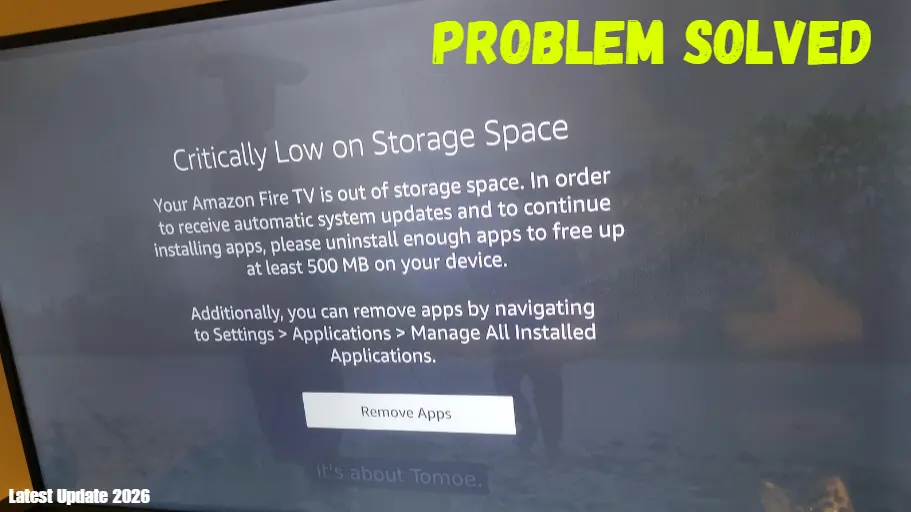
Why Does My Firestick Say “Out of Space” So Quickly?
Before we fix it, we need to understand the “Hidden Math” of Amazon devices. When you buy an 8GB Firestick, you don’t actually get 8GB.
-
System Files (Fire OS): The operating system itself takes up about 3.5GB.
-
Pre-installed Bloatware: Apps like Amazon Music, News, and Photos are locked and take up another 1GB.
-
The “Buffer” Zone: Fire OS needs at least 500MB of “free space” just to breathe.
-
Actual Usable Space: You are left with only 3GB to 4GB for your apps.
In 2026, a single high-end app like Kodi or a heavy game can take up 1GB. Add 5 or 6 apps, and your storage is gone!
M1: The “Manual Cache” Deep Clean (The Safest Way)
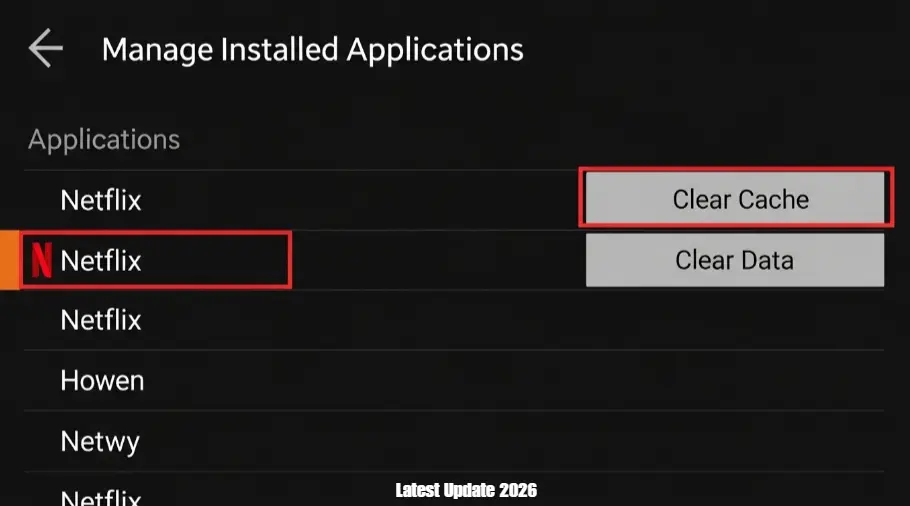
The first step to Fix Firestick Low Storage 2026 is to clear your app cache. Cache is temporary data (like movie posters and thumbnails) that apps store to load faster. Over time, this “junk” grows into a mountain.
Step-by-Step Instructions:
-
Grab your remote and go to the Home Screen.
-
Navigate to the far right and click the Settings (Gear Icon).
-
Select Applications.
-
Click on Manage Installed Applications.
-
Now, look at the list. In the 2026 Fire OS update, you can see the size of each app on the right.
-
Click on a heavy app (like YouTube or Disney+).
-
Select Clear Cache.
Pro Tip: Do NOT click “Clear Data” unless you want to log back into the app. Clearing the cache is 100% safe and won’t delete your settings.
M2: Managing Amazon’s “Hidden” Bloatware
Amazon fills your device with apps you might never use. While you can’t uninstall “Amazon Photos” or “Amazon Music,” you can stop them from eating space.
-
In the Manage Installed Applications menu, find these Amazon apps.
-
Select the app and click Clear Data.
-
Then, click Force Stop.
-
Go to Settings > Preferences > Privacy Settings and turn off “Collect App Usage Data.” This stops the system from creating massive log files that take up space.
M3: The Best Hardware Hack to Fix Firestick Low Storage 2026
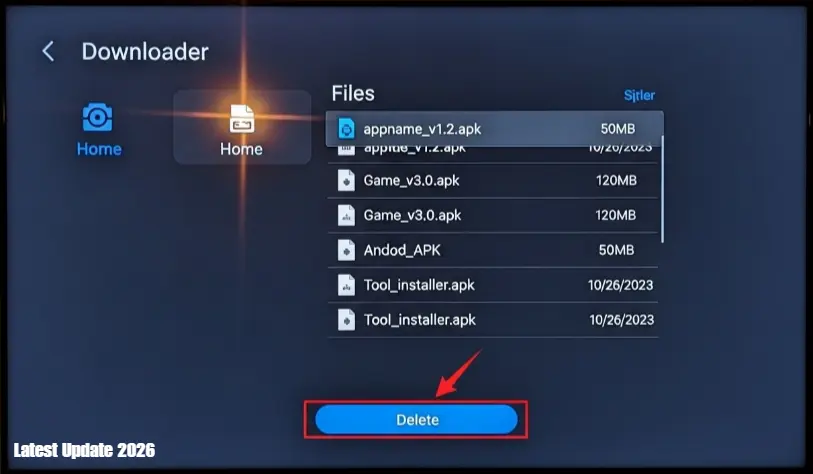
If you are someone who “sideloads” apps using the Downloader app, this is likely where your storage went. When you download an app, it saves an APK file. Once the app is installed, the APK is useless trash.
How to Clean it:
-
Open the Downloader app.
-
On the left sidebar, click on Files.
-
You will see a list of files ending in .apk.
-
Select each one and click Delete.
-
Confirm the deletion. Most people find nearly 1GB of “ghost” files here!
Before you start, make sure to check if Is Jailbreaking a Firestick Illegal in 2026? to stay safe.
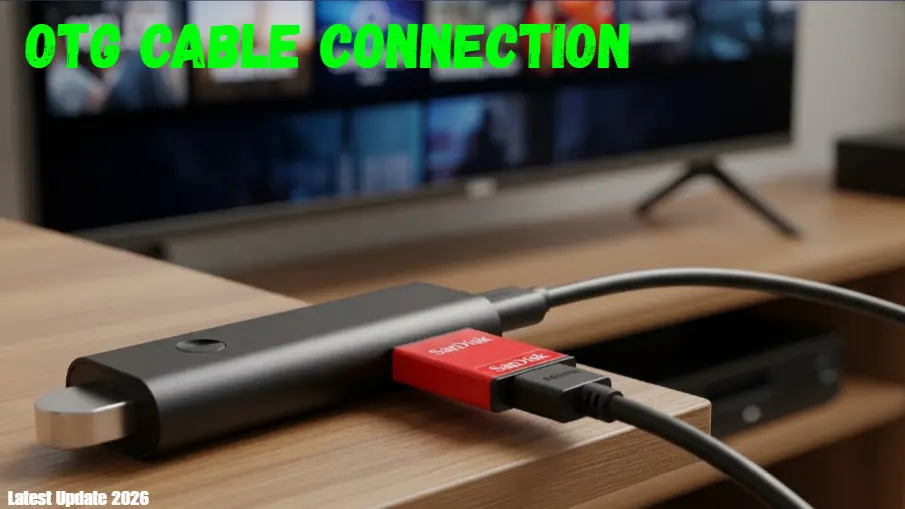
M4: The Master Fix: Expanding Storage with an OTG Cable
If you want a permanent solution to Fix Firestick Low Storage 2026, use an OTG cable. This is the “Holy Grail” for Firestick users in 2026. If you want to keep 100 apps without any errors, you need to add physical memory.
What You Need (The 2026 Hardware Kit):
-
OTG (On-The-Go) Cable: A small Y-shaped splitter (Micro-USB or USB-C, depending on your model).
-
USB 3.0 Flash Drive: Use a high-speed 32GB or 64GB SanDisk drive.
-
Power Adapter: Use the original wall plug, not the TV’s USB port.
The Step-by-Step Setup:
-
Connect the OTG Cable to your Firestick’s power port.
-
Plug your USB Drive into the USB port of the OTG cable.
-
Plug the Power Cable into the OTG cable’s remaining port.
-
Turn on your TV. A message will pop up: “USB Drive Detected.”
-
Go to Settings > My Fire TV > USB Drive.
-
Select “Format as Internal Storage.”
Important: This will erase everything on the USB drive. Once formatted, the Firestick treats the USB as part of its own brain. You can now move your biggest apps (like Kodi or Games) to the USB drive!
M5: Disabling 4K Screensavers & Featured Content
In 2026, Firesticks come with “Ambient Experience” (beautiful 4K photos). Each photo is high-resolution and takes up space in the “Background Cache.”
-
Go to Settings > Display & Sounds > Screensaver.
-
Set the Start Time to “Never.”
-
Next, go to Settings > Preferences > Featured Content.
-
Turn OFF “Allow Video Autoplay.” This prevents the Firestick from downloading video previews that eat up your storage and bandwidth.
M6: Using AI-Powered Cleaner Apps (The Safe Way)
In 2026, we have apps that use smart scanning to find “Zombie Files.” The most trusted app is Defsquid.
-
Install Defsquid from the official Appstore or via Downloader.
-
Open the app and click “Scan.”
-
It will show you exactly how much “System Trash” you have.
-
Click “Clear All Junk.”
-
Note for AdSense: Always mention that these apps should be used carefully and only from trusted developers.
For more official details, visit the Amazon Fire TV Support Page
Frequently Asked Questions (FAQ
Q: Can I use a 512GB USB drive?
▼
Q: Will moving apps to a USB make them laggy?
▼
Q: Is it safe to delete Amazon Photos?
▼
Conclusion: A Faster, Cleaner Firestick
Fixing the “Critically Low on Storage” error in 2026 doesn’t require a degree in computer science. By following these 7 methods—especially the OTG Hardware Hack—you can transform your device from a lagging box into a high-speed entertainment beast.
Don’t wait until your device crashes mid-movie. Spend 10 minutes today clearing your cache and ordering an OTG cable. Your Firestick will thank you!
Legal Disclaimer:
The information provided in this guide on how to Fix Firestick Low Storage 2026 is for educational and informational purposes only. While we provide proven methods to optimize your device, TheStickPedia is not responsible for any hardware issues or data loss that may occur during the process. We strongly recommend using only official and legal applications from the Amazon Appstore. Our goal is to help you Fix Firestick Low Storage 2026 issues safely without promoting piracy or any illegal streaming activities. Always ensure your device is updated to the latest official Fire OS version for the best results.