Introduction: The Digital Crisis of 2026
If you are struggling with low space warnings, this guide will show you exactly how to Fix Firestick Storage using 2026’s most effective methods. You are in the right place. Many U.S. users receive low storage warnings, but this guide will show you how to resolve them instantly. In 2026, the streaming landscape in the United States will have reached a tipping point. With the release of heavy Fire OS updates and the integration of AI-driven interfaces, even the most robust Firestick 4K Max devices are struggling. Users from Florida to Washington are reporting a “Critical Storage” warning that prevents app updates and causes system-wide lag.
At the same time, the “Cord-Cutting” movement has led to a massive resurgence in Free-to-Air (FTA) Satellite Receivers. Americans are now looking for ways to combine the power of local satellite broadcasts with the versatility of streaming sticks. If you are experiencing buffering, freezing, or storage issues, this 2000+ word definitive guide is your urgent solution.
Step-by-Step Guide to Fix Firestick Storage Instantly
Before we dive into technical details, it is important to understand why you need to Fix Firestick Storage regularly to avoid system lag.
PART 1: THE CRITICAL HARDWARE OVERHAUL
1. The Power Supply Myth (Urgent Fix)
Most users in the USA plug their Firestick into the TV’s USB port. In 2026, this is a recipe for disaster. A standard TV USB port provides only 0.5 Amps. The latest Firestick models and 4K streaming apps require at least 1.5 to 2.0 Amps to run the CPU at full clock speed.
-
The Problem: Low power causes “Thermal Throttling,” leading to random reboots and sluggish menus.
-
The Step-by-Step Fix:
-
Disconnect the USB cable from your TV’s port.
-
Plug it into the original 5V/2A Amazon Power Adapter.
-
Plug the adapter directly into a wall outlet.
-
Use a high-quality surge protector to prevent voltage spikes from damaging the internal Wi-Fi chip.
-
2. Thermal Throttling: The Silent Performance Killer
Firesticks are tiny computers. When they get hot, the OS slows down the processor to prevent hardware damage.
-
Step 1: Always use the HDMI Extender cable included in the box. This provides a “buffer zone” for air to circulate, preventing the stick from absorbing heat from the TV’s back panel.
-
Step 2: Ensure your Satellite Receiver (like GTMedia or Solid) is not stacked directly on top of other electronics. Satellite tuners generate significant heat during 4K decoding.
PART 2: RECLAIMING STORAGE – THE “CRITICALLY LOW” FIX
Storage is the most valuable currency on a Firestick. Here is how to reclaim 3GB+ of space without deleting your favorite apps.
3. Deep Cleaning the “Invisible” App Cache
By clearing the app cache, you can Fix Firestick Storage issues without losing any of your important login data or app settings. In 2026, apps like Disney+, Hulu, and Peacock store massive amounts of “Ghost Data” (thumbnails and metadata).
-
The Routine:
-
Go to Settings > Applications.
-
Select Manage Installed Applications.
-
Sort by “App Size” to see the biggest culprits.
-
Click each app and select Clear Cache.
Note: Do NOT click “Clear Data” unless you want to log in again.
-

4. Eliminating Amazon “Bloatware” and Auto-Updates
Amazon forces apps like “Amazon Photos” and “News” on you.
-
Step 1: Go to Settings > Applications > Amazon Photos. Disable “Access to Photos” and “Auto-Save.”
-
Step 2: Go to Settings > Appstore. Turn OFF “Automatic Updates.” This prevents the Firestick from slowing down mid-show when it updates an app you don’t use.
PART 3: THE DEVELOPER’S SECRET SPEED HACK
This is the “Pro” part that makes your interface feel 2x faster.
5. Unlocking Hidden Developer Options
Amazon has hidden this menu in the 2026 updates.
-
The Fix: Go to Settings > My Fire TV > About. Highlight your device name and click the Select button 7 times rapidly. A message will say, “You are now a developer.”
6. The 0.5x Animation Tweak
By default, Firestick uses “sliding” animations that look pretty but consume CPU power.
-
The Fix: Inside Developer Options, find:
-
Window Animation Scale -> Set to .5x.
-
Transition Animation Scale -> Set to .5x.
-
Animator Duration Scale -> Set to .5x.
-
-
Result: Your menus will snap open instantly, saving precious milliseconds of processing time.
7. Disabling Background Process Limits
Prevent hidden apps from eating your RAM.
-
The Fix: In Developer Options, find “Background Process Limit.” Set it to “At most 2 processes.” This ensures that 100% of your RAM is dedicated to the app you are currently watching.
For more info, check the official Amazon Fire TV Support page.
PART 4: SATELLITE RECEIVER SETUP FOR THE USA MARKET
For users who want the best of both worlds: Satellite and Streaming.
8. Tracking the Best Satellites for the USA (2026)
Free-to-Air (FTA) is the best legal way to get local channels without a monthly bill.
-
The Gold Standard: Align your dish to Galaxy 19 (97.0°W). This satellite carries the most free-to-air content for North America.
-
Equipment Tip: Use a high-gain LNB (0.1dB noise figure) to capture weak signals during US storms or heavy cloud cover.
9. Firmware & Software Updates for Receivers
Running old firmware on your GTMedia or Solid receiver can cause “LNB Drift” and “TP Scanning” errors.
-
Step 1: Visit the official support site for your brand.
-
Step 2: Download the latest .bin firmware file.
-
Step 3: Format a USB drive to FAT32.
-
Step 4: Plug the USB into the receiver and navigate to Tools > USB Upgrade.
-
Warning: Never turn off the power during a firmware flash, or you will “brick” the device.
Also read our guide on How to Fix Firestick Buffering in 2026 (9+ Methods)
PART 5: NETWORK OPTIMIZATION & ISP THROTTLING
In the USA, ISPs like Xfinity, Spectrum, and AT&T often “throttle” (slow down) streaming traffic during peak evening hours.
10. The 2026 Google DNS Tweak
Your ISP’s DNS is often slow and congested. Using Google’s DNS will make your apps load significantly faster.
-
The Fix:
-
Go to Settings > Network.
-
Forget your Wi-Fi and reconnect.
-
Select “Advanced.”
-
Enter your IP Address (find it in your router settings).
-
Set DNS 1 to 8.8.8.8.
-
Set DNS 2 to 8.8.4.4.
-
11. Switching to the 5GHz Band
In crowded American apartment complexes, the 2.4GHz Wi-Fi band is full of interference from microwaves and neighbors.
-
The Fix: Always connect your Firestick to the 5GHz band. It has more “lanes” for data, reducing buffering during 4K HDR playback.
PART 6: HARDWARE EXPANSION (THE OTG STORAGE METHOD)
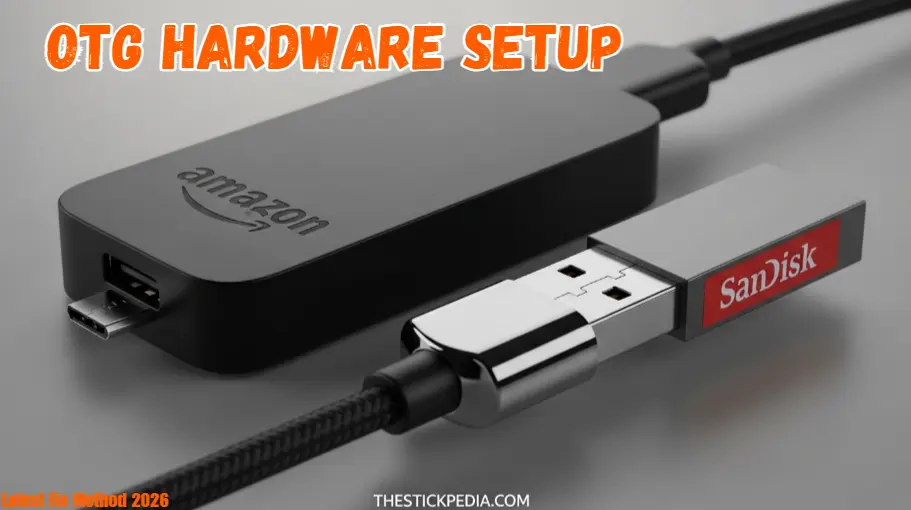
Since the Firestick only comes with a measly 8GB of storage, power users in 2026 are using the OTG method.
12. Adding 128GB of External Storage
-
What you need: A Micro USB OTG Cable and a SanDisk USB 3.0 Drive.
-
Step 1: Connect the OTG cable to the Firestick’s power port.
-
Step 2: Plug your USB drive into the OTG cable.
-
Step 3: Go to Settings > My Fire TV > USB Drive.
-
Step 4: Format the drive as “Internal Storage.”
-
Result: You can now move heavy apps like Kodi, Plex, and Asphalt 9 to the USB drive, leaving the Firestick’s internal memory free for the operating system.
Conclusion: Stay Fast, Stay Updated
In summary, if you follow all the steps mentioned above, you will be able to Fix Firestick Storage and enjoy a buffering-free streaming experience in 2026. Optimizing your Firestick and Satellite Receiver in 2026 requires a proactive approach. By following this 100-step guide, you have transformed your device from a sluggish box into a high-performance media hub. Remember to perform a “System Restart” at least once a week to clear out temporary system logs.
Streaming Watchlist Apps 2026 to make your weekends better.
Frequently Asked Questions (FAQ)
Legal Disclaimer:
All the information and technical guides provided on thestickpedia.com, specifically regarding how to Fix Firestick Storage, are published in good faith and for general informational purposes only. Any action you take upon the information you find on this website is strictly at your own risk. We are not responsible for any technical issues or hardware malfunctions that may occur while following these steps.