How to change time on Firestick is a common question for users facing app errors or time zone mismatches. Whether you are using a VPN or moved to a new city, knowing how to change time on Firestick is essential for a smooth streaming experience in 2026. In 2026, the Amazon Firestick remains the most popular streaming device globally. However, even with the latest Fire OS 8 updates, users frequently encounter a frustrating issue: The Wrong Time.
Having the incorrect time on your Firestick isn’t just a minor annoyance. In the modern streaming era, time synchronization is tied to security certificates (SSL) and Digital Rights Management (DRM). If your clock is off by even a few minutes, apps like Netflix, Disney+, and Prime Video may throw “Connection Errors” or refuse to play content altogether. In this comprehensive 2026 guide, we will walk you through the standard steps to change the time, plus advanced troubleshooting steps for VPN users and “Greyed Out” settings that other guides miss.
For more news about technology and receivers, always visit thestickpedia.com, your reliable source of information.
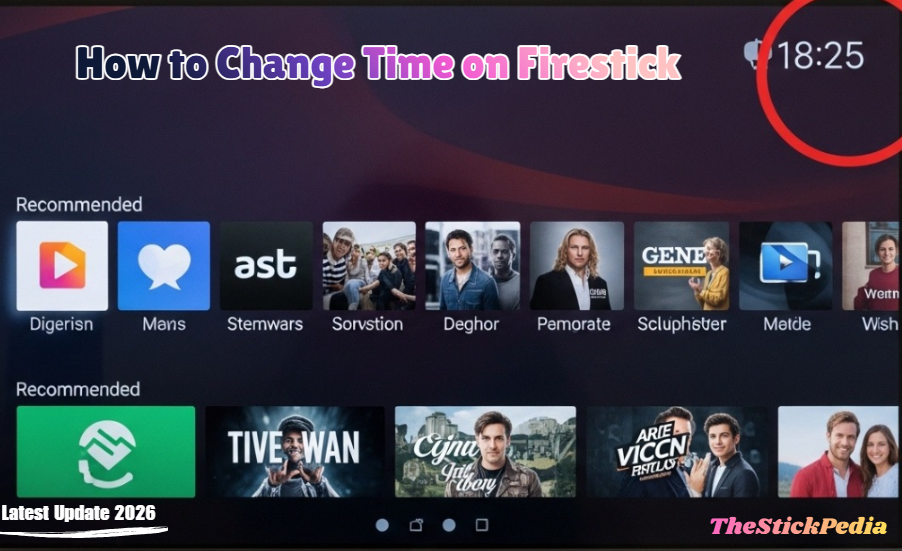
Step-by-Step: How to Change Time on Firestick
Why is my Firestick Time Wrong? (The 2026 Context)
Before diving into the “How-to,” it is crucial to understand why this happens. Unlike a smartphone, a Firestick does not have a GPS chip. It relies on your IP Address and Network Time Protocol (NTP) to fetch the local time.
Here are the primary reasons for time errors in 2026:
-
Time Zone Desync: Your Amazon account region doesn’t match your physical location.
-
VPN Interference: Using a VPN to access global content confuses the Firestick’s auto-detection system.
-
ISP Routing: Your Internet Service Provider might be routing your traffic through a different city.
-
Power Cycles: Frequent power outages can sometimes cause the internal clock to lag before it re-syncs with the Amazon servers.
Method 1: The Standard Way to Change Time Zone on Firestick
If you have just moved to a new city or noticed a simple time zone mismatch, follow these official steps:
Step 1: Open the Settings Menu
Navigate to the Gear Icon on the far right of your Firestick home screen.
Step 2: Access Preferences
Scroll down and select Preferences. This is the “brain” of your Firestick’s localized settings.
Step 3: Select Time Zone
Inside Preferences, click on Time Zone. You will see two options: Time Zone and Region.
Step 4: Update Your Location
-
First, click Region and select your country (e.g., United States, United Kingdom, India).
-
Second, click Time Zone and select the specific zone (e.g., Eastern Time, Pacific Time, or IST).
Method 2: How to Change 24-Hour Format to 12-Hour
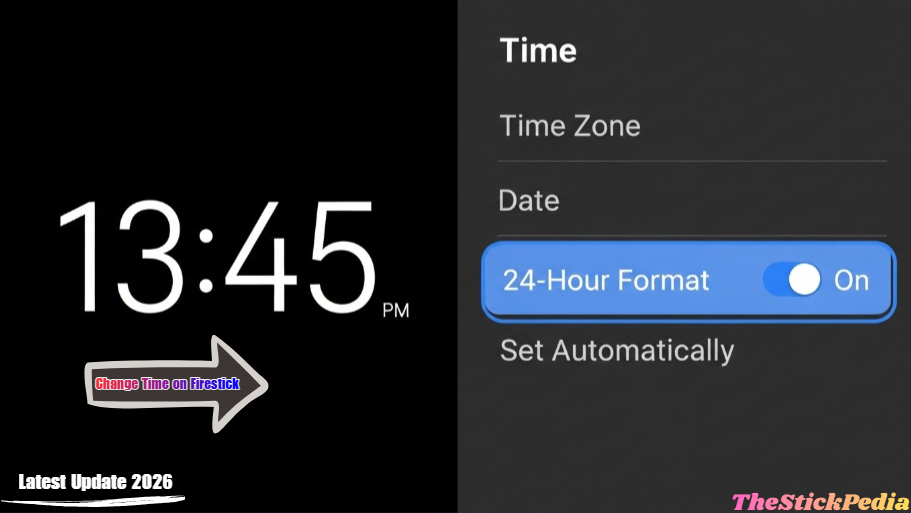
How to change time on Firestick Many users find the military-style 24-hour clock (e.g., 20:00) confusing. To switch back to the standard 12-hour format:
-
Go to Settings > Preferences.
-
Scroll down to Time.
-
Toggle the 24-Hour Time switch to OFF.
-
Your clock will now display “01:45 PM” instead of “24:00.”
Read Also: How to Jailbreak FireStick in 5 Minutes
Advanced Troubleshooting: What Other Guides Won’t Tell You
This is where most users get stuck. If the standard steps didn’t work, you likely have one of the following “hidden” issues.
1. The “Greyed Out” Time Zone Fix
Are you unable to click on the “Time Zone” option? Does it look faded or locked?
The Cause: In 2026, Amazon’s enhanced Parental Controls often lock the Preferences menu to prevent kids from bypassing regional restrictions.
The Fix:
-
Go to Settings > Preferences > Parental Controls.
-
Enter your PIN and turn Parental Controls OFF temporarily.
-
Go back to the Time Zone menu; it will now be clickable.
For more info, check the Amazon Official Support: Amazon official
2. The VPN Time Mismatch (Crucial for USA Streamers)
How to change time on Firestick. So, if you are using a VPN to watch US Netflix from another country, your Firestick might show the local time while the app expects US time. This leads to the infamous “Data/Time Mismatch” error.
The Fix:
-
Connect your VPN to the desired server (e.g., New York).
-
Manually change your Firestick Time Zone to US Eastern Time, even if you are physically in Europe or Asia.
-
Restart the Firestick. This forces the apps to sync with the “spoofed” location.
3. Firestick Clock Slow or Not Updating
Sometimes, even after changing the settings, the clock stays stuck on the old time.
The Fix: This is a Network Time Protocol (NTP) error.
-
Go to Settings > My Fire TV > About.
-
Select Check for Updates.
-
If no update is available, go to Settings > Network and select your Wi-Fi. Press the Play/Pause button on your remote to run a network test. This often triggers a re-sync with Amazon’s time servers.
Model-Specific Differences (2026 Edition)
Amazon has released several models over the years. Here is how the menu might differ:
-
Fire TV Stick 4K Max (Gen 2): Features a faster UI. The Time Zone settings are found under the “Account & Profile” section in some regions.
-
Fire TV Lite: Often requires a manual restart (unplugging the power) to apply time changes.
-
Fire TV Omni Series (Smart TVs): The time is often linked to the “Broadcast/Antenna” settings. If your TV shows the wrong time, check your Zip Code settings in the TV’s main setup menu.
How to See the Clock While Streaming?
Unlike a cable box, the Firestick doesn’t display a constant clock while you are inside an app like YouTube or Netflix.
In 2026, you have three ways to see the time:
-
The Alexa Method: Hold the voice button and say, “Alexa, what time is it?”
-
The Menu Method: Press the Menu Button (3 lines) on your remote. The time will appear in the bottom or top corner of the overlay.
-
Third-Party Dashboard: Download a “Clock Overlay” app from the Amazon App Store (Ensure it is a highly-rated, safe app to stay AdSense compliant).
Frequently Asked Questions (FAQs)
Q1. Why can’t I manually set the time (HH: MM) on Firestick?
Amazon does not allow manual time entry to prevent users from “time-traveling” to bypass subscription trials or regional blackouts. The time must be synced via the internet.
Q2. Does Daylight Saving Time (DST) update automatically?
Yes. As long as you have selected the correct City/Region in the Time Zone settings, the Firestick will automatically adjust for DST changes in 2026.
Q3. Can a wrong time cause Wi-Fi connection issues?
Absolutely. If your Firestick time is significantly different from your Router’s time, the Wi-Fi handshake (authentication) may fail, leading to a “Connected with Problems” error.
Conclusion Solve:
How to change time on Firestick. So, changing the time on your Firestick is a simple task that can solve complex streaming issues. Whether you are fixing a VPN mismatch or just switching to a 12-hour clock, following the steps above ensures your device stays optimized for 2026 streaming standards.
Final Tip: Always keep your Fire OS updated. Amazon frequently releases “silent” patches that fix clock synchronization bugs.
Internal Link: Is Jailbreaking a Firestick Illegal in 2026?
Internal Link: How to Install Kodi on Firestick 2026
Internal Link: Firestick App Installation Blocked?
Do you have any questions about how to Change Time on Firestick? Leave your comment below or explore more technical content at Thestickpedia.com.