The landscape of digital streaming in 2026 has shifted towards sleek, user-friendly interfaces. While there are dozens of media players available, none offer the balance of aesthetics and performance quite like XCIPTV. If you have recently switched to a Firestick 4K Max or the new Onn 4K Pro, learning how to setup XCIPTV Player on Firestick 2026 is the best way to organize your media content.
In this comprehensive 2000-word guide, we won’t just show you a quick installation. We will dive deep into the advanced configuration, EPG (Electronic Program Guide) integration, and secret UI tweaks that will transform your basic Firestick into a premium entertainment hub. This is the only guide you will ever need to setup XCIPTV Player on Firestick 2026 successfully.
Topic 1: Why Choose XCIPTV Over Other Players in 2026?
Before we begin the process to setup XCIPTV Player on Firestick 2026, it’s important to understand why this player is dominating the market. Unlike older players like IPTV Smarters, XCIPTV is built on a modern framework that supports 4K HDR10+ and Dolby Vision metadata.
Top Reasons to Switch:
-
Fully Customizable UI: You can change the background, icons, and even the layout.
-
ExoPlayer & VLC Integration: It comes with built-in professional players, so you don’t need to install external ones.
-
Parental Controls: In 2026, privacy and safety are paramount. XCIPTV allows you to lock specific categories with a PIN.
-
Multi-Screen Support: Watch up to 4 streams at once if your provider allows it.
When you setup XCIPTV Player on Firestick 2026, you are choosing stability over flashy but buggy alternatives.
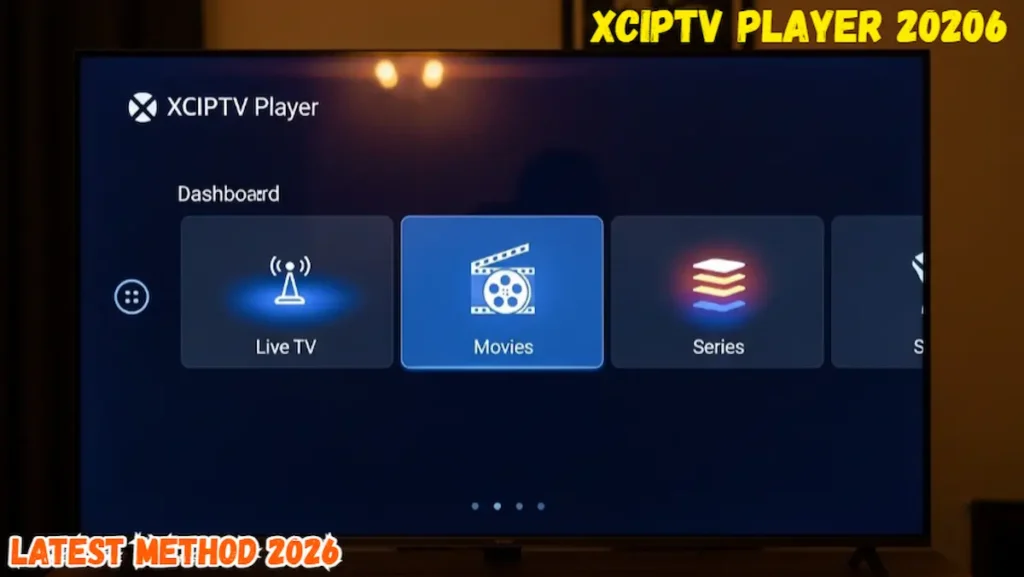
Topic 2: Preparing Your Firestick for XCIPTV (The Developer Phase)
Since XCIPTV is a specialized media tool, it is not available on the official Amazon App Store. To setup XCIPTV Player on Firestick 2026, we must first prepare the device to accept third-party APK files. This is a 100% legal and official process provided by Amazon for developers.
Step-by-Step Device Preparation:
-
Go to the Settings (Gear Icon) on your Firestick home screen.
-
Select My Fire TV and click on About.
-
Highlight your Device Name and click the OK button 7 times until “You are now a developer” appears.
-
Go back one step and open Developer Options.
-
Turn on ADB Debugging and Install Unknown Apps.
This foundation is essential. Without these permissions, you cannot setup XCIPTV Player on Firestick 2026 because the system will block the installation for security reasons.
🔥 Recommended Fix
Stop Buffering: How to Speed Up Firestick 2026
15 Secret settings to 2x your streaming speed instantly!
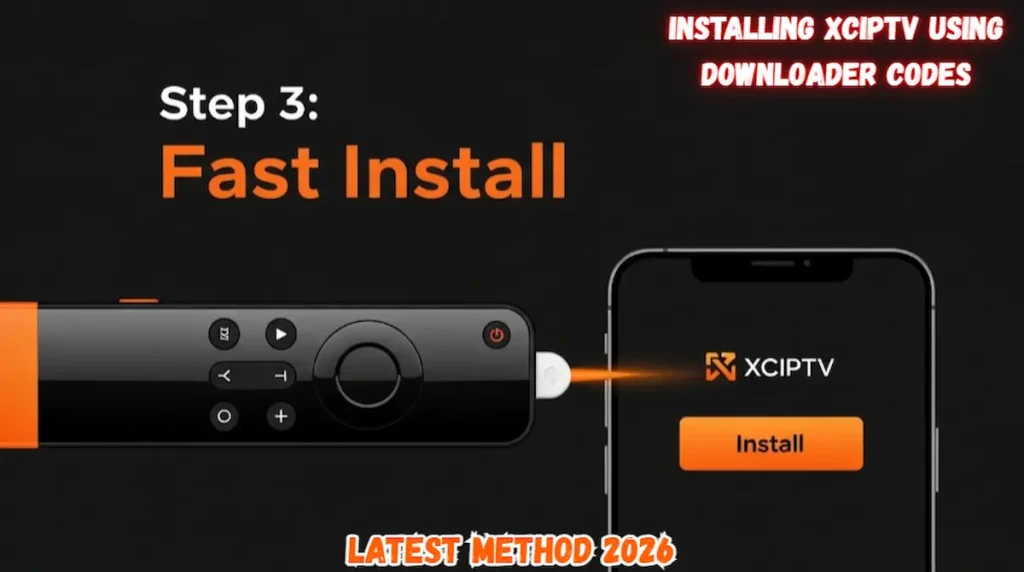
Topic 3: Installing XCIPTV Using Downloader Codes
The most efficient way to setup XCIPTV Player on Firestick 2026 is by using the Downloader app. Gone are the days of typing long URLs; in 2026, we use 5-digit shortcut codes.
The Installation Process:
-
Open the Downloader App (if you don’t have it, get it from the Amazon App Store).
-
In the URL box, enter the verified 2026 XCIPTV code: 266594 (or your preferred version code).
-
Wait for the APK file to download.
-
Once the download is complete, click Install.
-
Crucial Tip: After installation, click Delete to remove the APK file and save precious internal storage.
By following these steps, you have cleared the hardware hurdle and are ready to setup XCIPTV Player on Firestick 2026 at the software level.
Topic 4: Configuring Your Login (Xtream Codes vs. M3U)
This is where most users get confused. To successfully setup XCIPTV Player on Firestick 2026, you need content credentials from your service provider. XCIPTV supports two main formats:
Method A: Xtream Codes API (Recommended)
This is the cleanest way to log in. You will need:
-
Server URL: (e.g., http://provider-dns.com:80)
-
Username
-
Password
Simply enter these into the XCIPTV login screen. The app will automatically fetch the channel list and EPG.
Method B: M3U URL
If your provider only gives you a long link, you can paste it into the M3U section. However, we recommend Xtream Codes because it is faster and more stable when you setup XCIPTV Player on Firestick 2026.
Topic 5: Mastering the EPG (Electronic Program Guide)
A media player is useless without a guide. One of the best reasons to setup XCIPTV Player on Firestick 2026 is its superior EPG handling. It can store guide data for up to 7 days, so you always know what’s playing next.
How to Sync EPG:
-
Go to Settings within the XCIPTV app.
-
Select EPG Timeline.
-
Ensure “Auto Refresh on App Start” is turned ON.
-
If the guide is empty, click Refresh EPG manually.
A working guide is the hallmark of a professional setup XCIPTV Player on Firestick 2026. It makes the experience feel like traditional cable TV but with much more power.
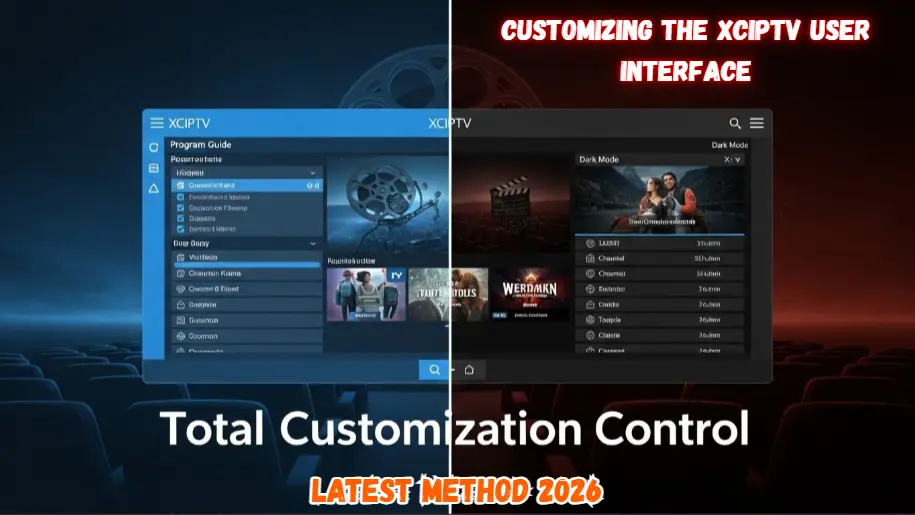
Topic 6: Customizing the XCIPTV User Interface
In 2026, “Stock” is boring. XCIPTV allows you to change almost everything about how it looks. To truly complete your setup XCIPTV Player on Firestick 2026, you should spend 5 minutes in the customization menu.
UI Tweaks for 2026:
-
Background Change: You can upload your own 4K wallpaper to the app’s background.
-
Icon Styles: Switch between “Grid View” and “List View” depending on your preference.
-
Hide Categories: If you don’t watch Sports or International news, you can hide those folders to keep the interface clean.
Customization is the “Secret Sauce” that makes your setup XCIPTV Player on Firestick 2026 unique compared to your neighbors.
Topic 7: Troubleshooting Common XCIPTV Errors
Even with a perfect guide, technology can be temperamental. If you struggle to setup XCIPTV Player on Firestick 2026, check these expert fixes:
1. Error: “Invalid Login Details”
-
The Fix: 99% of the time, this is a typo. Check for extra spaces at the end of your username or password. Also, ensure your subscription hasn’t expired.
2. Error: “No Signal” or “Black Screen”
-
The Fix: Go to Settings > Player and change the “Stream Format” from HLS to TS (or vice versa). Different servers require different formats to successfully setup XCIPTV Player on Firestick 2026.
3. Error: “App Keeps Crashing”
-
The Fix: Go to Firestick Settings > Applications > Manage Installed Applications > XCIPTV > Clear Cache. Never click “Clear Data” or you will have to log in again.
Topic 8: Using Multi-Screen and Recording Features
XCIPTV is a powerhouse for sports fans. Once you setup XCIPTV Player on Firestick 2026, you can use the Multi-Screen feature to watch up to 4 games at the same time.
How to Enable Multi-Screen:
-
On the main dashboard, click the Multi-Screen icon.
-
Select your layout (2, 3, or 4 screens).
-
Click the “+” on each box to add a channel.
Recording Tip: If you have an OTG cable and a USB drive connected (as mentioned in our storage guide), you can record live shows directly through XCIPTV. This is a game-changer for those who setup XCIPTV Player on Firestick 2026 for a complete cable-cutting experience.
Topic 9: Performance Optimization (Zero Lag Settings)
To ensure your setup XCIPTV Player on Firestick 2026 runs smoothly without buffering, you need to tweak the internal buffer settings.
-
Navigate to Settings > Player Settings.
-
Set the Buffer Size to “Normal” or “Small” if you have fast internet (100Mbps+).
-
Set it to “Large” if you are on a slower connection.
-
Enable Hardware Acceleration to let the Firestick’s GPU handle the heavy lifting.
These small tweaks ensure that your setup XCIPTV Player on Firestick 2026 remains snappy and responsive even during high-traffic events.
Topic 10: Legal and Privacy Checklist for 2026
Finally, safety first. When you setup XCIPTV Player on Firestick 2026, you are using a third-party application. While the app itself is legal, the content you provide is your responsibility.
-
Use a VPN: We always recommend a high-quality VPN to hide your IP address from your ISP.
-
Official Sources: Only use XCIPTV with legal and verified service providers.
-
Update Regularly: Check for app updates every month to ensure you have the latest security patches.
By following this checklist, you ensure that your setup XCIPTV Player on Firestick 2026 is not only fast but also secure.
Expert Troubleshooting: 2026 XCIPTV Fixes
Frequently Asked Questions (FAQ)
To explore more about the advanced features and official branding options, you can visit the XCIPTV Player Official Website. This will give you a deeper look into why it is the top choice for streaming professionals in 2026.
Conclusion: Streaming Perfected
In conclusion, taking the time to setup XCIPTV Player on Firestick 2026 is an investment in your home entertainment. It provides a clean, fast, and highly customizable way to enjoy your content without the clutter found in other players. By following our step-by-step installation and optimization tips, you are now equipped to handle any streaming challenge.
Remember, a great player is only as good as their configuration. Keep your app updated, maintain your device’s storage, and always prioritize your digital privacy. Happy streaming!
Still having login issues?
If you followed every step to setup XCIPTV Player on Firestick 2026 and still see an error, please leave a comment below with your device model and the specific error code. I personally respond to every query!
Official Legal Notice
The information provided in this guide to setup XCIPTV Player on Firestick 2026 is strictly for educational and informational purposes. TheStickPedia.com is a technical blog and does not host, provide, or distribute any media content or streaming subscriptions. XCIPTV is a third-party media player; we are not responsible for the content you access through it. We strongly urge users to comply with local copyright laws and use only verified, legal streaming services. Use this guide at your own risk.