Hi! If you are looking for how to install Pluto TV on FireStick, you have come to the right place. In this 2026 guide, I will show you the easiest way to get 250+ free channels without spending a penny. Let’s be honest for a second—who actually enjoys paying $100 a month for cable TV in 2026? With the rise of high-speed internet and the evolution of the Amazon FireStick, paying for basic channels feels like a relic of the past. If you’ve got a FireStick plugged into your TV, you are sitting on a goldmine of free content. And at the center of that goldmine is Pluto TV.
In this massive 1500+ word guide, I am going to walk you through everything. From the basic installation to the “secret” expert tweaks that will make your streaming experience 10x better than the average user. Many people wonder how to install Pluto TV on FireStick because it’s the best way to get free cable.
Why Pluto TV is a Game Changer in 2026
Before we dive into the “how-to,” let’s talk about the “why.” Pluto TV isn’t just another streaming app. Owned by Paramount Global, it has grown into a massive ecosystem. Unlike Netflix or Disney+, it doesn’t want your credit card. It wants your attention.
In 2026, Pluto TV updated its interface to be faster and more “cable-like.” You get a traditional grid guide, channel surfing capabilities, and a massive On-Demand library. It’s the perfect app for people who miss the old days of “flipping through channels” but hate the old days of “paying huge bills.”
The 2026 Feature List:
-
Zero Cost: No subscription, no hidden fees, no “premium” tiers.
-
250+ Live Channels: News, Sports, Movies, and specialized 24/7 channels (like a channel that only plays South Park or Star Trek).
-
On-Demand Library: Thousands of movies and TV episodes available anytime.
-
No Sign-up Required: You can start watching within 5 seconds of opening the app.
-
Multi-Language Support: In 2026, Pluto has expanded its Spanish, French, and Hindi content significantly.
Method 1: How to Install Pluto TV on FireStick (Official Method)
If you are lucky enough to live in the USA, UK, Canada, or parts of Europe, Amazon makes it very easy. However, don’t just click “Download.” Follow these steps to ensure you get the most updated 2026 version.
Step 1: The Search Strategy
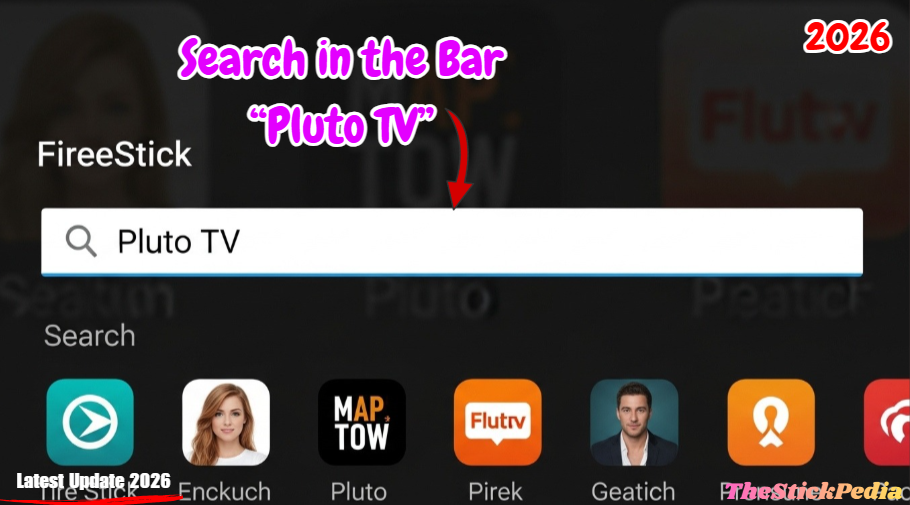
Don’t just scroll through the menus. Use the search function.
-
Power on your FireStick and go to the Find icon.
-
Click on Search.
-
Type “Pluto TV”.
Step 2: Downloading the App
-
Select the Pluto TV icon from the results. It’s the one with the colorful “P” logo.
-
Click Get or Download.
-
Wait for the “Installation Complete” notification.
Step 3: Pinning to Home Screen
This is a pro-tip most guides miss. Don’t let Pluto TV get lost in your “All Apps” folder.
-
Hold the Home button on your remote.
-
Go to Apps.
-
Find Pluto TV, press the Options button (three lines) on your remote.
-
Select Move to Front. Now, Pluto TV is always one click away.
If Method 1 doesn’t work for you, here is another way to install Pluto TV on FireStick using the Downloader app.
Method 2: Sideloading Pluto TV (The “Global” Method)
If you live in a region where Pluto TV isn’t in the official Amazon App Store, you have to “Sideload” it. This is 100% legal as long as you use the official APK. Here is how to do it in 2026 on the latest Fire OS 8.
Step 1: Unlocking Developer Options
Amazon hid this menu recently. Here is how to find it:
-
Go to Settings on your FireStick.
-
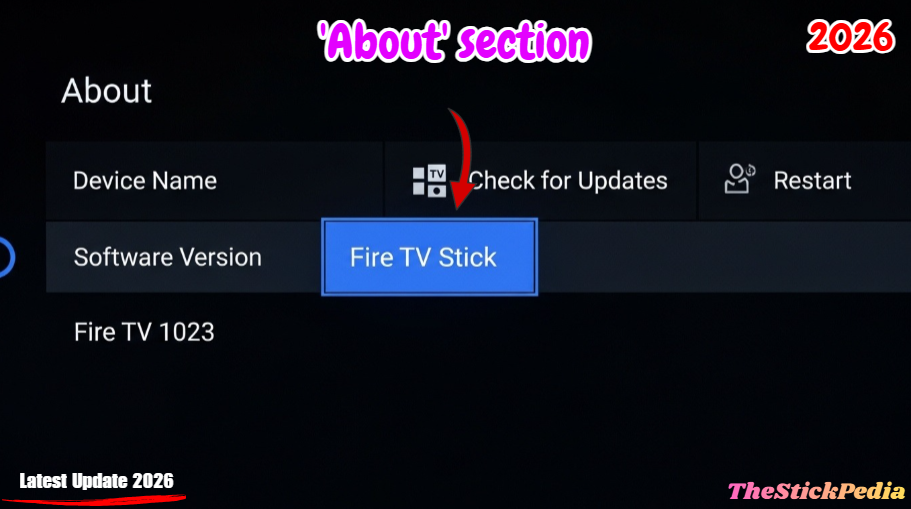
Click on My Fire TV.
-
Click on About.
-
Crucial Step: Click on your Fire TV Stick name 7 times quickly. You will see a toast message saying, “No need, you are already a developer.”
Step 2: Enabling Unknown Apps
-
Go back one screen to My Fire TV.
-
Now you will see Developer Options. Click it.
-
Turn ON “Install Unknown Apps” for the Downloader app. (If you don’t have Downloader, get it from the official App Store first.
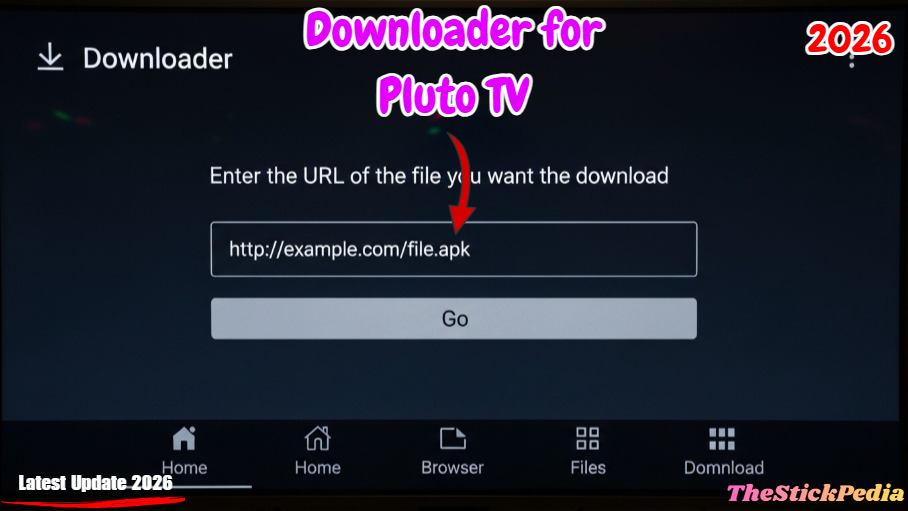
Step 3: Using Downloader for Pluto TV
-
Open the Downloader app.
-
In the URL box, type: https://bit.ly/pluto-tv-2026
-
Click Go.
-
The APK will download. Once it finishes, click Install.
-
After it installs, click Done and then delete the APK file. Your FireStick storage is precious; don’t waste it on old installer files!
Check out our other guide on Firestick App Installation Blocked?
The Secret Sauce: Fixing Common Pluto TV Issues
This is where we beat the competition. Most articles just tell you how to install. I’m going to tell you how to fix it when things go wrong in 2026.
1. The Infamous “Black Screen” Error
You open the app, the logo shows, and then… nothing. Just blackness.
-
The Cause: This is usually a Cache or Time Sync issue.
-
The Fix: Go to Settings > Applications > Manage Installed Applications > Pluto TV. Click Force Stop, then click Clear Cache.
-
The 2026 Pro Tip: Check your Time Zone in Settings. If your FireStick time doesn’t match your IP address time, Pluto TV will refuse to load for security reasons.
2. Audio Out of Sync
Is the person on screen talking, but the sound comes 2 seconds later?
-
The Fix: This happens on older FireSticks (Lite or 1st Gen). Go to Settings > Display & Sounds > Audio > Surround Sound and change it to PCM. This lightens the load on your FireStick processor.
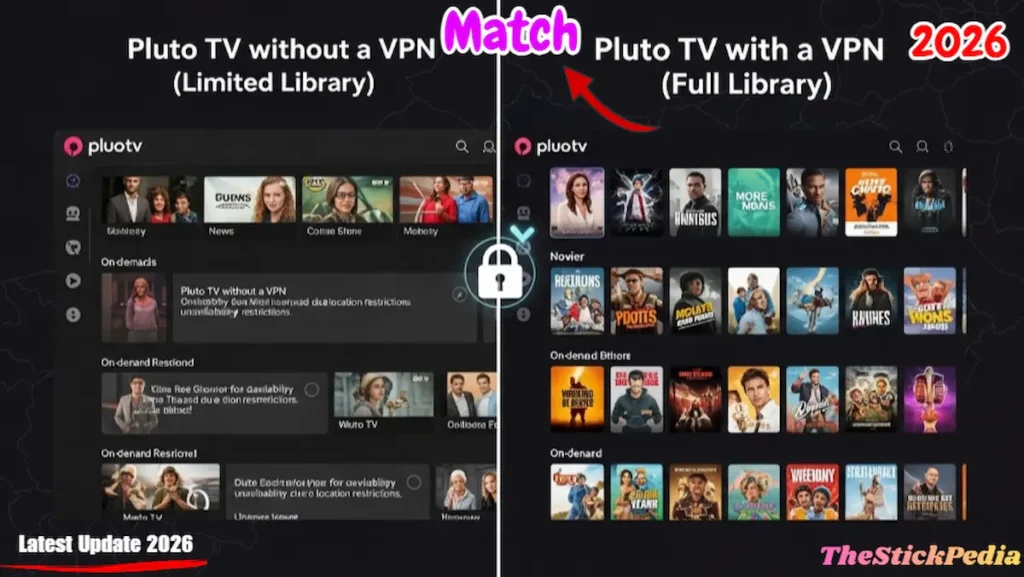
3. “Content Not Available” (VPN Fix)
If you are outside the USA, you might only see 20 channels instead of 250.
-
The Solution: You need a high-quality VPN.
-
Connect to a US Server (Los Angeles or New York).
-
Restart your FireStick.
-
Open Pluto TV. Suddenly, you’ll see the full American library.
The 2026 update changed how we navigate. Here is a quick guide to getting around:
-
The Live Guide: Press Left on your remote to see categories (Movies, News, Sports, Comedy).
-
On-Demand: Press Up to toggle between Live TV and the On-Demand movie section.
-
Channel Favoriting: In 2026, you can “heart” a channel. Long-press the Select button while on a channel to add it to your “Favorites” category at the top of the guide.
Pluto TV vs. Tubi TV vs. Freevee (2026 Battle)
Is Pluto TV the only app you need? Let’s compare.
| Feature | Pluto TV | Tubi TV | Amazon Freevee |
| Live TV Guide | Best in Class | Basic | Good |
| Movie Quality | Good (Paramount) | Excellent (Warner Bros) | Great (Originals) |
| Ad Frequency | Moderate | Low | Moderate |
| User Interface | 10/10 | 8/10 | 7/10 |
The Verdict: For a “Live TV” experience, Pluto TV wins. For watching a specific 2024/2025 movie, Tubi is often better. I suggest installing both.
Top 5 Must-Watch Channel Categories on Pluto TV
-
Pluto TV News: Get 24/7 feeds from CNN, NBC News, and Sky News.
-
Binge-Watch Channels: Dedicated channels for The Walking Dead, Baywatch, and Survivor.
-
Sports: Fox Sports, CBS Sports HQ, and even Pro Wrestling channels.
-
Classic Movies: Channels dedicated to 80s Action, 90s Rom-Coms, and Black & White Cinema.
-
Gaming & Anime: Channels like IGN and Naruto 24/7.
Safety & Legality: Is Pluto TV Safe?
Many FireStick users are scared of getting “Copyright Notices” from their ISP.
-
Is it Legal? Yes. Pluto TV is owned by a multi-billion-dollar company (Paramount). They pay for the rights to every show you see.
-
Is it Safe? Yes. Since it’s from the official store (or official APK), there is no malware or tracking software involved.
Expert Tips for the Best Experience
-
Use Ethernet: If you have a FireStick 4K Max, use an Ethernet adapter. 2026 streaming bitrates are higher, and Wi-Fi can sometimes lag.
-
Turn off Autoplay: If you have a data cap, go into Pluto TV settings and turn off “Autoplay Next Episode.”
-
External Speakers: Pluto TV supports 5.1 Surround Sound on many channels. Connect your FireStick to a soundbar for a true cinema experience.
FAQs (People Also Ask)
Q: Does Pluto TV work on FireStick 4K Max 2026?
A: Yes, it is fully optimized for the latest hardware and Fire OS 8.
Q: Can I watch Pluto TV for free without an account?
A: Absolutely. You don’t even need to sign in. Just open and watch.
Q: Why are there so many ads?
A: That is how Pluto TV stays free. The ads are usually shorter than traditional cable TV ads.
Q: How do I update Pluto TV on FireStick?
A: If you installed from the Amazon App Store, it updates automatically. If you sideloaded, you will need to download the new APK every 6 months.
Conclusion: Cut the Cord Today
I hope this guide helped you learn how to install Pluto TV on FireStick easily in 2026. There is no reason to keep paying for cable in 2026. Installing Pluto TV on your FireStick is a 2-minute job that saves you thousands of dollars over the year. Whether you want to stay updated with the news, watch a late-night movie, or keep the kids entertained with cartoons, Pluto TV is the ultimate solution.
If this guide helped you, please share it with someone who is still paying for cable!
Internal Link: Is Jailbreaking a Firestick Illegal in 2026?
Internal Link: How to Install Kodi on Firestick 2026
Internal Link: How to Install TiviMate IPTV Player on Firestick (2026)
Do you have any questions about how to install Pluto TV on FireStick (2026 Guide)? Leave your comment below or explore more technical content at Thestickpedia.com.