The Ultimate Firestick Crisis
In this guide, I will show you exactly how to control Firestick without remote or WiFi using 5 proven methods that work in 2026. We have all been there. You finally have a free evening to catch up on your favorite shows on Amazon Firestick, but the remote is missing. You search under the couch cushions, check the kitchen, and even the fridge—but it’s gone. To make matters worse, you’ve recently changed your home WiFi password or moved to a new house. Now, your Firestick is “Offline,” and the official Fire TV remote app on your phone can’t find the device because they aren’t on the same network.
It feels like a “Catch-22” situation: you need the remote to connect to WiFi, but you need WiFi to use the remote app. Most people give up and buy a new remote, but in 2026, there are several hidden methods to bypass this problem. In this massive 1,500-word guide, I will walk you through 5 working methods to control your Firestick without a remote or WiFi connection.
Why the Fire TV App Fails Without WiFi
Before we jump into the solutions, it’s important to understand the technical side. The Amazon Fire TV App is a lifesaver, but it relies on a local network connection. For the app to communicate with your Firestick, both must be connected to the same SSID (WiFi Name).
If your Firestick is stuck on an old network or is not connected to any network, the app becomes useless. This guide is specifically designed to solve that “Disconnected” loop.
Method 1: The HDMI-CEC Trick (The Most Efficient Way)
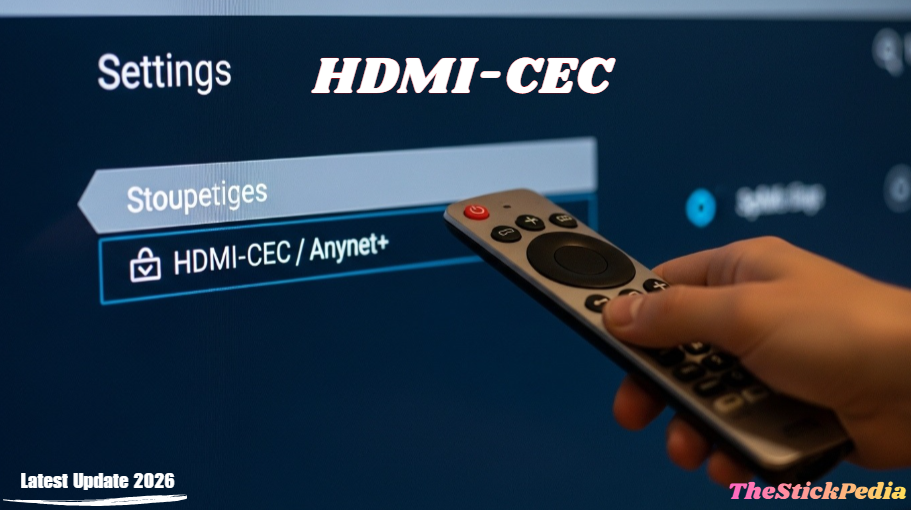
If you have a TV manufactured in the last 10 years, you likely have a feature called HDMI-CEC. This technology allows devices connected via HDMI to “talk” to each other. In simple terms, your regular TV remote can control your Firestick.
How to Enable and Use HDMI-CEC:
-
Grab your Original TV Remote: (The one that came with your Samsung, Sony, LG, or Vizio TV).
-
Navigate to TV Settings: Use your TV remote to find the System or Input settings.
-
Look for the CEC Name: Every brand calls it something different:
-
Samsung: Anynet+
-
Sony: BRAVIA Sync
-
LG: SimpLink
-
Vizio: CEC
-
-
Turn it On: Once enabled, switch your TV input to the Firestick.
-
Test the Navigation: Try using the arrow keys and the “Select/OK” button on your TV remote. If it works, you can now navigate to Settings > Network on your Firestick and connect it to your new WiFi.
HDMI-CEC Guide Link: Amazon Official Guide on HDMI-CEC
Pro Tip: This is the most reliable method and requires zero extra hardware or apps. Always keep this setting “ON” in your Firestick settings for future emergencies.
Method 2: The Smartphone Hotspot Trick (No Remote or WiFi)
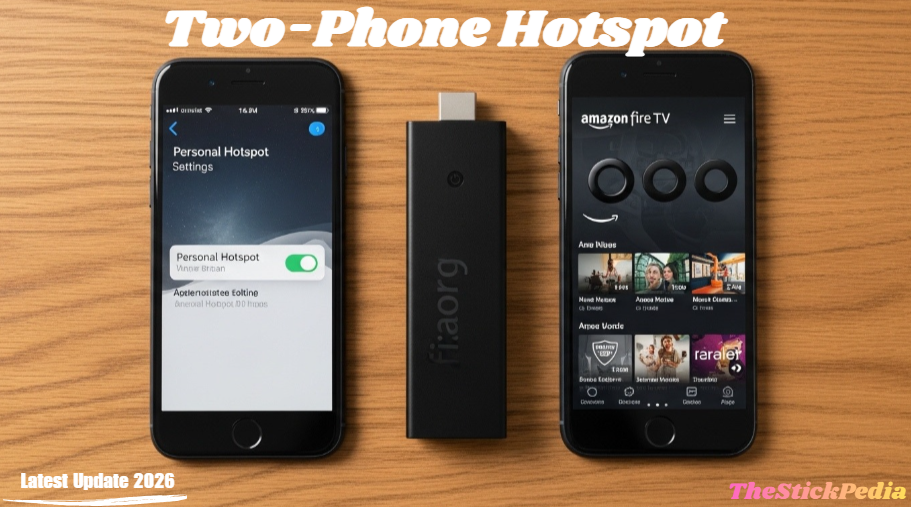
This hotspot trick is the most successful way to learn how to control Firestick without remote or WiFi for free. This is the most popular “hacker” method to fix a Firestick that is not connected to WiFi. The goal is to trick the Firestick into thinking it has found its old, familiar network.
The Requirements:
-
Phone A: Will act as the WiFi Router.
-
Phone B: Will act as the Remote.
-
The Info: You must remember the Name (SSID) and Password of the WiFi network your Firestick was previously connected to.
Step-by-Step Instructions:
If you have changed your home WiFi password and don’t have a remote, your Firestick is essentially “offline.” To fix this, you need two smartphones.
-
On Phone A, create a Mobile Hotspot and rename it to match your Old WiFi Name (SSID) and use the Old Password.
-
Your Firestick will automatically connect to this hotspot, thinking it’s your old home network.
-
Now, connect Phone B to the same hotspot and open the Fire TV Remote App.
-
You can now control the Firestick, go to settings, and connect it to your new home WiFi.
-
iOS/iPhone: Amazon Fire TV App (Apple App Store)
Method 3: Using a USB Keyboard or Mouse (Hardware Fix)
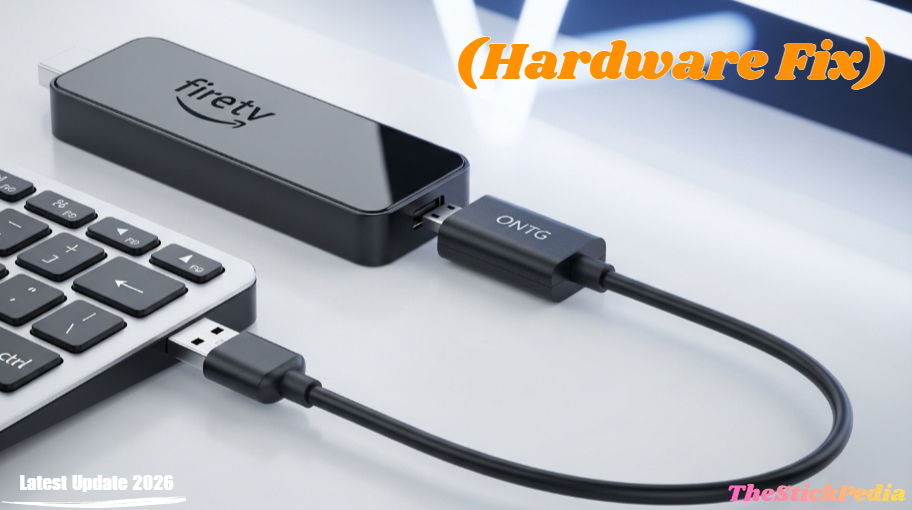
If your TV doesn’t support CEC and you don’t remember your old WiFi info, it’s time for a hardware intervention. A Firestick is an Android-based device, meaning it can recognize USB peripherals like a keyboard or mouse.
To get the most out of your device, don’t forget to [Jailbreak your Firestick in 5 minutes].
The OTG Cable Solution:
If software tricks fail, using an OTG cable is a hardware-based solution for how to control Firestick without remote or WiFi. Since a Firestick only has one port (for power), you need an OTG (On-The-Go) Adapter. This is a cheap cable that allows you to plug in a USB device while still powering the Firestick.
-
Connect the OTG Cable: Plug the Firestick into the OTG cable.
-
Attach a Keyboard/Mouse: Plug a standard USB keyboard or wireless mouse dongle into the USB port of the OTG cable.
-
Control the Device: Use the Arrow Keys to move and Enter to select.
-
Connect to WiFi: Navigate to the network settings and connect to your home internet. Once connected, your phone app will start working again!
Why Online Security is Essential in 2026
🛡️
Protect Your Firestick While Troubleshooting
While you fix your remote or WiFi issues, don’t forget your online privacy. In 2026, ISPs and Amazon are tracking your streaming activity more than ever. We highly recommend using ExpressVPN for a secure experience.
- ✅ Bypass ISP Throttling: Enjoy smooth 4K streaming.
- ✅ Global Servers: Access apps from any region.
- ✅ 100% Private: Hide your IP address from trackers.
⚠️ Limited Time: Stay Safe & Anonymous!
Method 4: Controlling via Linked Echo/Alexa Devices
If you have an Amazon Echo (Alexa) speaker, you might already have a backup remote sitting on your table. If your Firestick was previously linked to your Alexa account (which happens automatically if you use the same Amazon account), you can use voice commands.
-
Commands to try: “Alexa, open YouTube on Firestick” or “Alexa, go home.”
-
Limitation: While Alexa can open apps and play content, it cannot help you enter a new WiFi password. This method is best if the Firestick is already on the internet but you just can’t find the physical remote.
Method 5: The Ethernet Adapter Method
For those who want a permanent and stable fix, the Amazon Ethernet Adapter is the way to go. This device allows you to plug a hardwired internet cable into your Firestick.
-
Plug the Ethernet adapter into your Firestick.
-
Connect an Ethernet cable from your router to the adapter.
-
The Firestick will instantly get internet access.
-
Because it’s now on the network, your phone’s Fire TV App will instantly detect it, allowing you to control the device perfectly.
Ethernet Adapter: Link
Comparison Table: Best Method for Your Situation
| Scenario | Recommended Method | Cost | Difficulty |
| Remote Lost, WiFi is OK | Fire TV Phone App | Free | Easy |
| New WiFi, Remote Lost | Two-Phone Hotspot Hack | Free | Medium |
| Old TV, No WiFi Info | USB Keyboard + OTG | $5 – $7 | Medium |
| Wants Best Stability | Ethernet Adapter | $15 | Easy |
Common Troubleshooting: What if Nothing Works?
If you have tried all the above and still can’t get in, here are a few extra tips:
-
Power Cycle: Always unplug your Firestick from the power source for 60 seconds before trying a new method.
-
Check Batteries: It sounds simple, but sometimes the remote isn’t “lost,” it’s just dead. Try fresh alkaline batteries.
-
Reset the Remote: If you find your remote but it’s not responding, hold the Left + Menu + Back buttons for 12 seconds to reset it.
Conclusion: Never Get Locked Out Again
Losing your Firestick remote or changing your WiFi shouldn’t mean buying a new streaming stick. By using the HDMI-CEC feature or the Hotspot Hack, you can regain control in minutes. At The Stick Pedia, we recommend always having the Fire TV app installed on at least two devices in your home as a backup. Additionally, investing in a cheap OTG cable can save you from a lot of tech headaches in the future.
I hope this tutorial helped you understand how to control Firestick without remote or WiFi. If you have any questions, drop a comment below!
Frequently Asked Questions (FAQs)
Q1: Can I factory reset a Firestick without a remote?
Yes, but you will need a USB keyboard and an OTG cable to navigate to the “My Fire TV” settings menu.
Q2: Will a universal remote work with Firestick?
Only if the universal remote is a Bluetooth remote or if your TV supports HDMI-CEC. Standard Infrared (IR) remotes will not work directly with a Firestick.
Q3: How do I find my Firestick’s IP address without a remote?
You can check your Router’s Admin Dashboard on a computer. It will show a list of “Connected Devices,” and you should see “Amazon-Fire-Stick” with its IP address listed.
Internal Link: Is Jailbreaking a Firestick Illegal in 2026?
Internal Link: Ultimate Guide to Speed Up Firestick 2026
Internal Link: How to Change Time on Firestick
Do you have any questions about how to Control Firestick Without Remote or WiFi (2026 Guide)? Leave your comment below or explore more technical content at Thestickpedia.com.