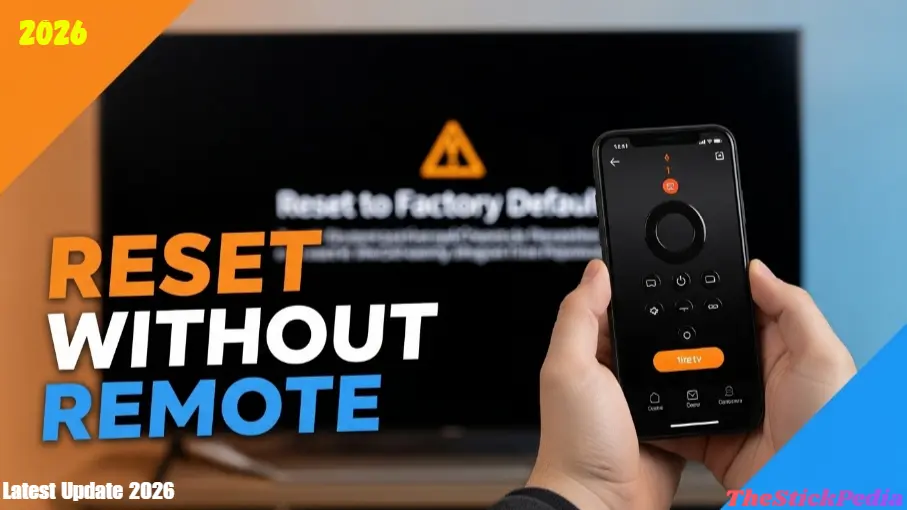
Are you looking for a way to Reset Firestick without remote or PIN? You are in the right place! In this 2026 guide, I will show you exactly how to factory reset your device even if you have lost your remote control. You decide to sell your old Firestick, or maybe it’s lagging so badly that a simple restart won’t fix it. You go to the settings to hit that “Reset” button, and suddenly—BAM! It asks for a 4-digit PIN that you haven’t used in three years.
Or worse, you’ve moved houses, lost your Firestick remote in a packing box, and now you have a “brick” plugged into your TV that you can’t even navigate.
It’s frustrating, right? Most websites will tell you to “just buy a new remote.” But I’m here to tell you that you don’t need to spend a single penny. Whether you’ve lost your remote, forgotten your parental control PIN, or your device is stuck on the logo screen, I’ve got you covered.
In this 2026 ultimate guide, I’m going to share the exact “human-tested” steps I used to reset my own Firestick 4K Max without a remote or a password. Let’s dive in!
Why Would You Need to Factory Reset?
Before we get into the “how,” let’s talk about the “why.” A factory reset is like a spiritual cleansing for your Firestick. It wipes everything—your apps, your logins, your cache, and those weird background processes that slow it down.
You should reset if:
-
Your Firestick is stuck in a “Boot Loop” (Logo screen).
-
You are selling or giving the device to someone else.
-
You have “critically low storage,” and clearing the cache didn’t help.
-
You’ve forgotten your Parental Control PIN.
-
The device is lagging and freezing every 5 minutes.
Warning: Remember that a factory reset will delete everything. You will have to log back into Netflix, Disney+, and Amazon after this.
M1: How to Reset Firestick Without Remote or PIN (Step-by-Step)
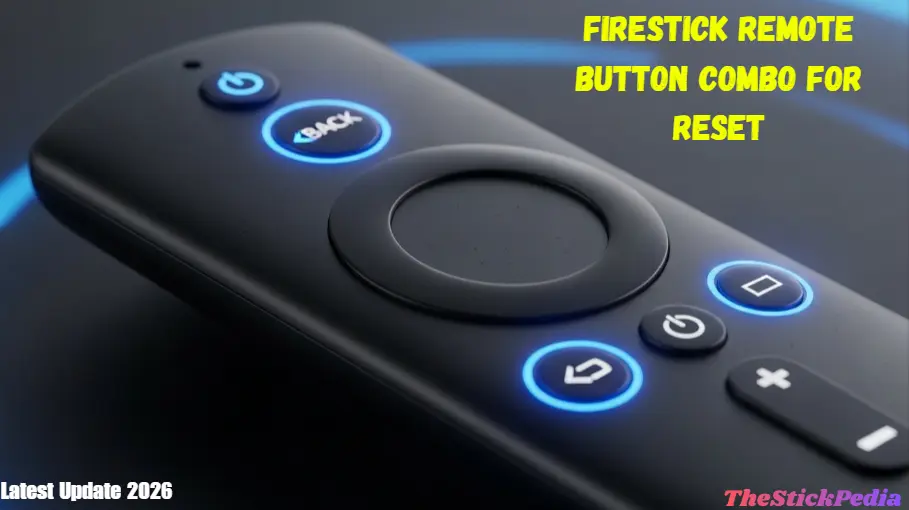
Many people don’t realize that you can reset Firestick without remote by using just the physical buttons on the device or a secret combo. If you have a remote but you’ve forgotten your PIN, this is the most powerful trick. Amazon has a “Hidden” emergency reset combo that bypasses the PIN screen entirely.
Step-by-Step:
-
Turn on your Firestick and stay on the Home screen.
-
Press and hold the Back button and the Right side of the Navigation Circle at the same time.
-
Keep holding them for exactly 10 to 15 seconds.
-
A pop-up will appear on the screen asking if you want to Factory Reset.
-
Click OK.
Note: If you don’t click anything, it will automatically reset after 20 seconds. This is perfect if your remote buttons are partially broken.
M2: Resetting Without a Remote (The Fire TV App Hack)
“But what if I don’t have the remote at all?” I hear you. This is the most common problem. If your Firestick is already connected to your home Wi-Fi, your smartphone is your best friend.
The Process:
-
Download the Amazon Fire TV App on your Android or iPhone.
-
Make sure your phone and Firestick are on the same Wi-Fi network.
-
Open the app and select your device.
-
Enter the 4-digit code that appears on your TV screen into your phone.
-
Now, use the “Touchpad” on your phone to navigate to:
-
Settings > My Fire TV > Reset to Factory Defaults.
-
-
Confirm the reset using the app.
What if the Wi-Fi is different? If you moved to a new house and the Firestick isn’t on the Wi-Fi, this app won’t find it. In that case, move to Method 3.
M3: Using a Keyboard or Mouse (The OTG Secret)
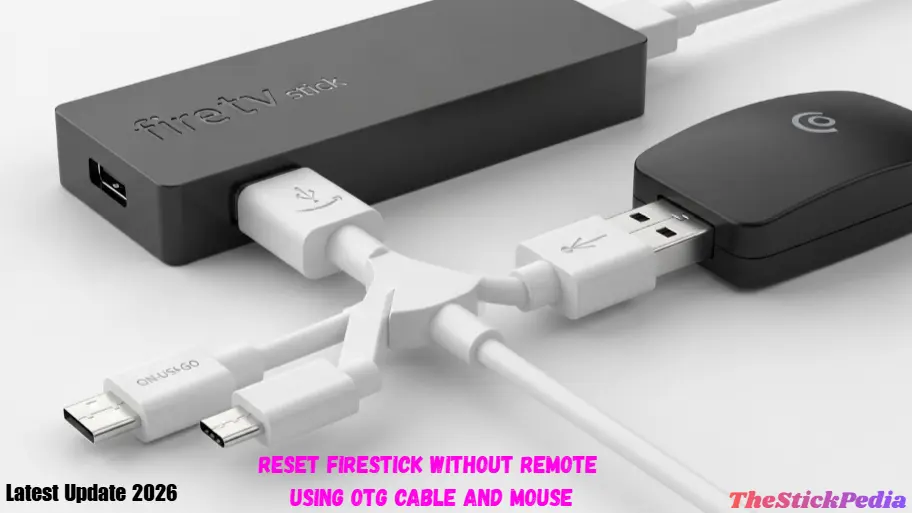
This is the “Expert” way. If your remote is gone and you can’t connect to Wi-Fi, you can use a standard computer mouse or keyboard.
What you need:
-
An OTG (On-The-Go) Cable (Costs about $5 on Amazon/eBay).
-
A USB Keyboard or Mouse.
The Steps:
-
Plug the OTG cable into the Firestick’s power port.
-
Plug your power cable into one end of the OTG and your Mouse/Keyboard into the USB port.
-
Once the Firestick boots up, it will recognize the mouse/keyboard instantly.
-
Use the mouse to click your way through Settings > My Fire TV > Reset.
Before you do a full reset, check out my guide on how to fix a Firestick Not Working. 15+ Easy Fixes (2026 Guide) to see if that solves your problem
M4: The HDMI-CEC Trick (Using your TV Remote)
Most people don’t realize that their regular TV remote (Samsung, LG, Sony, etc.) can often control the Firestick. This technology is called HDMI-CEC.
How to try it:
-
Use your TV’s original remote and go to TV Settings.
-
Look for CEC, Anynet+ (Samsung), or Simplink (LG) and turn it ON.
-
Now, try using the “Arrows” and “Enter” buttons on your TV remote to move the Firestick menu.
-
If it works, simply navigate to the Reset menu, and you are done!
M5: Resetting via the Amazon Website (Remote De-registration)
If you are selling the device and just want to wipe your personal info without having the device plugged in, you can do it from your computer.
-
Go to Amazon.com and log in.
-
Go to Account & Lists > Manage Your Content and Devices.
-
Click on the Devices tab.
-
Select your Fire TV Stick.
-
Click Deregister.
While this doesn’t technically “format” the storage, it signs you out and removes all your cloud data from the device, making it safe to give away. Troubleshooting: What if it’s stuck on “Resetting”?
Sometimes, a Firestick might get stuck on the “Resetting” screen for hours. This usually occurs due to low power.
-
The Fix: Make sure you are using the Original Power Brick plugged into a wall outlet, NOT the USB port on the back of your TV. The TV port doesn’t have enough “juice” to complete a factory reset.
For more guide help from the official site: Amazon’s official help page
Frequently Asked Questions (FAQ
Q: Will a factory reset delete my sideloaded apps?
▼
Q: Can I reset a Firestick if it’s blacklisted?
▼
Q: How long does a factory reset take?
▼
Q: Will I lose my Amazon Prime subscription?
▼
Final Thoughts
Resetting a Firestick without a remote or PIN might seem impossible at first, but as you’ve seen, there are plenty of backdoors. My personal favorite is the Fire TV App, but if you’re a tech nerd like me, keep an OTG cable in your drawer—it’s a lifesaver for all Firestick problems.
Did this work for you? If you’re still stuck or getting an error code, drop a comment below. I read every single one, and I’m happy to help you troubleshoot!
Legal Disclaimer:
The information provided on TheStickPedia.com is for educational and informational purposes only. Performing a factory reset will erase all data, apps, and settings on your device. We are not responsible for any data loss or damage to your device that may occur while following these steps. TheStickPedia.com is an independent website and is not affiliated with, authorized, maintained, sponsored, or endorsed by Amazon.com or any of its affiliates or subsidiaries. All product names, logos, and brands are the property of their respective owners. Use this guide at your own risk.